It’s full steam ahead here at Prokurio! We are grateful to our customers and appreciate their invaluable feedback, which helps make the platform better for everyone.
How many times have you been asked by a client: “Can you get us a budget for the next few quarters or next year? I need it for a meeting tomorrow?”
We know it happens all too often, and then the scramble begins… In this week’s Prokurio spotlight, we’ll demonstrate how we’ve addressed this dilemma and developed the most powerful IP cost planning tool available to help you answer these questions in minutes, rather than days or hours.
Let’s check it out!
Client Planner
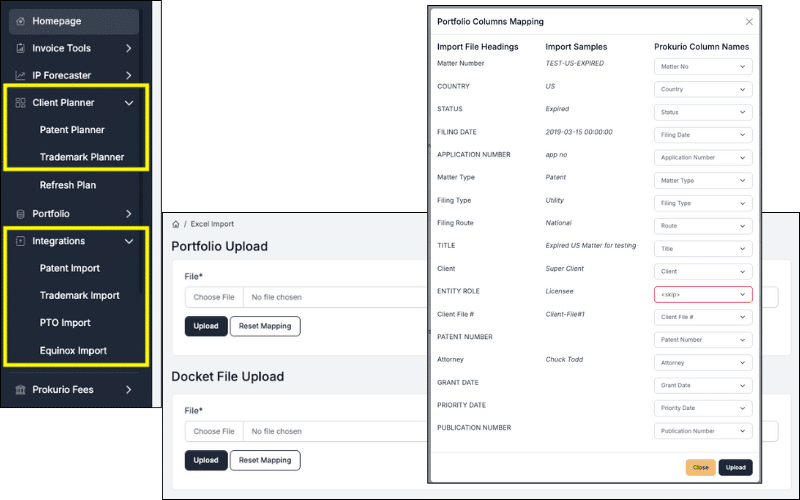
To get started in Client Planner, under integrations in your sidebar, you can import an Excel spreadsheet from your IPMS of your portfolio. If it’s your first time, you will get a simple mapping screen to ensure or revise what columns are mapped to what system fields.
Additionally, if you have a docket file export for your portfolio, you can also upload it to provide additional cost details later in your budget planner.
Our newly announced Questel Equinox integration allows clients of the Equinox IPMS to sync their patent and trademark portfolios directly with Prokurio.
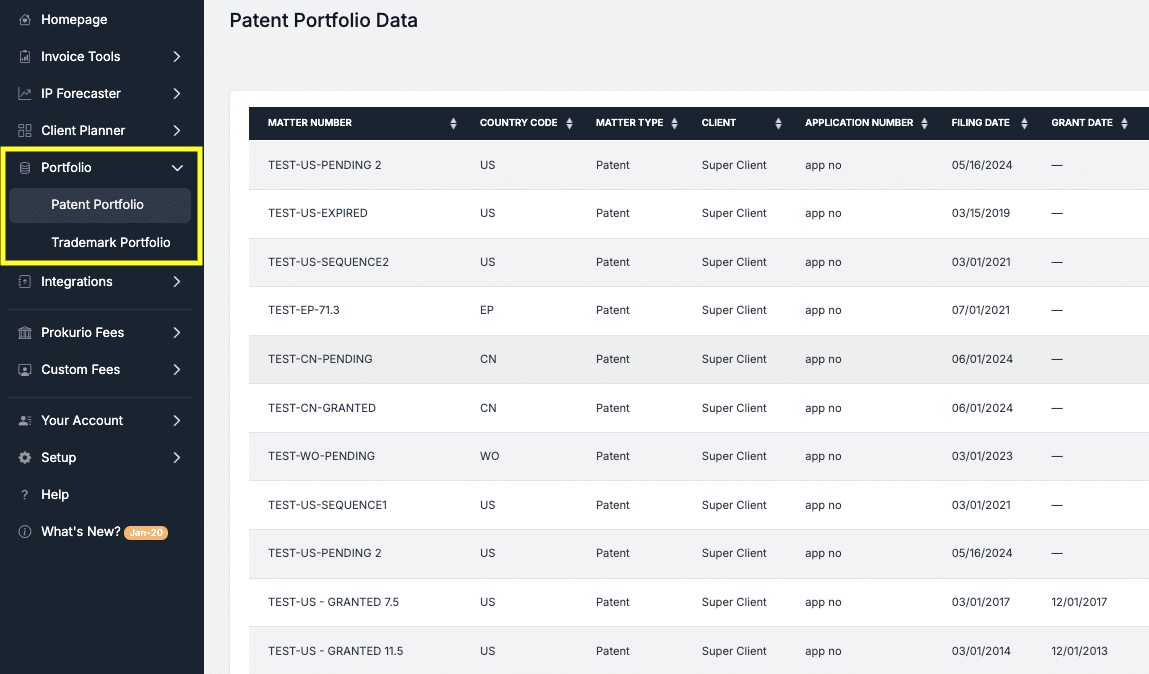
You can always view your portfolio and make minor adjustments to the records as needed by accessing the Portfolio section in your sidebar.
This allows you to open specific records within Prokurio, enter date information, update claims, apply tags, and more.
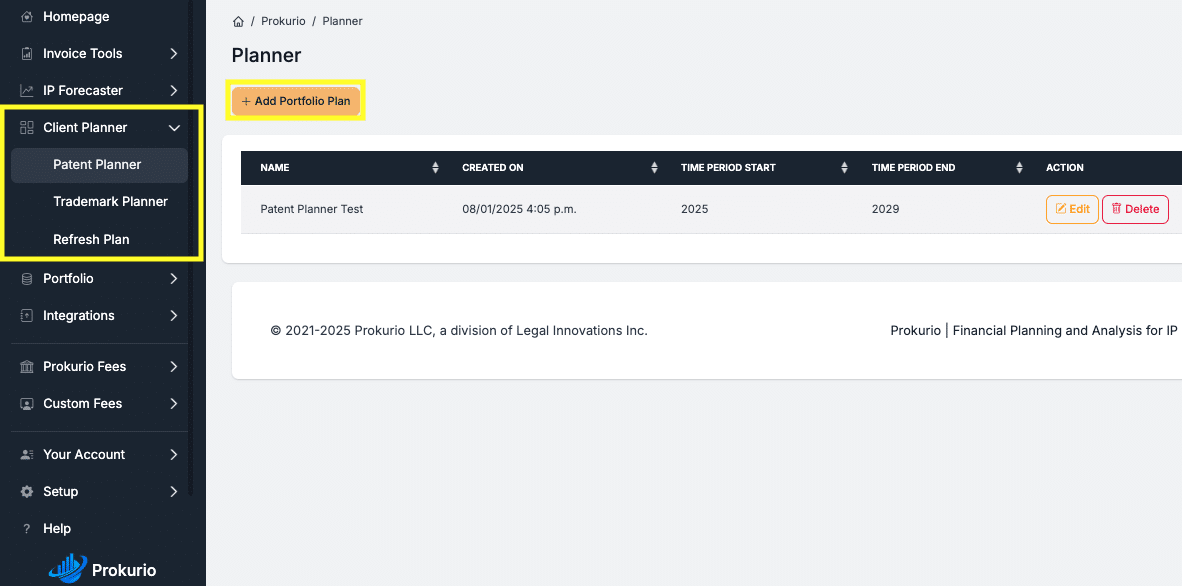
Congratulations! You now have everything you need to begin budget planning for your client’s upcoming and future portfolio costs. Expanding the Client Planner section in your sidebar, simply click on the IP Type you want to create a budget plan for.
Here you can see, edit, and delete any previous plans you have created and saved, or by clicking on the Add Portfolio Plan button, you can create a new plan.
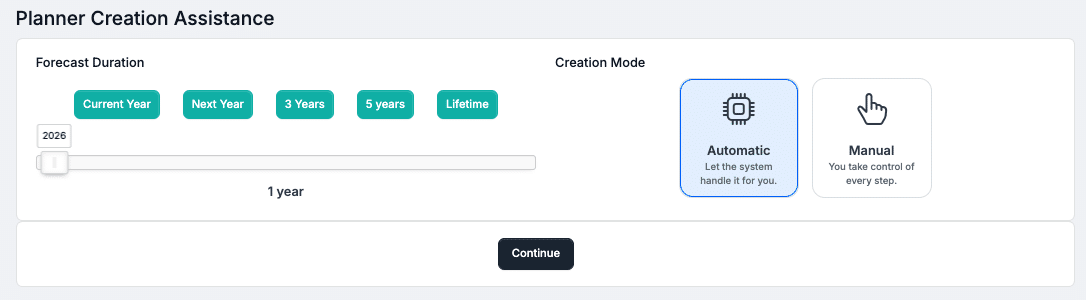
Select your initial duration (no worries, you can change it later as well), then select Automatic to let the system use your defaults and pre-selected setups to generate your initial plan or optionally select Manual for full control.
Hint: Since virtually all items can be adjusted once your initial plan has been created, most users select Automatic.
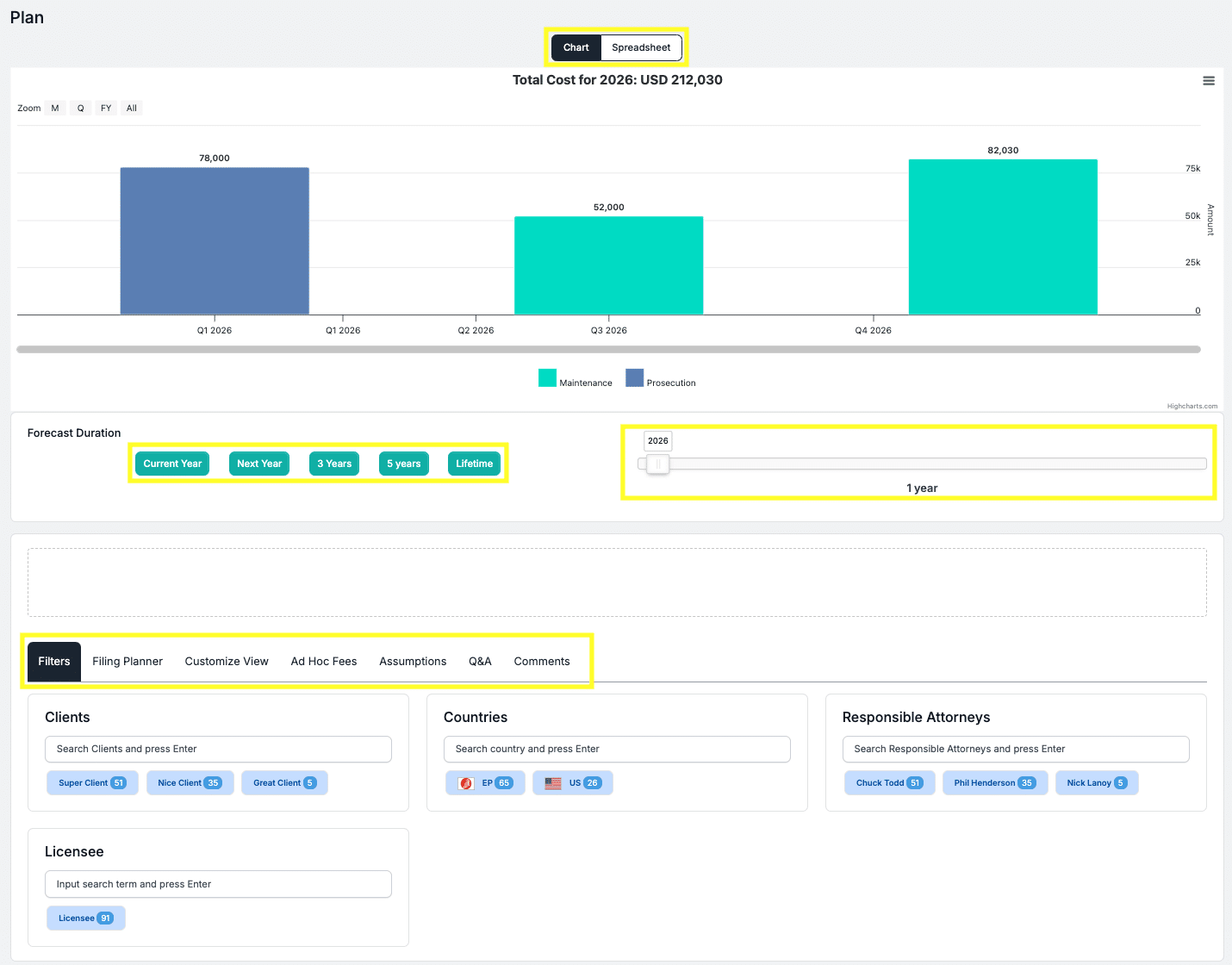
Your plan has now been generated. You can view the chart in multiple zoom views (i.e. Monthly, Quarterly, FY) or select the spreadsheet view to see the detailed costs per matter. Of course, you can also save and export your plan to Excel as well.
From here, you can drag and drop clients, specific countries, business units, Attorneys, etc., on and off the plan to see real-time costs for each. Furthermore, on the Filing Planner tab, you can add all the various filing assumptions into the plan, like new filings, foreign filings, Nat Phase, Regional Phase, and even make pruning decisions!
If you liked what you have seen in this spotlight and would like a more detailed demo of what Client Planner can do, reach out to us at support@prokurio.com
Like this kind of stuff?
We release product updates every weekend!
Check out all our 2025 updates here: 2025 Updates
Want to learn more about our IP cost planning tools?
Learn more here: Prokurio Cost Estimation Tools
Want to learn more about our IP budget planning tools?
Learn more here: IP budgeting tools