
Customize Client Planner further by using the Filters, Filing Planner, Customize View Ad Hoc Fees, Assumptions, and Comments tabs to refine settings, manage fees, and add notes to your data.
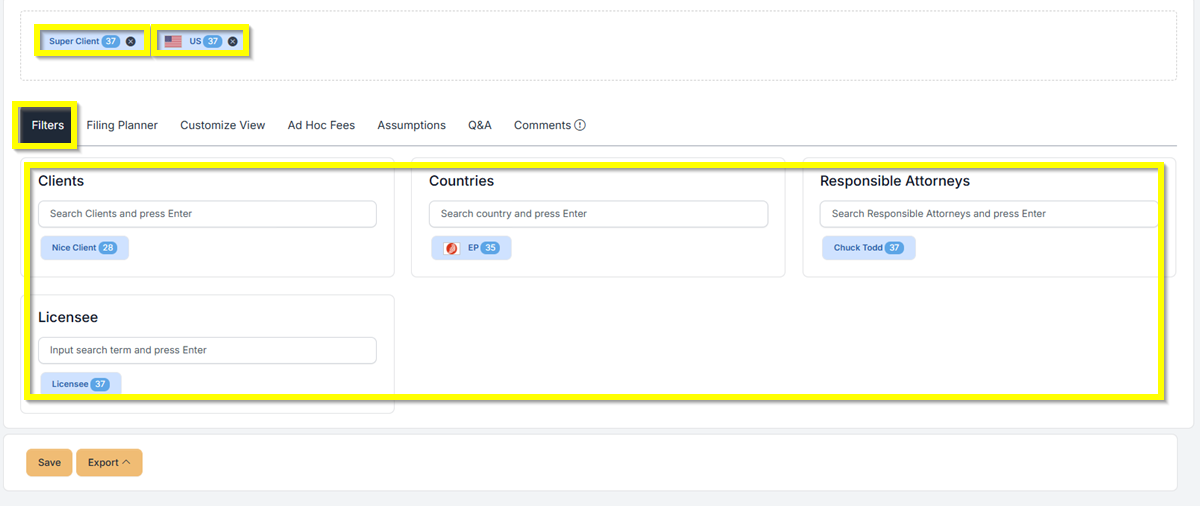
Filters Tab (Patent) #
- Search for the Clients, Countries, Responsible Attorneys, and Licensees you want. Then, drag and drop them into the filter area to decide what appears in the chart or spreadsheet.
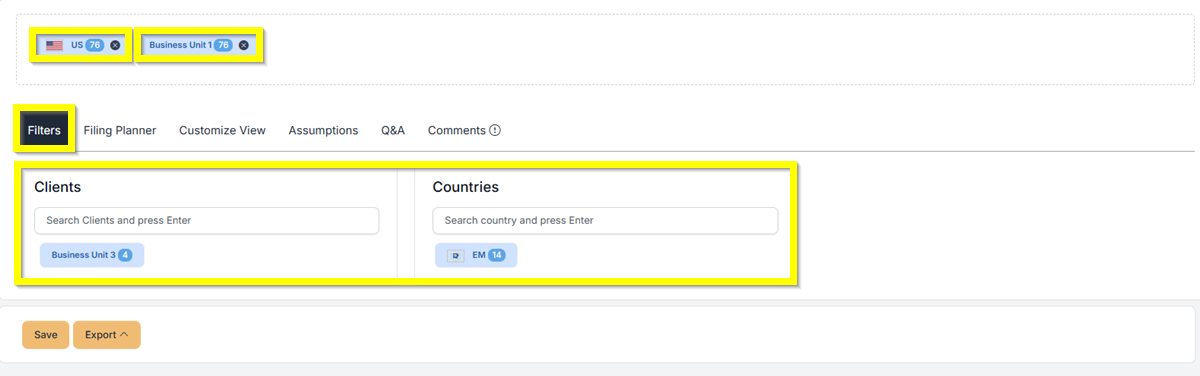
Filters Tab (Trademark) #
- Search for the Clients and Countries you want. Then, drag and drop them into the filter area to decide what appears in the chart or spreadsheet.
 #
#
#
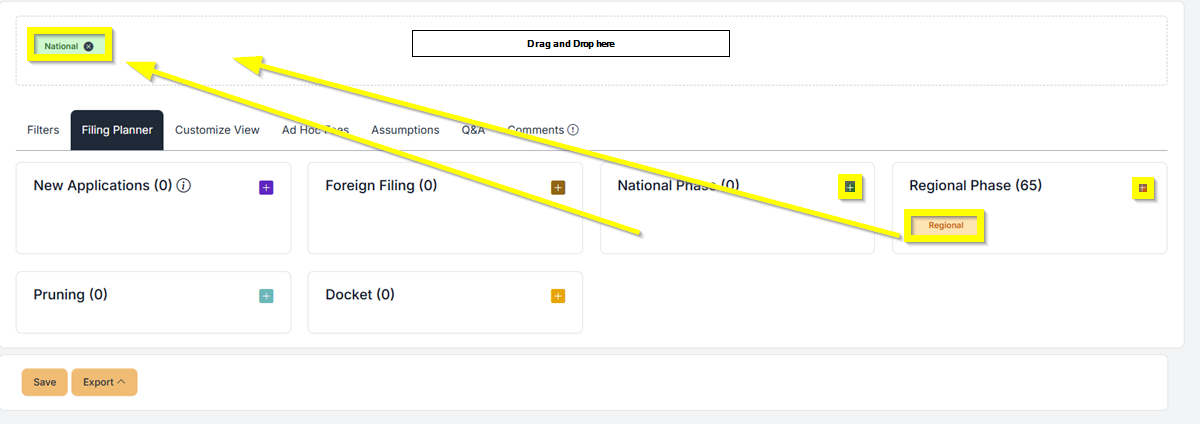
Filing Planner (Patent) #
- You can add New Applications, Foreign Filing, National Phase, Regional Phase, Pruning, and Docket.
- Just click on the (+) icon to add it, and then you can drag and drop it to be added to the chart or spreadsheet
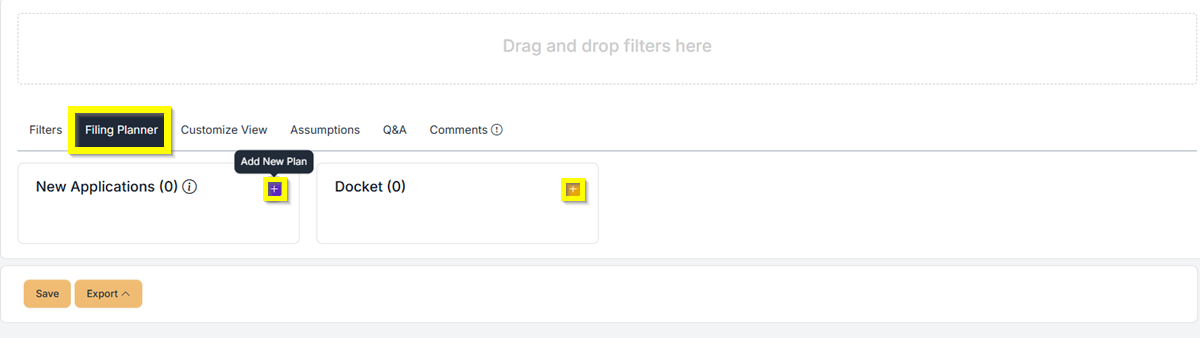
Filing Planner (Trademark) #
- You can add New Applications and Docket.
- Just click on the (+) icon to add it, and then you can drag and drop it to be added to the chart or spreadsheet
Customize View Chart – (Patent and Trademark) #
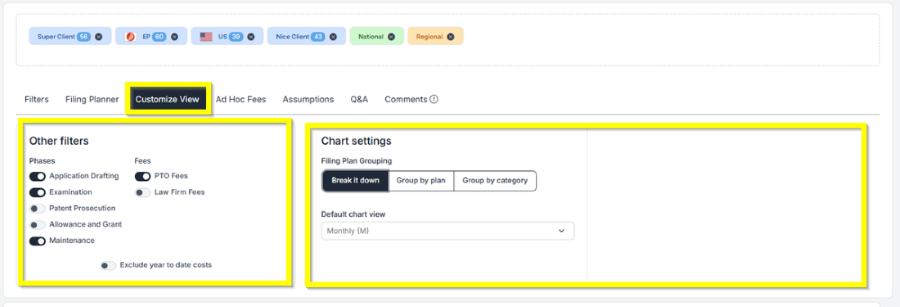
- Other Filters allow you to add or remove Phases and Fees on your Chart. Just switch the toggle buttons for the phases or fees that you want to add or remove.
- Under Chart Settings (only for patents), you can select the “Filing Plan Grouping”. You can choose from “Break it down”, “Group by plan”, or “Group by Category”.
- Also in the Chart Settings, you can select the ” Default Chart View”. You can choose from Monthly, Quarterly, Fiscal Year, or All (Daily).
Customize View Spreadsheet – (Patent and Trademark) #
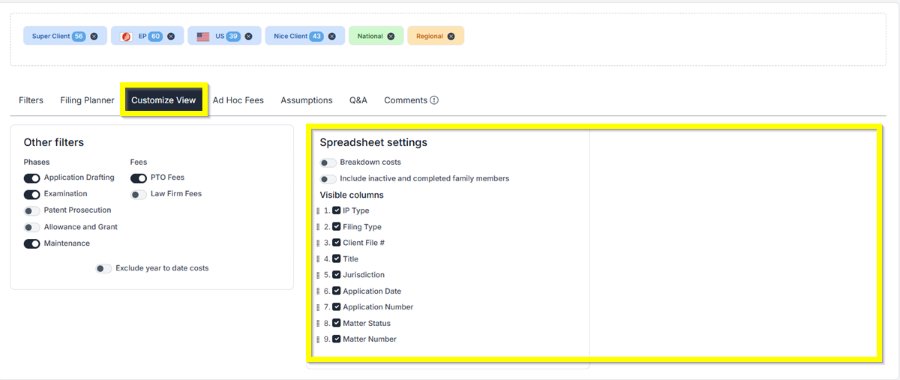
- Other Filters allow you to add or remove Phases and Fees on your Spreadsheet. Just switch the toggle buttons for the phases or fees that you want to add or remove.
- Under Spreadsheet Settings, you can select whether to Breakdown Cost and Include inactive and completed family members by clicking the toggle button.
- Also in Spreadsheet Settings, you can select the Visible Columns that you want to include.
Ad HOC Fees #
- Only applies to Patents
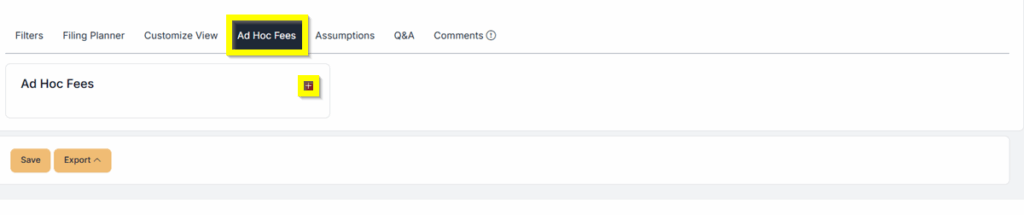
- You can add one-time fees you want to apply under Adhoc Fees.
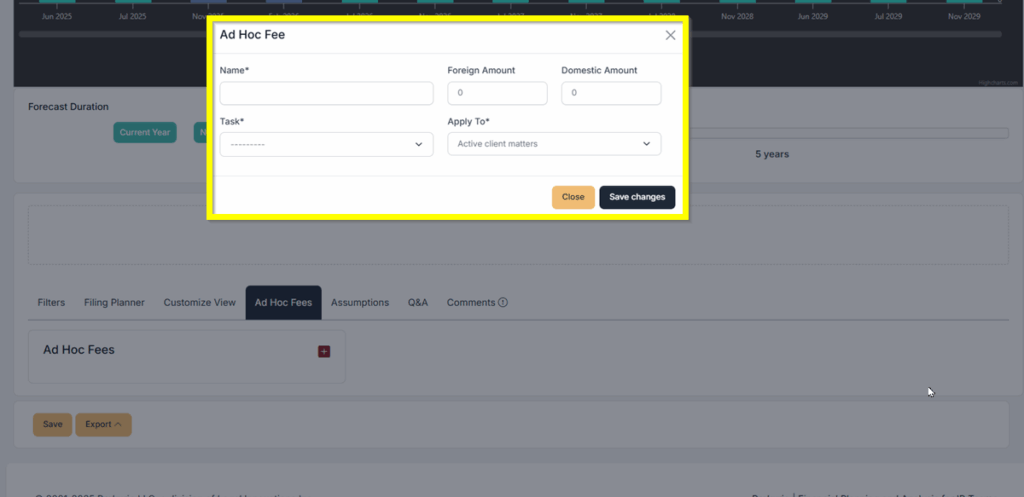
- Just fill out the following and click Save Changes to add the Ad Hoc Fees.
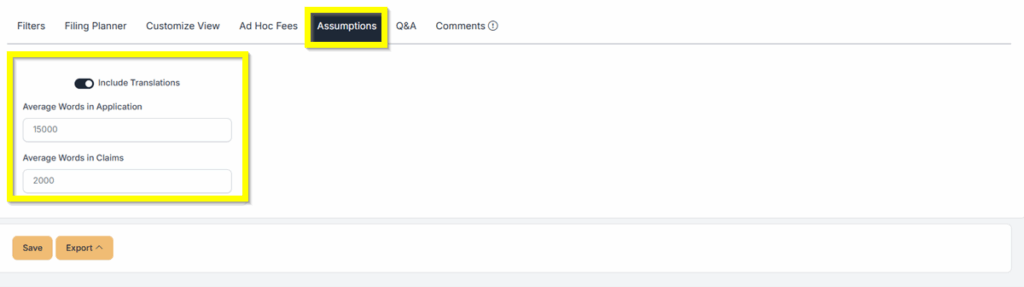
Assumptions (Patents and Trademarks) #
- You have the option to include the translation cost
- You can also modify the
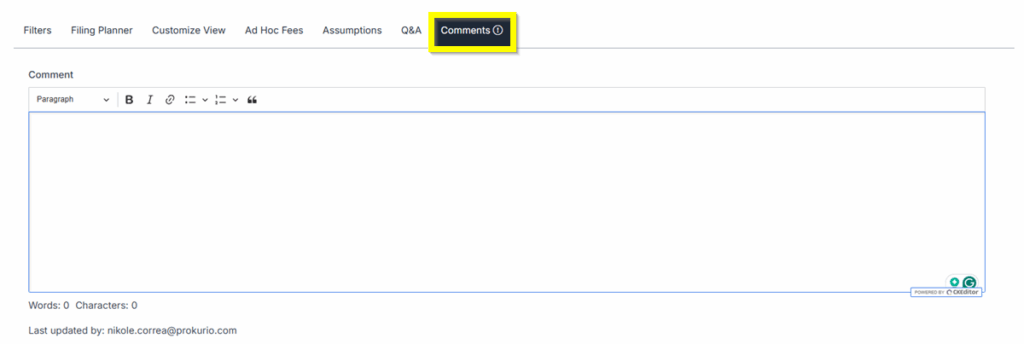
Comments (Patents and Trademarks) #
- This is where comments are added. You can add comments, or other team members can add comments on this field.
- This is also where you can see all comments from team members.
If you need any additional assistance, please contact us at support@prokurio.com, and we’ll get you the answers you need!

