
See the Real Impact of Your Pruning Policies
You’ve tried different pruning policies and you know the big picture savings number. But how does that break down across your business units and IP managers? That’s what the Pruning Target screen is for. Let’s check it out!
What Is Pruning Target?
When you run a pruning policy, you get a high level number. For example, this policy will save you $500,000. That’s useful, but it doesn’t tell you where those savings are coming from. The Pruning Target screen gives you that detail. It shows you the impact of your policies broken down by each IP manager and the business units they’re responsible for, so you can see exactly who is contributing what.
How It Works?
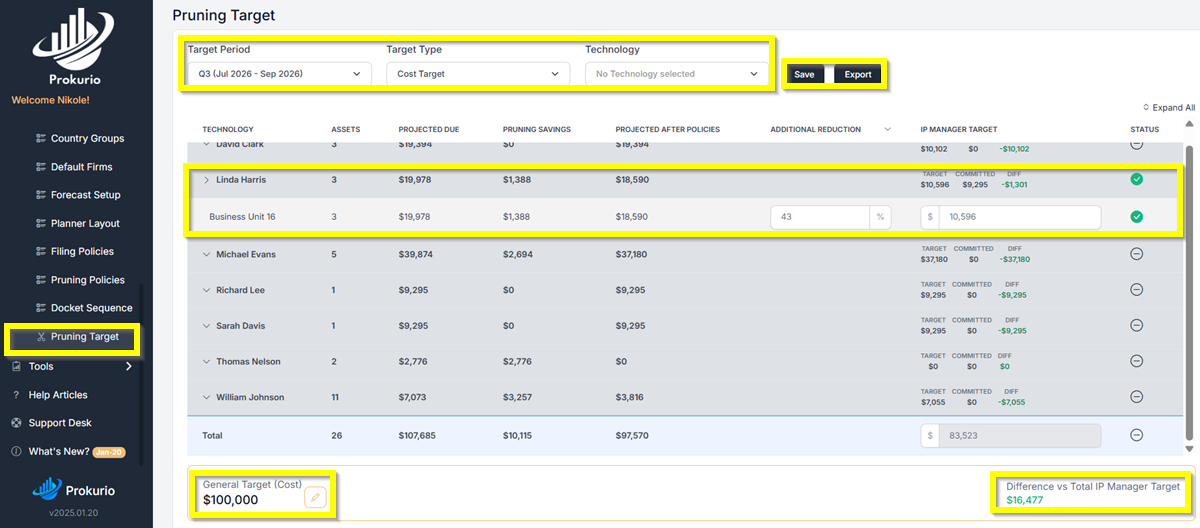
Go to Setup > Pruning Target and select your Target Period, Target Type, and Technology at the top. The screen then shows each IP manager along with their number of assets, projected dues, pruning savings, and projected cost after policies are applied.
Click the arrow next to any manager’s name to expand and see which business units they’re responsible for. For example, Linda Harris manages Business Unit 16 with 3 assets, $19,978 in projected dues, $1,388 in pruning savings, and $18,590 projected after policies.
Setting a General Target
At the bottom of the screen, you can set a General Target (Cost). For example, if your accounting team says your maintenance budget needs to come in at $100,000, enter that amount. The screen will then show a Difference vs Total IP Manager Target so you can see how far off you are at a glance.
Additional Reductions
If your policies don’t get you all the way to your target, you can use the Additional Reduction column to ask specific business units to reduce further. For example, you might tell Business Unit 16 to cut an additional 43%. The IP Manager Target on the right updates automatically, so you can see the adjusted numbers in real time.
Tracking Progress
On the right side of each row, you’ll see the IP Manager Target, how much has been Committed, and the Difference between the two. As your managers go into the Pruning Portfolio and make their renew or abandon decisions, the committed number climbs. The Status column shows a green checkmark once a manager has met their target.
Have feedback or enhancement ideas? Email us at support@prokurio.com
Like this kind of stuff?
We release product updates every weekend!
Check out all our 2026 updates here: 2026 Updates
Want to learn more about our IP cost planning tools?
Learn more here: Prokurio Cost Estimation Tools
Want to learn more about our IP budget planning tools?
Learn more here: IP budgeting tools