
Introducing the Pruning Planner
Your accounting team set the budget. Now you need to figure out which pruning policy gets you there without cutting too much. The Pruning Planner lets you test different scenarios before committing. Let’s check it out!
What Is the Pruning Planner?
The Pruning Planner is the starting point of your pruning workflow. It’s where you visualize your projected maintenance costs over time and test different pruning policies to find the one that meets your budget target.
Instead of relying on assumptions, you can model outcomes and make decisions based on real data.
How it works?
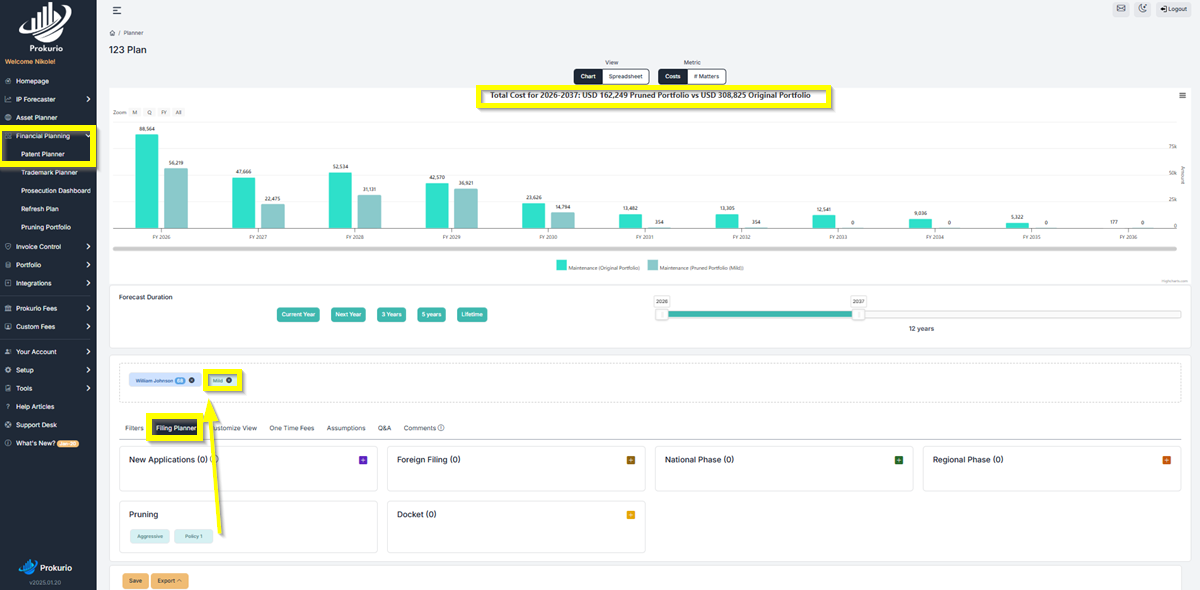
To get started, go to Financial Planning > Patent Planner and scroll down to the Pruning Planner section.
At the top, you’ll see a chart showing your projected maintenance spend over your selected time period. For example, your portfolio might show $308,000 in projected costs over the next several years.
If your accounting team sets a target of $250,000, you know you need to identify roughly $60,000 in savings.
From there, you can begin testing.
Drag a pruning policy onto the chart, and the system recalculates instantly. A mild policy might bring your total down to $162,000, which is more than required. That signals you may be cutting too aggressively. On the other hand, a more aggressive policy might reduce costs too drastically, prompting you to adjust.
You can test as many policies as needed until you get the right balance.
Finding the Right Balance
The goal is to land on a policy that hits your target without eliminating more assets than necessary. If your budget target is $250,000 and your mild plan drops you to $160,000, you’re cutting $90,000 more than needed. That means you could be abandoning patents unnecessarily. The Planner lets you fine tune until the numbers align and make sense.
You can switch between different time views using the Zoom options, such as quarterly or fiscal year, to see how your savings play out across different periods.
What Happens Next
Once you’ve found the right policy, go to Setup > Pruning Policies, open that policy, and set it as the Default. Then head to Pruning Targets to see how the savings break down by IP manager and business unit. From there, your team goes to the Pruning Portfolio to make their individual renew or abandon decisions.
The Pruning Planner is step one. It’s where you answer the question: what’s the best plan to hit our target? Everything else flows from there.
Have feedback or enhancement ideas? Email us at support@prokurio.com
Like this kind of stuff?
We release product updates every weekend!
Check out all our 2026 updates here: 2026 Updates
Want to learn more about our IP cost planning tools?
Learn more here: Prokurio Cost Estimation Tools
Want to learn more about our IP budget planning tools?
Learn more here: IP budgeting tools