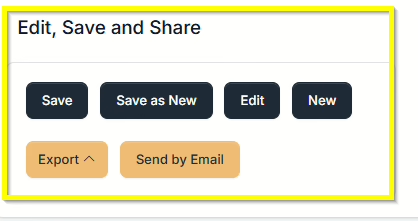
IP Forecaster makes it easy to create a recordal forecast. These forecasts can be saved, emailed, and/or exported for later use or distribution to team members or clients to review.
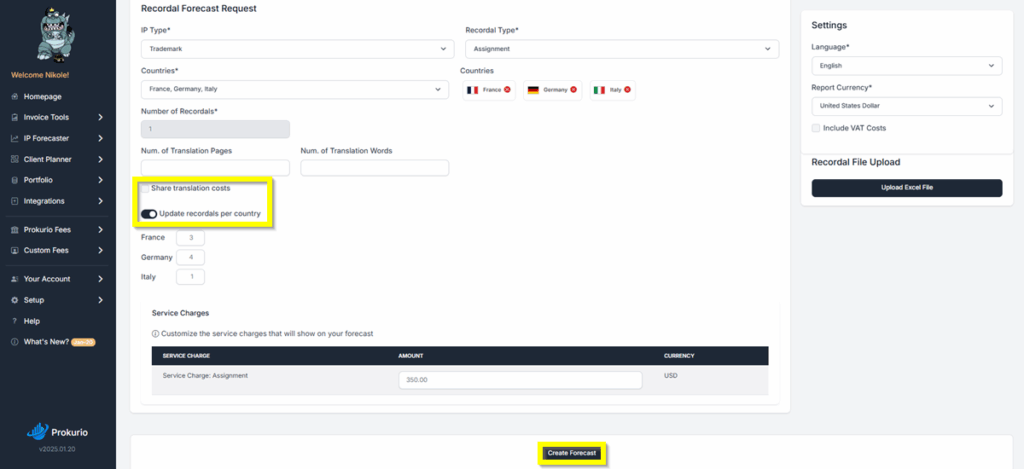
Let’s create a Recordal Forecast in France, Italy, and Germany.
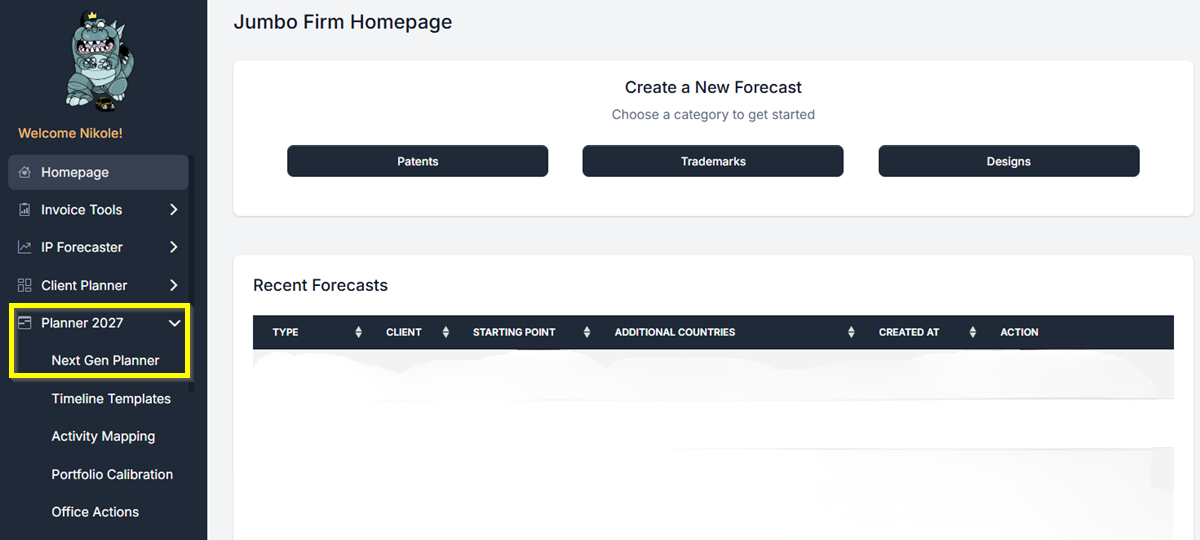
- From your Homepage, find Planner 2027 in the left-hand navigation and click it. Then click Next Gen Planner.
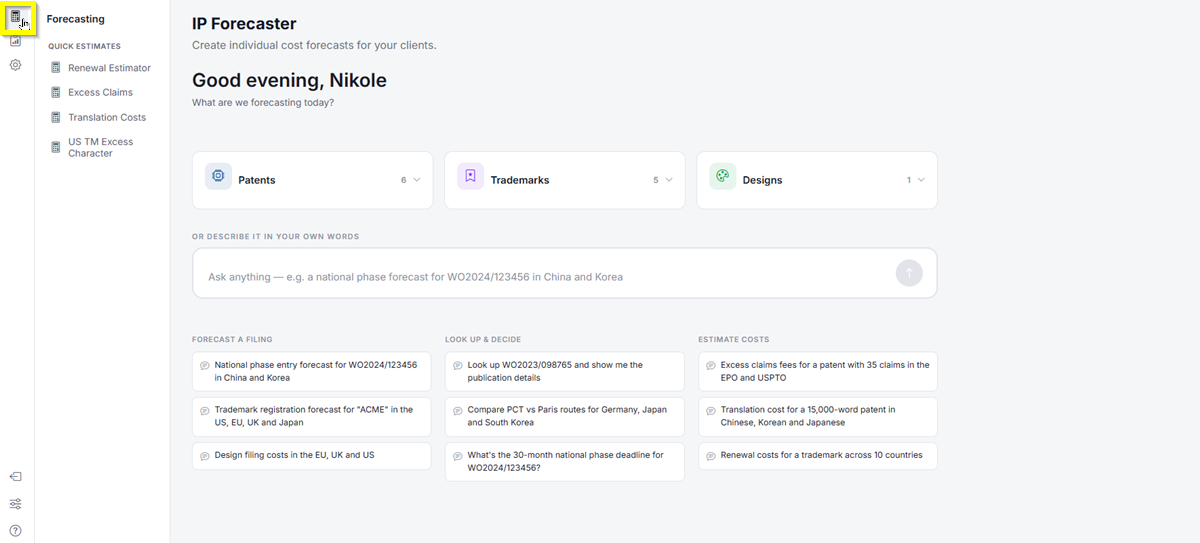
- The Next Gen Planner loads and takes you to the IP Forecaster page. In the top-left icon rail, click the Forecasting icon.
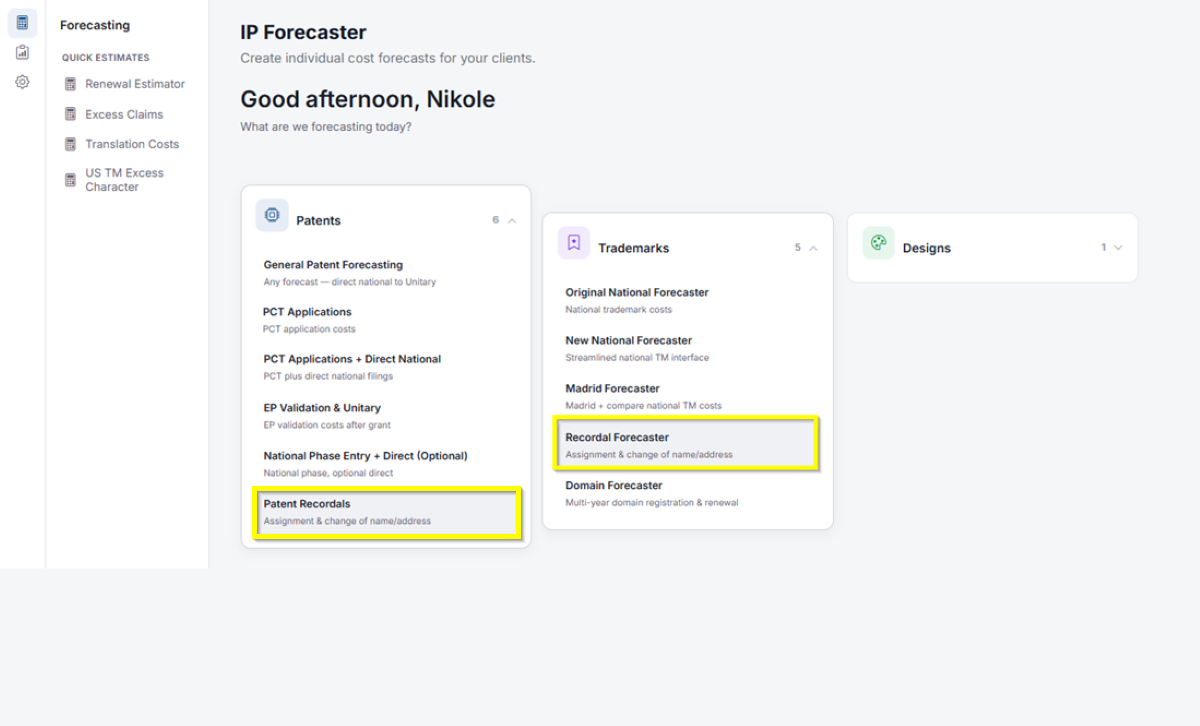
- Click Patents or Trademarks to see the recordal option for that IP type. Select Patent Recordals or Trademark Recordal Forecaster. This will take you directly to the Recordal Forecast Request screen.
- Select France from the Countries drop-down. You can use type-ahead to narrow the list, and then use the arrow keys to select your choice and press the Enter key. Repeat this process for other countries that you need to add.
- Recordal Type – Select your recordal type from the dropdown list. (For this example, we will select Assignment.)
- We will set the number of recordals as follows: 3 for France, 4 for Germany, and 1 for Italy. We can use this option if we toggle on the “Update recordals per country” setting.
- We also have the option to have the “Translation Cost” shared. Simply check the ‘Share translation costs’ box to enable it.
- Click Create Forecast to proceed.
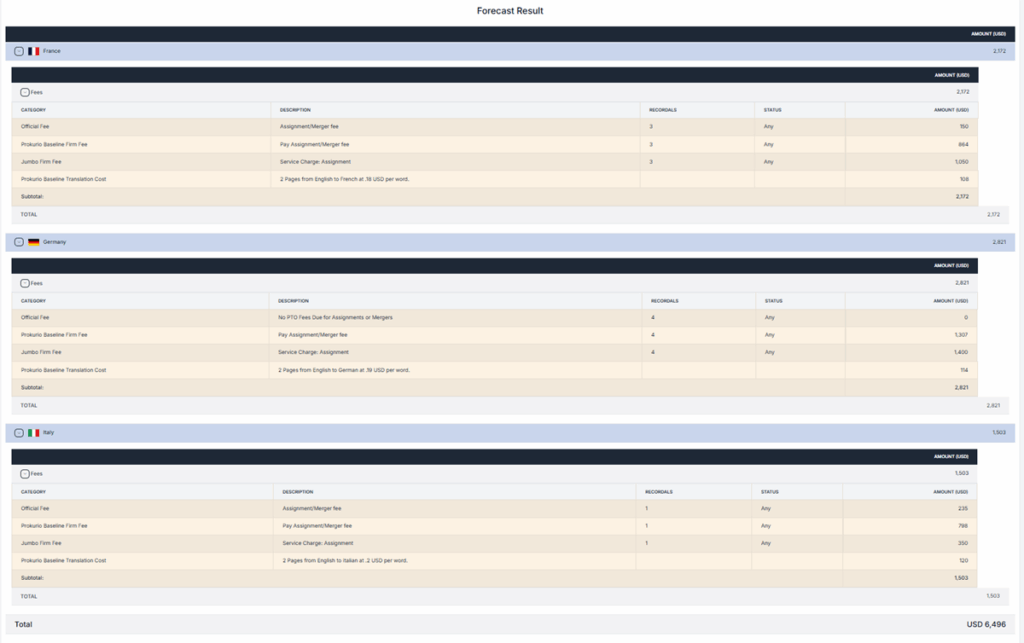
Forecast Results: You are now at your forecast results screen. You may click on the expansion arrows on each phase to view more details.
Saving and Sharing (bottom left) allows you to Save, Edit, Export, Create New, or Send by Email your forecast results. Export options include PDF, Word and Excel.