

Prokurio's National Forecast with Priority helps you estimate filing costs across multiple countries while claiming priority from an earlier filing. You can mix national phase entries from a PCT and direct (Paris Convention) filings in the same forecast.
Let's create a National Forecast with Priority for China, Japan, the United Kingdom, and the United States.
From your Homepage, at the top under Create a New Forecast, click the button labeled Patents. Then, under National Filings, select National Forecast without Priority. This will take you directly to the National Forecast without Priority screen.
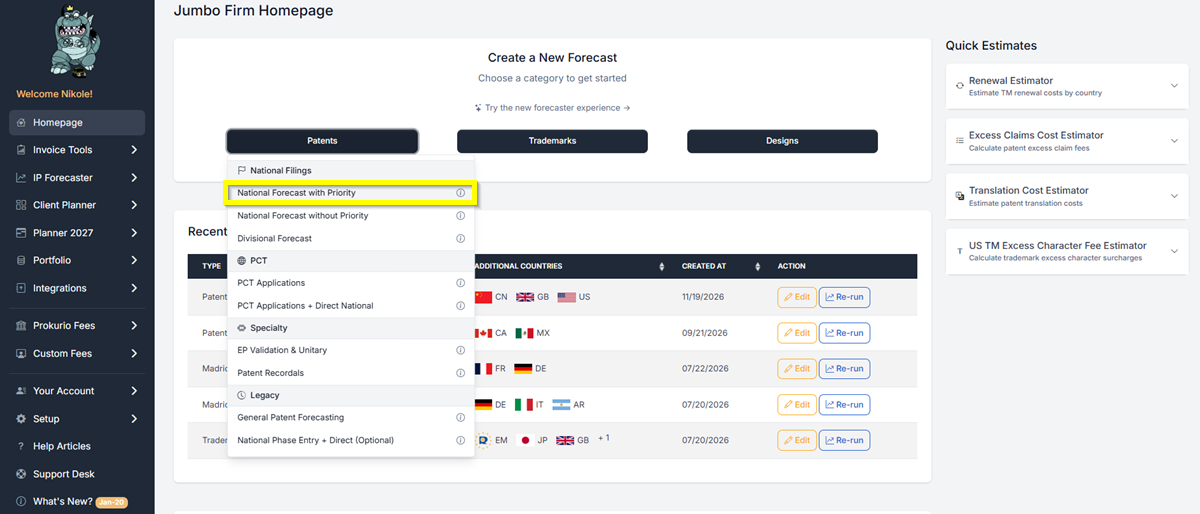
- Enter the Reference number, Applicant, and Title of the invention for your forecast. (If Applicable)
- Use the search icon in the Applicant field to look up an applicant.
- Enter the Publication number (for example, EP4123456A1) and click Retrieve.
- Enter or review the Total claims, Independent claims, and Application pages (for official fees).
- Application language: Select the language of the application from the dropdown.
- Turn on Has sequence listings if the application includes sequence listings.
- Use the [Your Firm] drafted or filed the original application toggle to indicate whether your firm prepared or filed the original application.
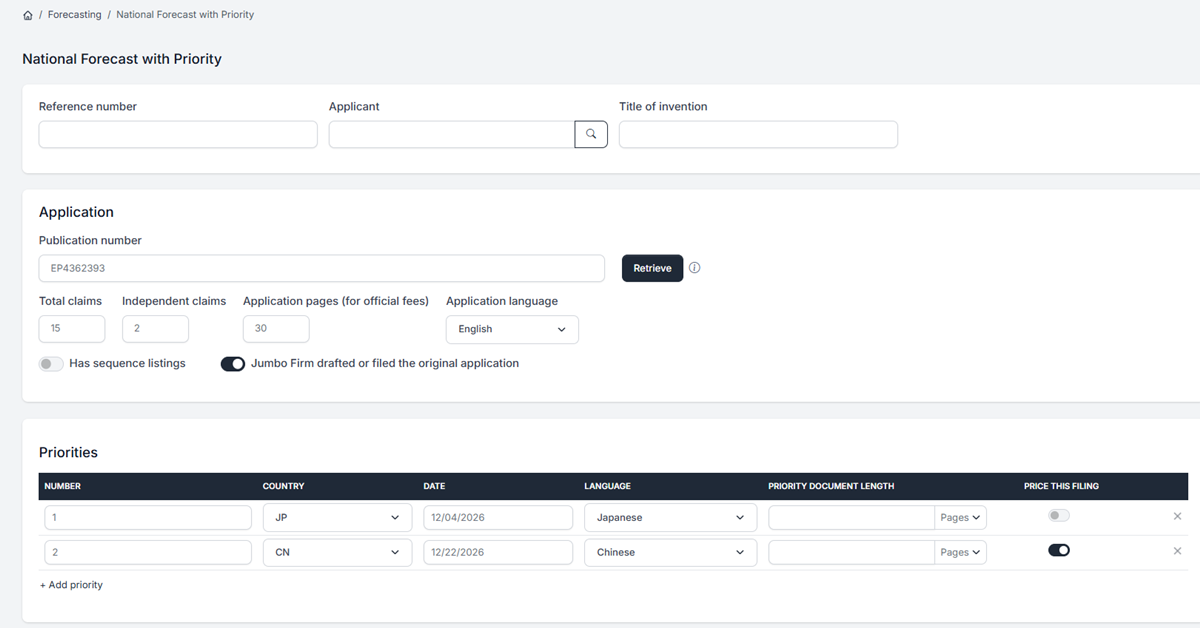
- Priorities: Enter each priority filing's Number, Country, Date, and Language, along with the Priority document length. From the drop-down, select from pages or words.
- Price this filing: Use the toggle on each row to choose whether that priority filing is priced in the forecast.
Click + Add priority to add more rows, or click the X at the end of a row to remove it.
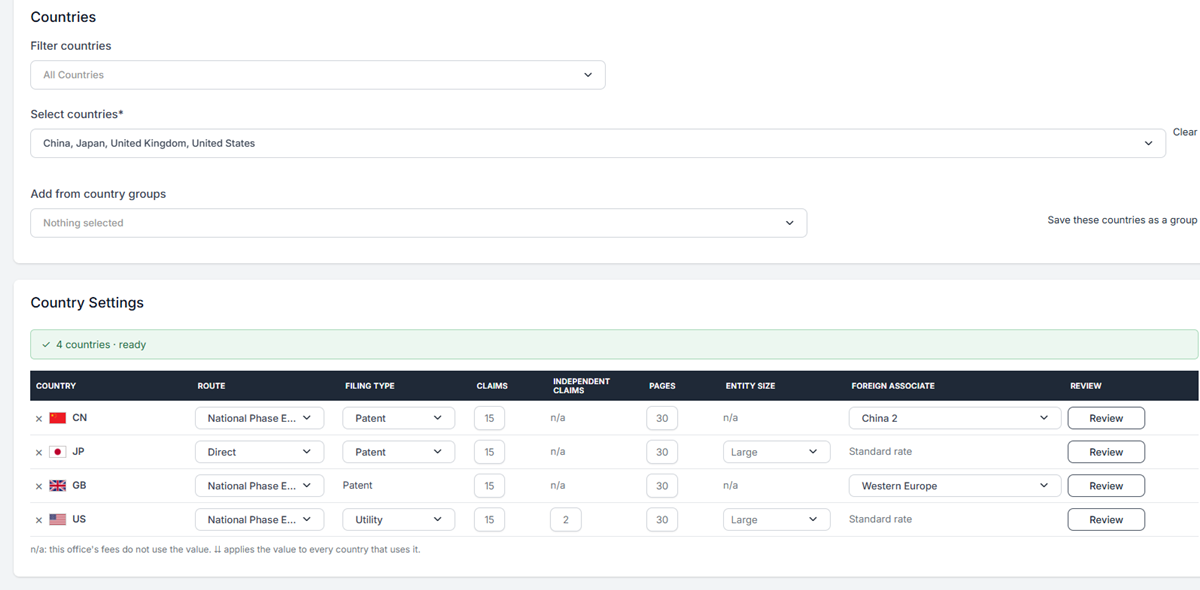
- Filter countries: If you already have a filtered list of countries, select it here and choose your countries from that list. Select countries: Search for and enter countries manually. Add from country groups: If you have an existing country group, select it to add its countries.
- Click Save these countries as a group to reuse your current selection later.
Once your countries are selected, each one appears in its own row. A status line at the top (for example, 4 countries · ready) shows how many countries are set up.
- Route: Choose Direct or National Phase Entry for each country.
- Filing Type: Choose the filing type, such as Patent or Utility.
- Review the Claims, Independent Claims, and Pages, and set the Entity Size where it applies.
- Foreign Associate: Choose the associate to price that country with. Some countries show Standard rate instead.
Click Reviewed next to a country to open its Review window. The top of the window summarizes that country's Translation, Entity size, Sequence listings, and Associate.
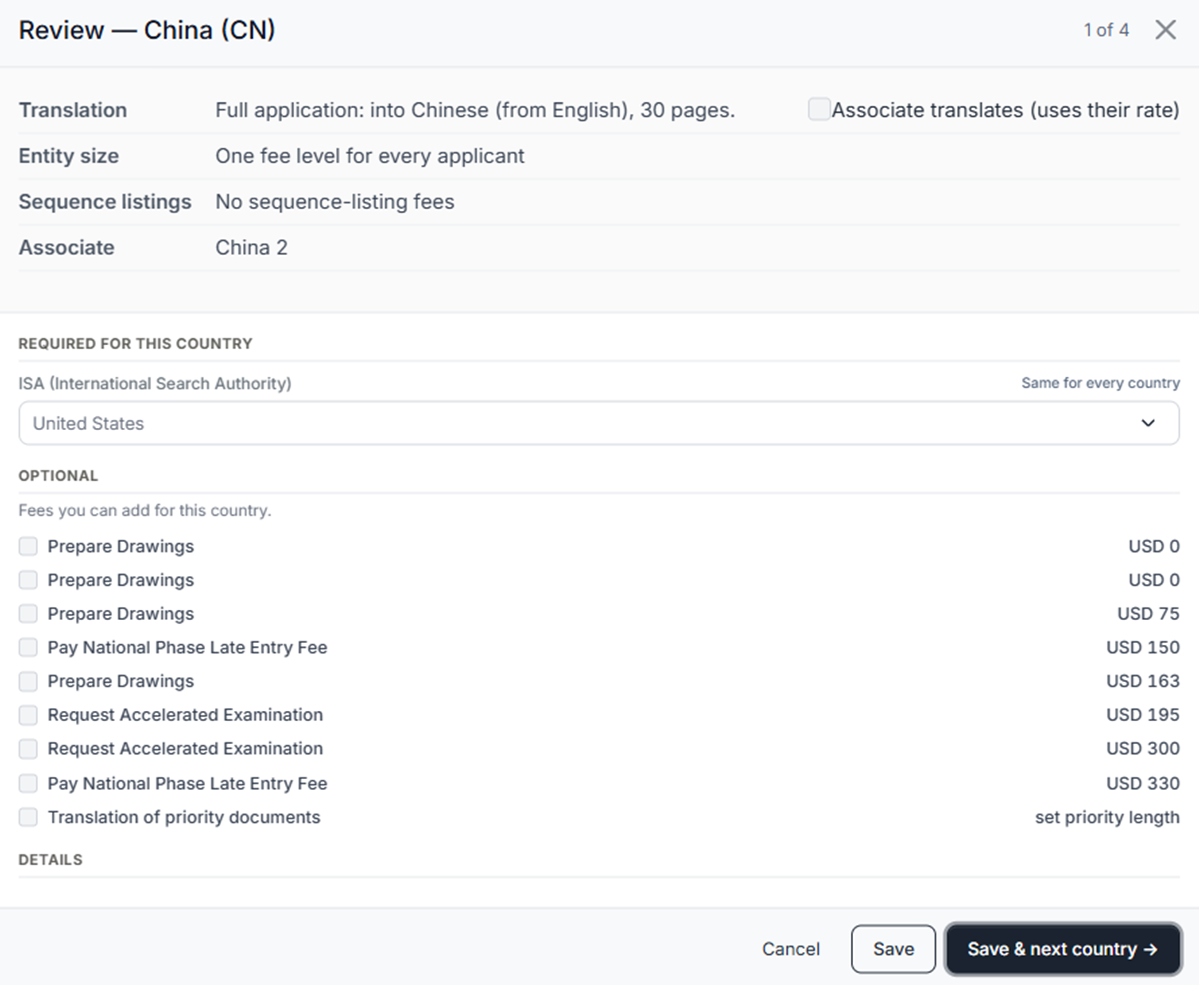
- Check Associate translates (uses their rate) to use the associate's rate for translation.
- Required for this country: Complete any required fields, such as the ISA (International Search Authority). Fields marked Same for every country use the same value across your forecast.
- Optional: Check any optional fees you want to add for that country, such as Prepare Drawings, Request Accelerated Examination, or Pay National Phase Late Entry Fee. The amount for each fee is shown on the right.
- Click Save, or click Save & next country to move on to the next country's review. The counter at the top (for example, 1 of 4) shows which country you're on.
- Translation and Fees: Use the Translation tab to set the Translation length, the Service Charges tab for service charges, and the Ad Hoc Fees tab to add any ad hoc fees.
- Phases and Output: Under Forecast through, choose Filing, Examination, Prosecution, Grant, Lifetime, or Maintenance only.
- Click Customize phases to select the phases you want to be included.
- Display: Turn on Show estimated timeline to include an estimated timeline.
- Currency: Select the currency for your forecast.
- Fee types included: Use the toggles to choose which fees appear: [Your Firm] fees, Associate fees, Official fees, Translations, and Include VAT.
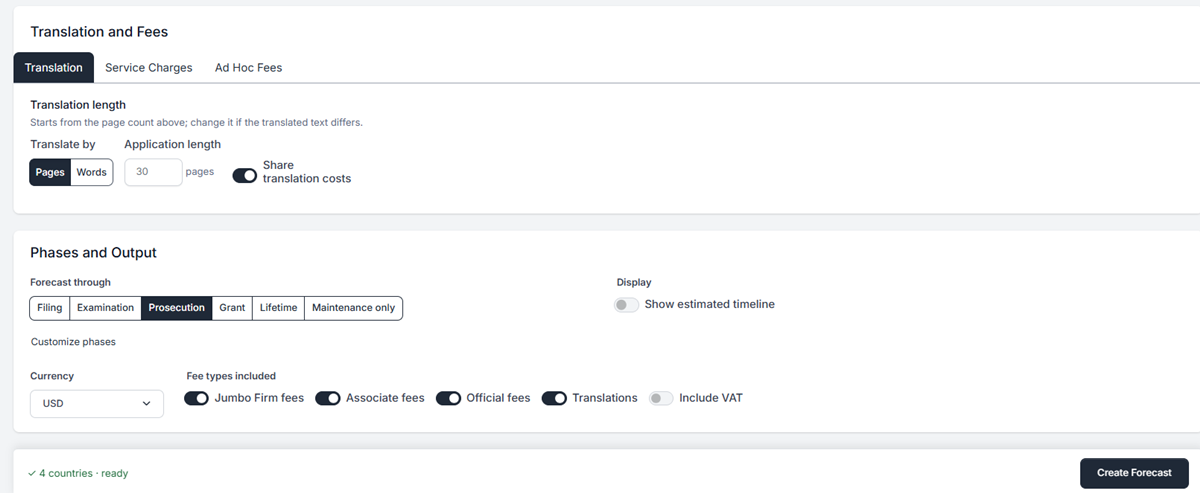
- Click the Create Forecast button at the bottom of the screen.
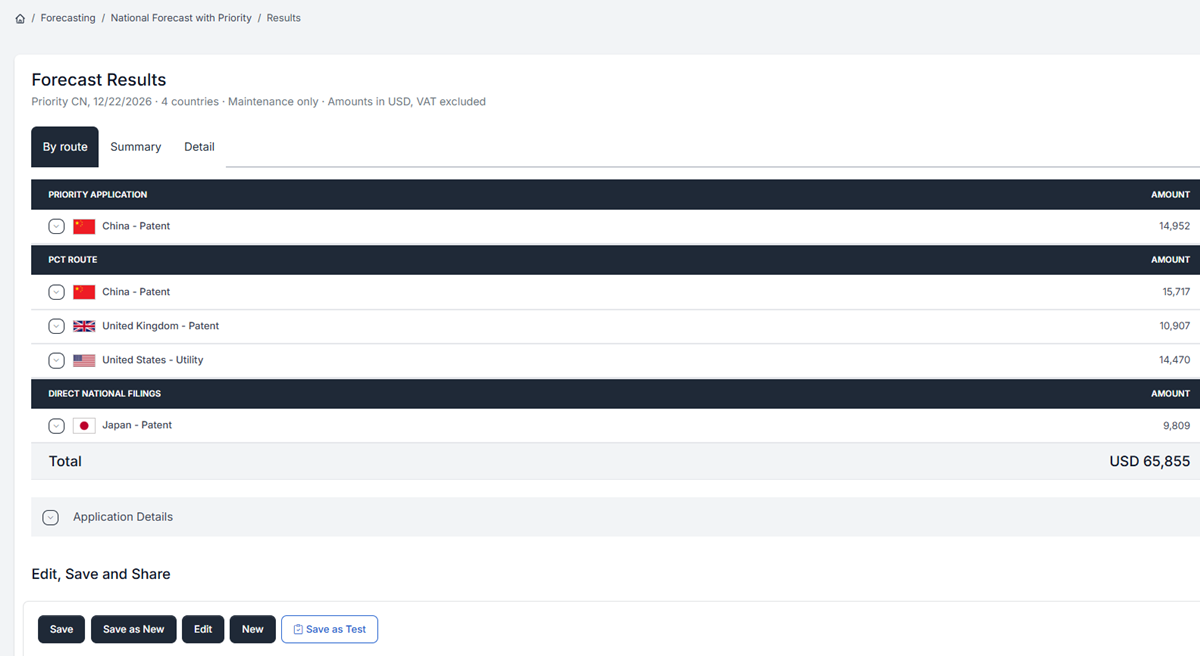
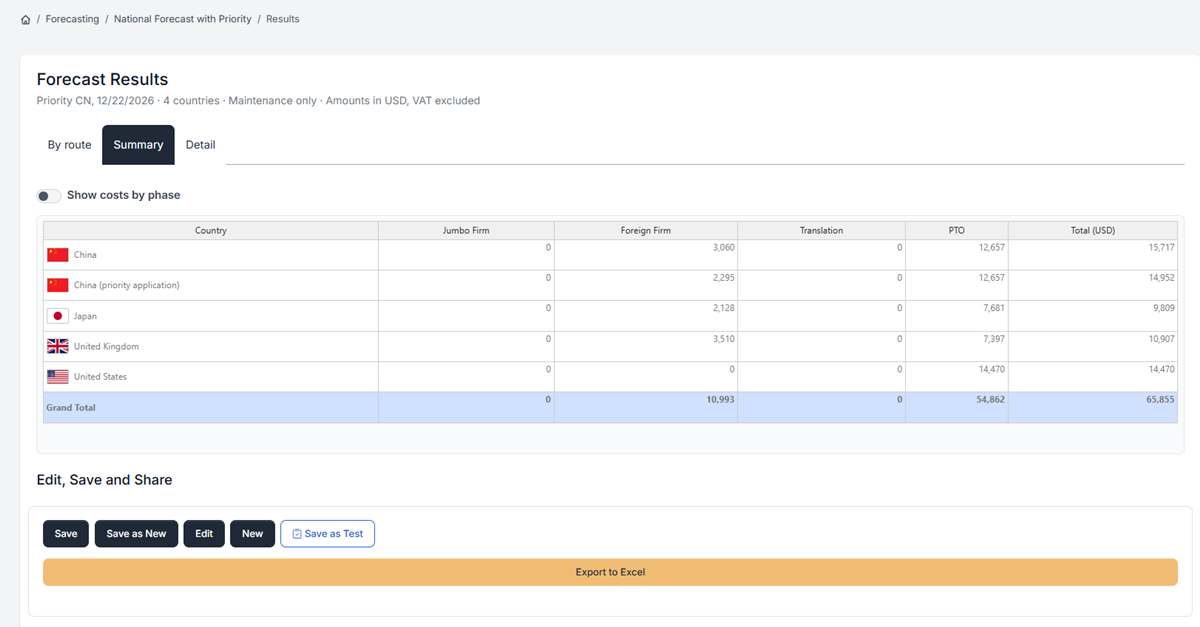
Forecast Results - there will be 2 forecast results: Results by Route and Results by Summary.
Results by Route
Results by Summary
If you need any additional assistance, please contact us at support@prokurio.com, and we'll get you the answers you need!