

The Foreign Firms Dashboard is your central hub for managing your foreign associate network. It gives you a real-time view of your firms, coverage, fee schedules, and how your associates are distributed across practice areas and countries.
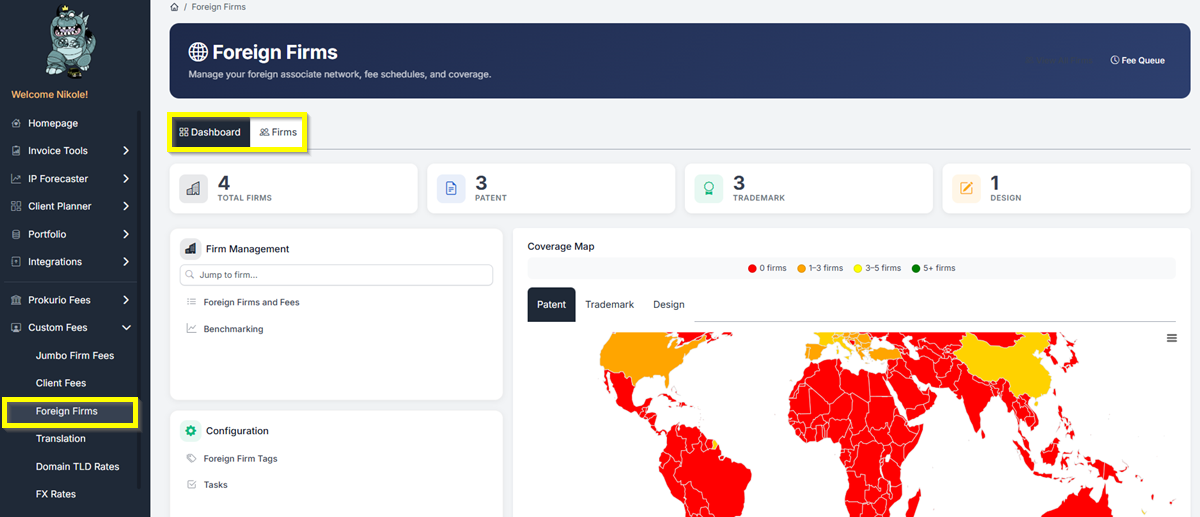
To access the dashboard, from your Homepage, under Custom Fees, click Foreign Firms
The dashboard has two tabs at the top:
- Dashboard — an overview of your entire foreign associate network, including the coverage map, fee schedule status, and firm distribution charts.
- Firms — a full list of your foreign associate firms where you can view, add, and manage individual firm records.
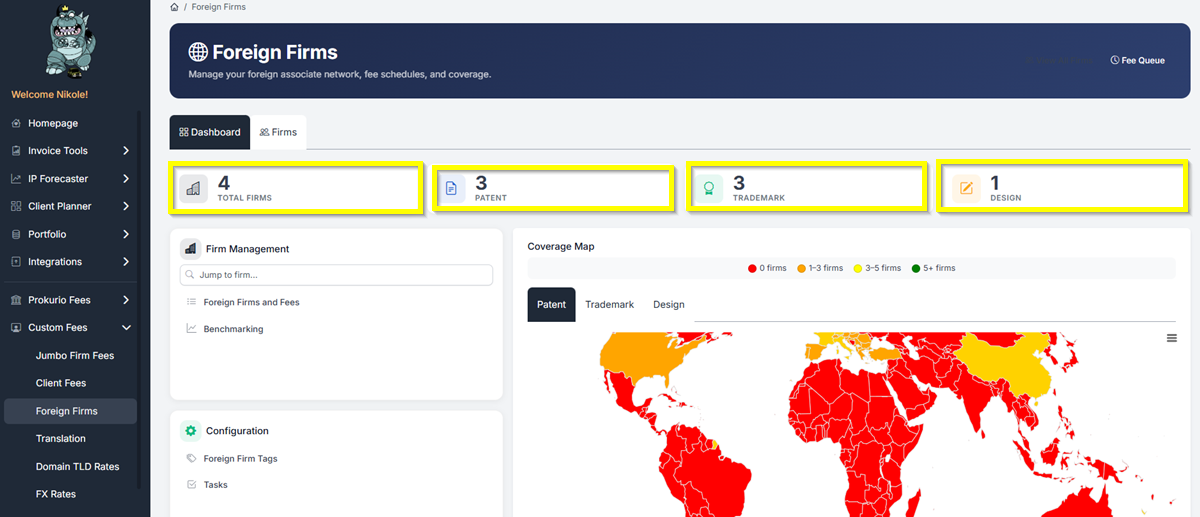
At the top of the dashboard, four cards give you an at-a-glance count of your foreign associate firms broken down by type:
- Total Firms — the total number of foreign associate firms in your network.
- Patent — firms covering patent work.
- Trademark — firms covering trademark work.
- Design — firms covering design work.
These numbers update automatically as you add or remove firms from your network.
The sections below cover everything on both tabs.
The Dashboard Tab
Firm Management
The Firm Management panel on the left side of the dashboard is where you access and organize your firms. It contains two sections:
- Foreign Firms and Fees — view and manage your foreign associate firms and their associated fee information.
- Benchmarking — compare fees across your foreign associate network.
Configuration
The Configuration section lets you manage the supporting data that keeps your firm network organized. It contains two items:
- Foreign Firm Tags – Tags you create and assign to firms for easy filtering and categorization across your network.
- Tasks – A listing of your custom tasks in the system that fees can be applied to for forecasts. Tasks define the types of work your foreign associates perform, and associating fees with them ensures your cost forecasts stay accurate
Coverage Map
The Coverage Map gives you a visual overview of which countries your foreign associate network covers. Countries are color-coded by the number of firms available:
- Red — 0 firms, no coverage in that country.
- Orange — 1–3 firms covering that country.
- Yellow — 3–5 firms.
- Green — 5 or more firms.
Use the Patent, Trademark, and Design tabs above the map to filter coverage by practice area.
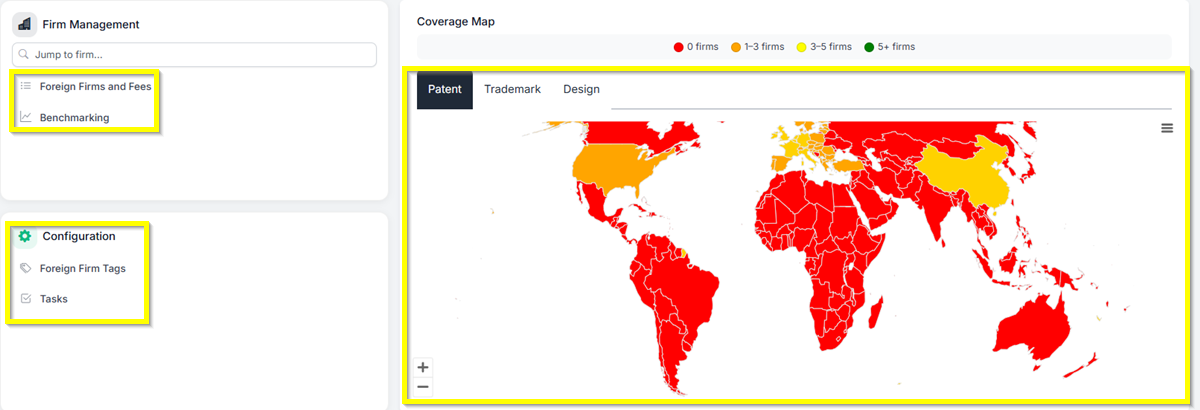
Click the menu icon on the top right of the chart to view it in full screen, print it, download it as a PNG, JPEG, or SVG image, download the data as CSV, XLS, or PDF, or view the data table directly.
Fee Schedules
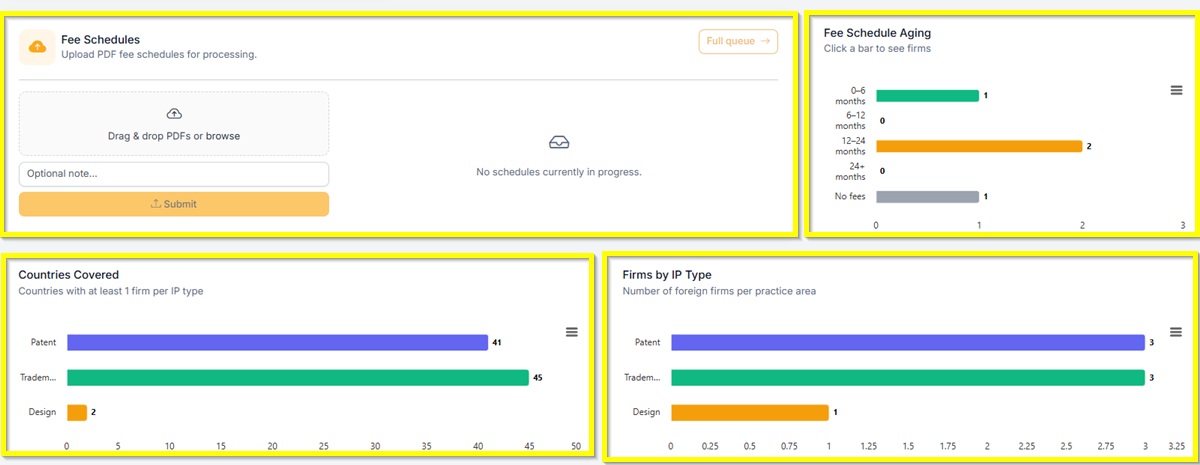
The Fee Schedules section is where you upload PDF fee schedules from your foreign associates. Drag and drop a PDF onto the upload area or click Browse to select a file. Add an optional note to identify the schedule, then submit it for processing.
Once submitted, the system processes the file automatically and loads the fees into your forecasts and invoice reviews. Click Full Queue to monitor the status of any uploads in progress.
Fee Schedule Aging
The Fee Schedule Aging chart shows how up-to-date your fee schedules are across all firms, grouped into five categories:
- 0–6 months — current.
- 6–12 months — worth reviewing.
- 12–24 months — getting outdated.
- 24+ months — consider requesting an updated schedule from the firm.
- No fees — no fee schedule on file for this firm.
Click any bar in the chart to see how many firms fall into that age range.
Countries Covered
The Countries Covered chart shows the number of countries your network covers for each practice area — Patent, Trademark, and Design. This gives you a quick sense of how broad your geographic reach is across different IP types.
Firms by IP Type
The Firms by IP Type chart shows how many foreign associate firms you have per practice area. Use this to quickly identify whether your network is weighted toward patent, trademark, or design work — and whether any area needs more coverage.
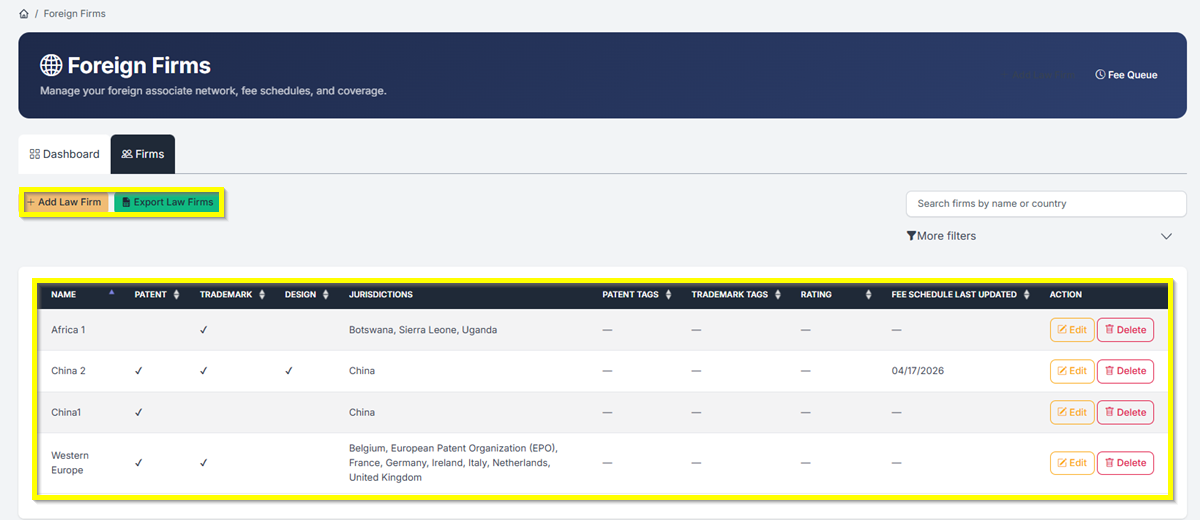
The Firms Tab
The Firms tab gives you a full list of all your foreign associate firms. From here, you can add, search, filter, edit, and export firms.
If you need any additional assistance, please contact us at support@prokurio.com, and we’ll get you the answers you need!