

Upload your IPMS portfolio file (Excel or CSV) and Prokurio will map the columns and import your matters. No docket file is needed.
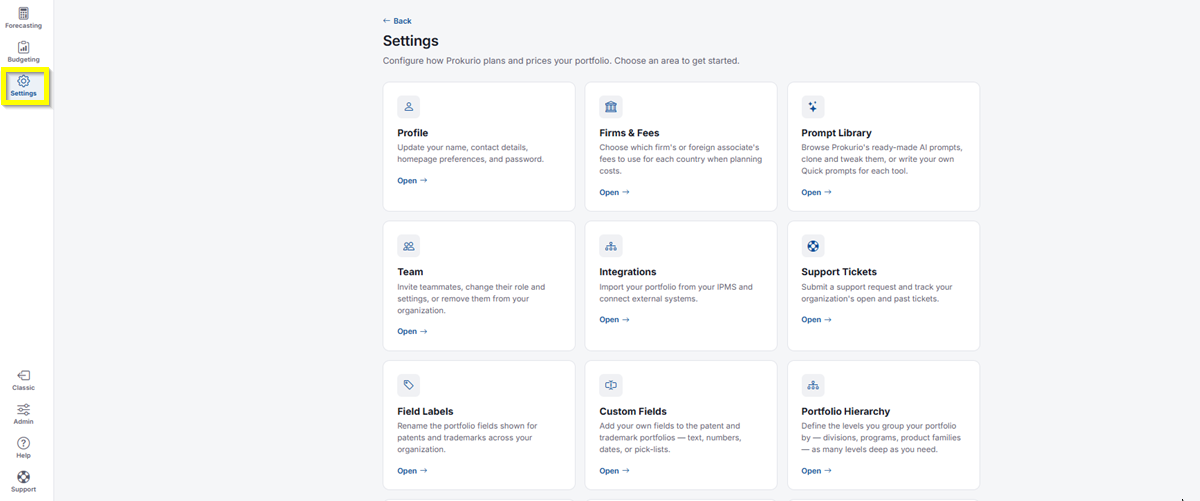
- In the top-left icon rail, click the gear icon to open Settings.
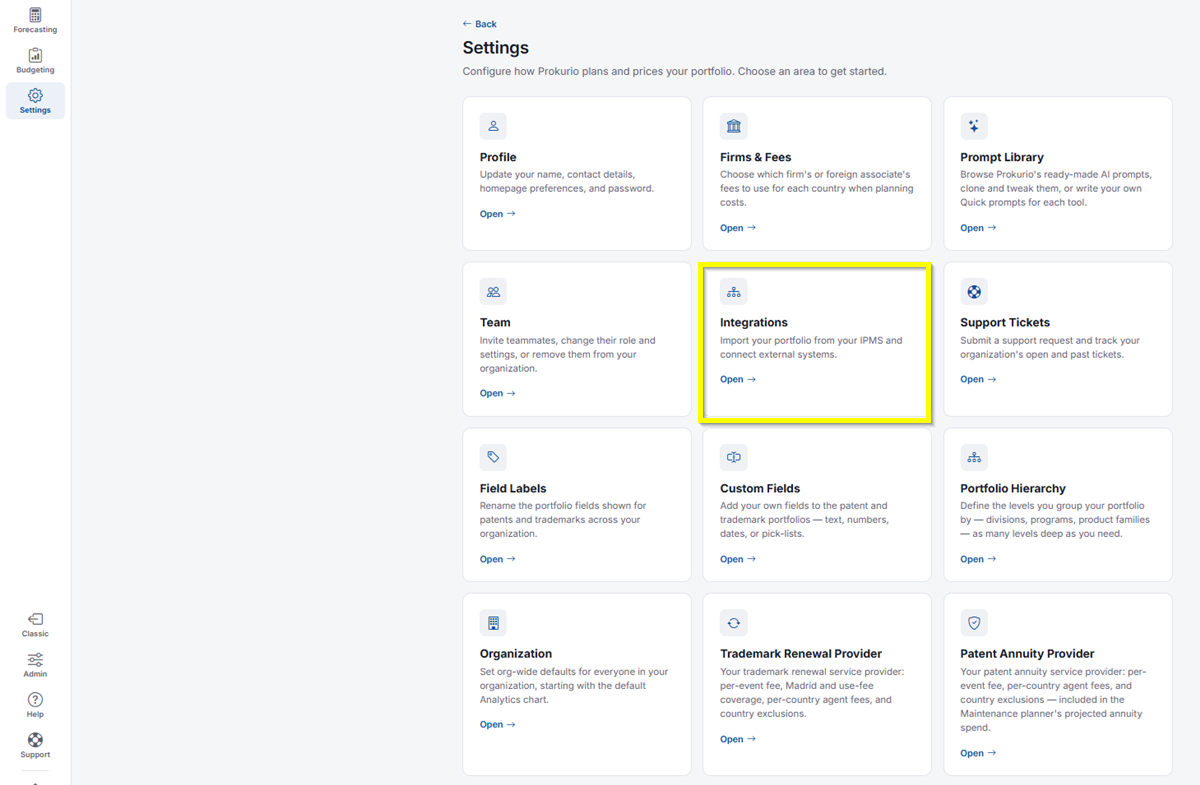
- Click Integrations.
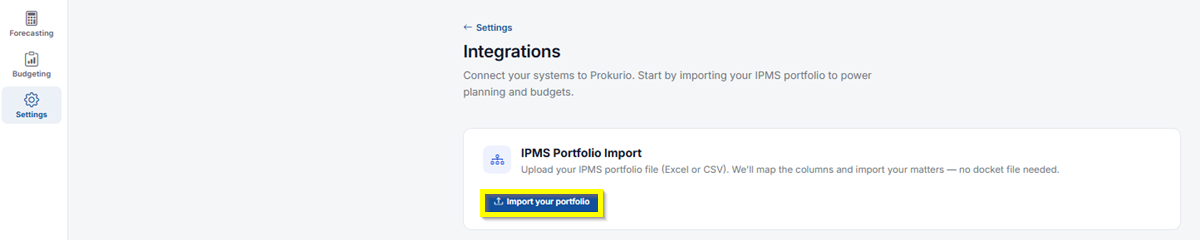
- Under IPMS Portfolio Import, click Import your portfolio. This opens the Import your portfolio dialog.
Uploading Your File
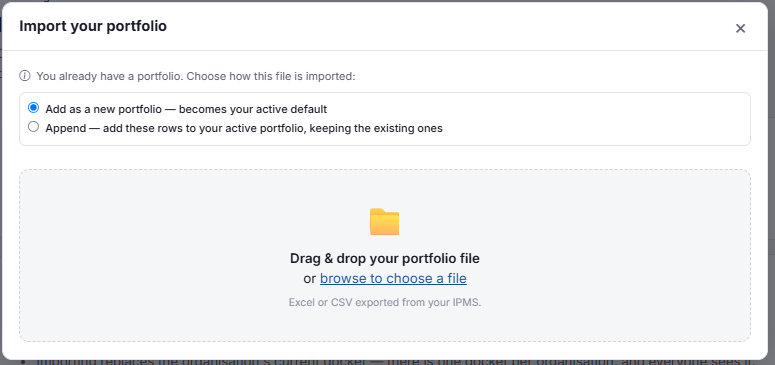
Import your portfolio dialog showing Add as a new portfolio and Append options, plus a drag-and-drop file area
- If you already have a portfolio, choose how this file is imported:
- Add as a new portfolio: Becomes your active default.
- Append: Adds these rows to your active portfolio, keeping the existing ones.
Drag and drop your portfolio file, or click Browse to choose a file. It should be an Excel or CSV file exported from your IPMS.
Mapping Your Columns
Once your file is uploaded, you’ll move to Map your columns. Match your columns to the fields Prokurio needs. Columns it doesn’t recognize default to a new custom field; you can switch any of them to a Prokurio field or skip them. Map your columns screen showing detected portfolio type and a table of Your Column, Sample, and Prokurio Field
- Prokurio detects whether this is a patent or trademark portfolio, along with a confidence percentage. If it guessed wrong, click the link shown, for example No, this is a trademark portfolio, to correct it.
- If you already have a portfolio, you’ll see a note confirming whether this file will be imported as a new portfolio or appended, matching your earlier choice.
- For each Your Column row, review the Sample value, then use the Prokurio Field dropdown to map it to the matching field, such as Matter Number, Country, Status, Filing Date, and so on. Click Browse values under any column to see more sample values from your file.
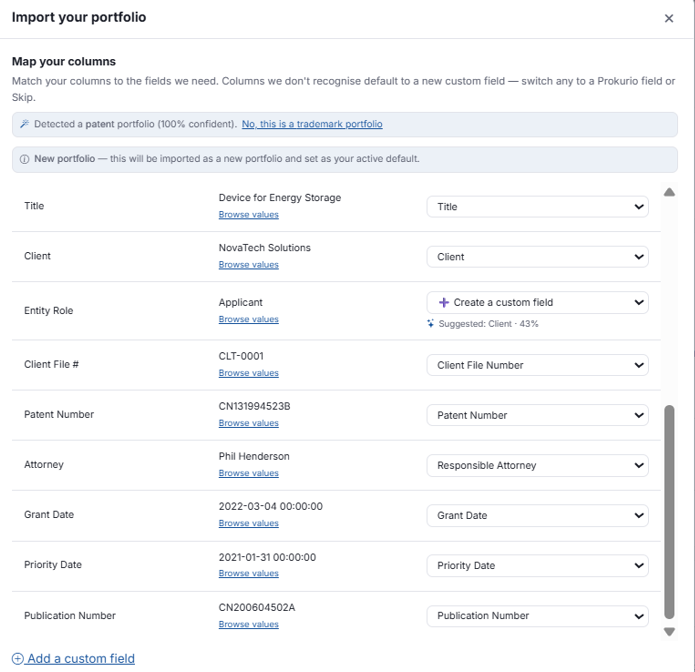
- If a column doesn’t match an existing Prokurio field, choose Create a custom field from its dropdown instead. Prokurio may suggest a close match, shown as Suggested with a confidence percentage.
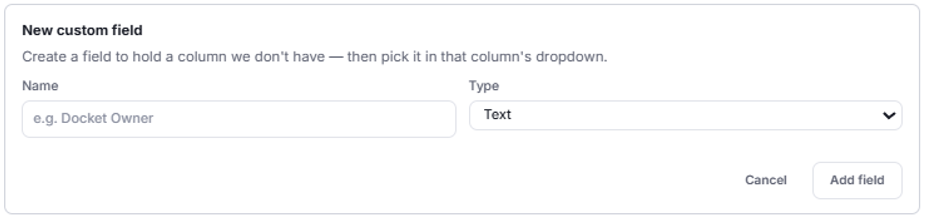
- Click Add a custom field at the bottom of the list to create one manually.
- In the New custom field panel, enter a Name (for example “Docket Owner”) and select a Type, then click Add field, or Cancel to discard it.
How Your Matters Will Be Grouped Into Families
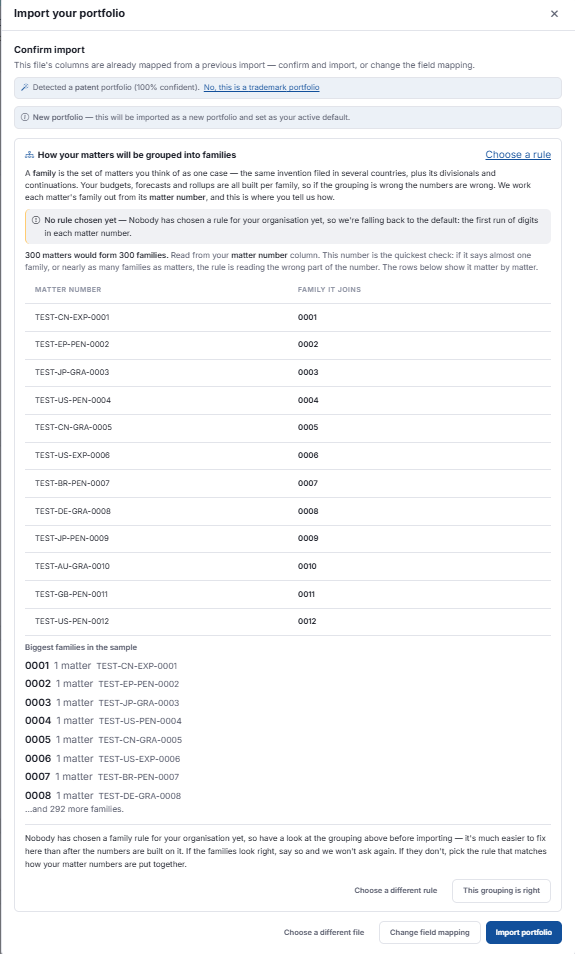
Below the column mapping, How your matters will be grouped into families is where you tell Prokurio how to group your matters into families. A family is the set of matters you think of as one case, such as the same invention filed in several countries, plus its divisionals and continuations. Your budgets, forecasts, and rollups are all built per family, so if the grouping is wrong, the numbers are wrong.
- If no rule has been chosen yet for your organization, Prokurio falls back to a default: the first run of digits in each matter number. Click Choose a rule to set one instead.
- The page shows how many families your matters would form, read from your Matter Number column. This number is the quickest check: if it says almost one family, or nearly as many families as matters, the rule is reading the wrong part of the number.
- A table lists each Matter Number and the Family It Joins, so you can review the grouping matter by matter.
Family grouping table showing matter numbers and the family each one joins, with Biggest families in the sample below
- Biggest families in the sample shows the largest families found and which matters belong to each one.
- If the families look right, click This grouping is right, and Prokurio won’t ask again. If they don’t, click Choose a different rule and pick the rule that matches how your matter numbers are put together.
- Click Choose a different file to start over, or Import portfolio to complete the import.
If you need any additional assistance, please contact us at support@prokurio.com, and we’ll get you the answers you need!