

Team is where you invite teammates to your organization, change their role, or remove their access.
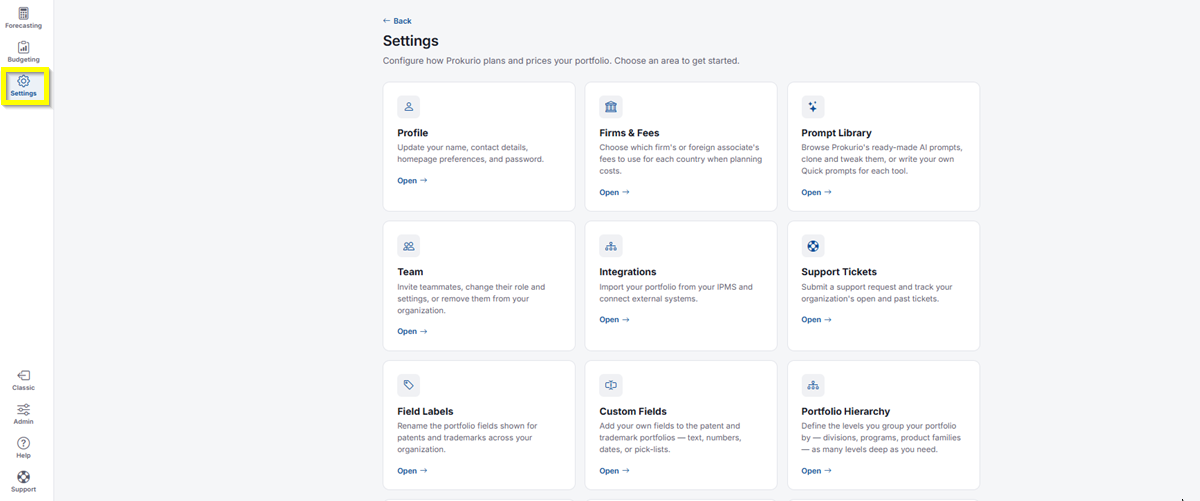
- In the top-left icon rail, click the gear icon to open Settings.
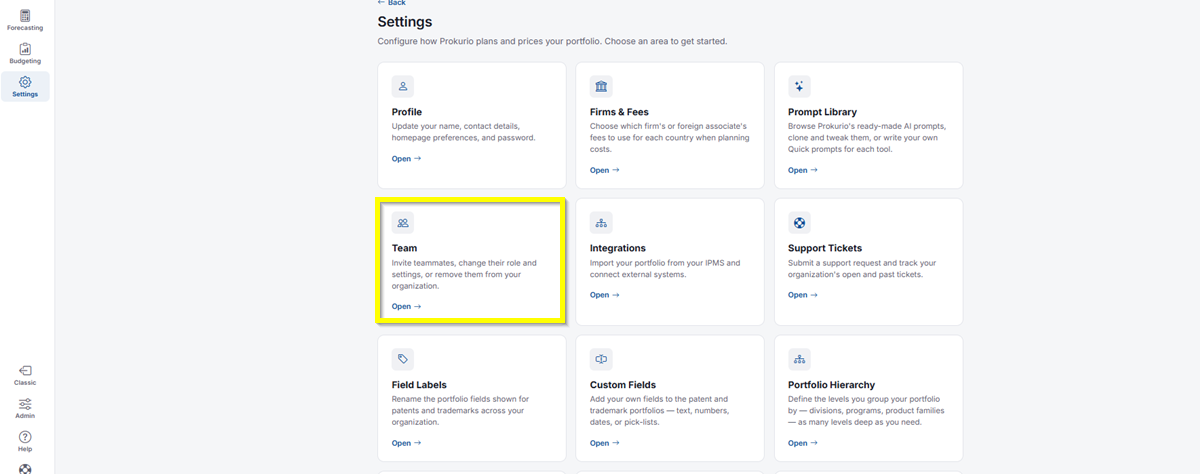
- Click Team.
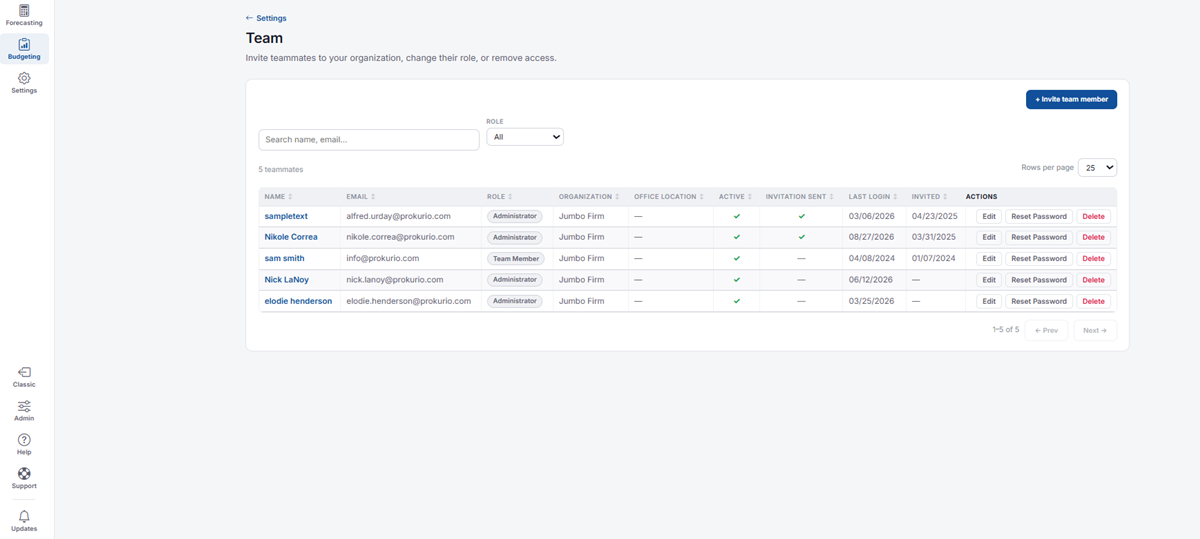
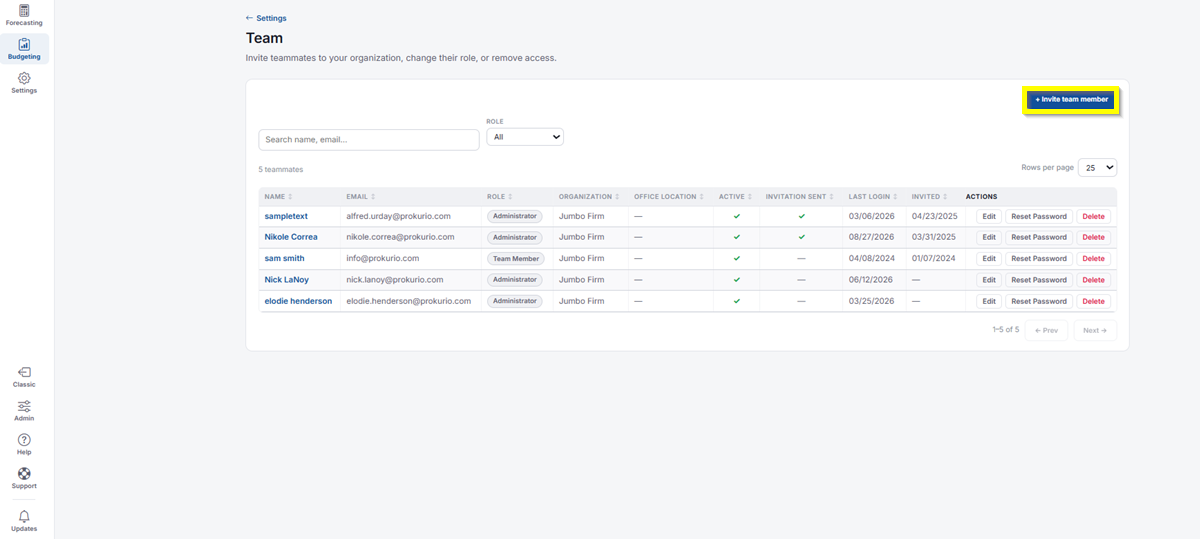
- You’ll see a table of your teammates, with Search, Name, Email, and a Role filter above it. Each row shows Name, Email, Role, Organization, Office Location, Active status, whether an invitation was sent, Last Login, Invited date, and Actions (Edit, Reset Password, Delete).
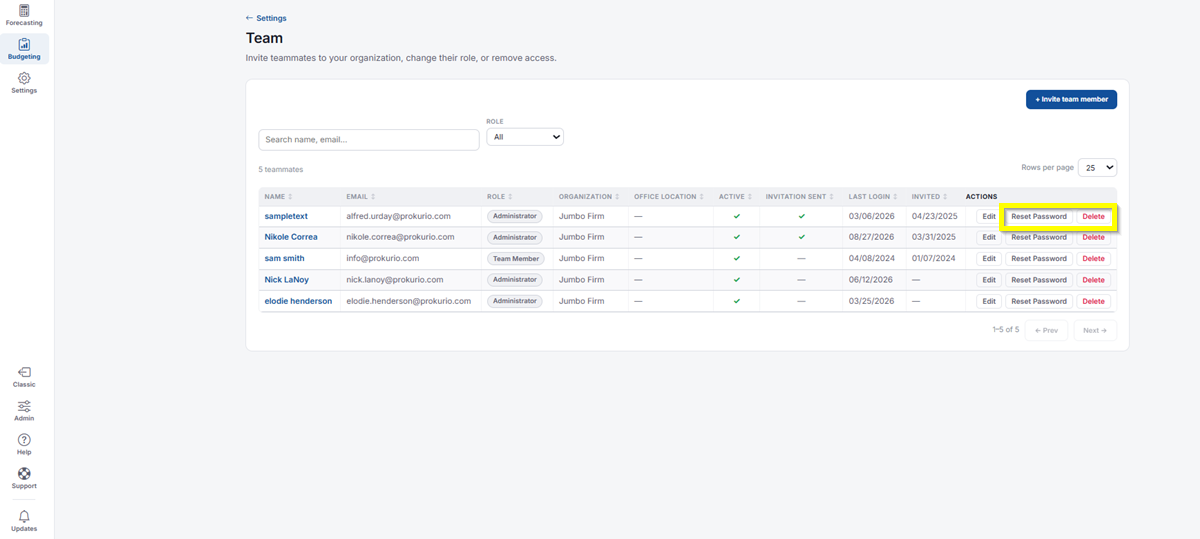
- Click Reset Password next to a teammate to send a password reset email to their email address.
- Click Delete next to a teammate to delete that team member.
Inviting a Team Member
- Click Invite team member in the top right.
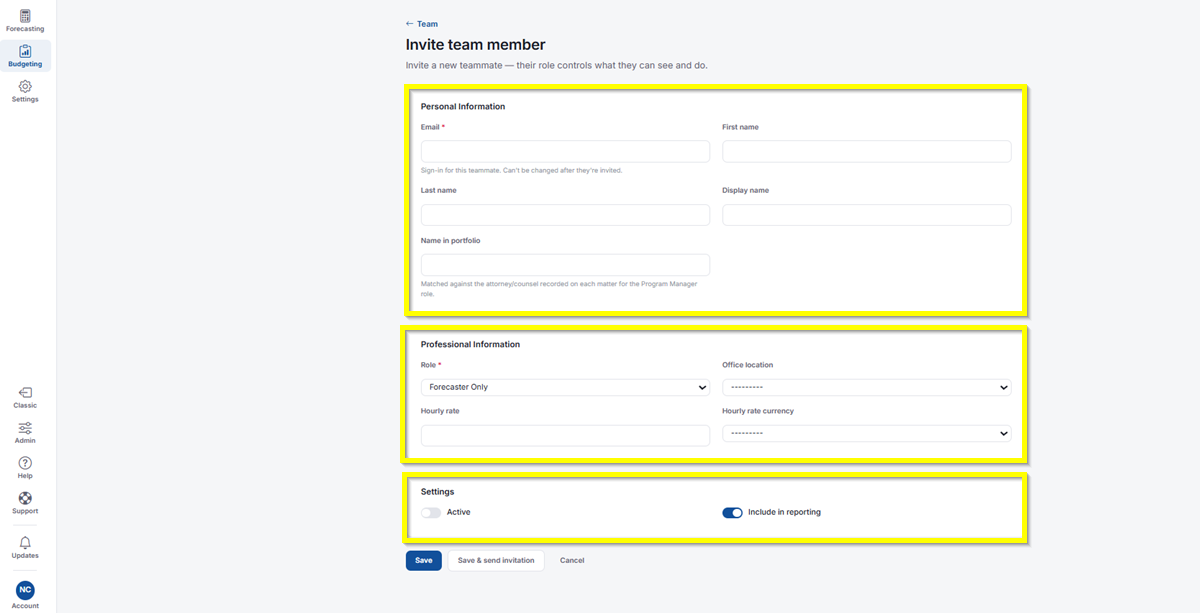
- Personal Information:
- Email: Required. This is the teammate’s sign-in and can’t be changed after they’re invited.
- First name and Last name.
- Display name.
- Name in portfolio: Matched against the attorney/counsel recorded on each matter for the Program Manager role.
- Professional Information:
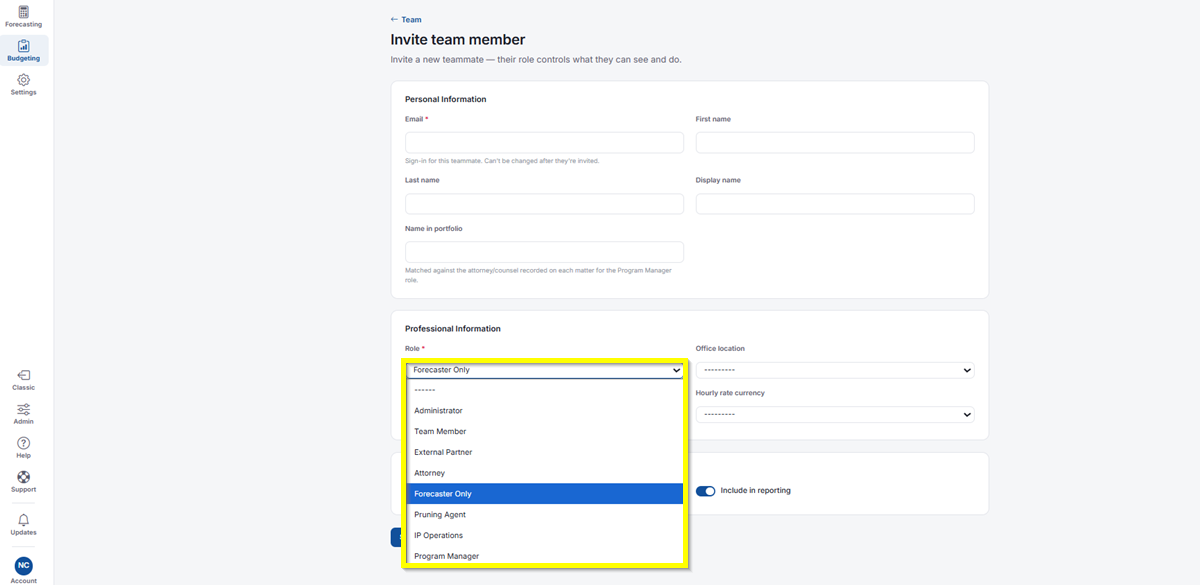
- Role: Required. Choose from Administrator, Team Member, External Partner, Attorney, Forecaster Only, Pruning Agent, IP Operations, or Program Manager. Their role controls what they can see and do.
- Office location.
- Hourly rate and Hourly rate currency.
- Settings:
- Active: Toggle on to give this teammate access.
- Include in reporting: Toggle on to include them in your organization’s reporting.
- Click Save to add them without sending an invitation, Save & send invitation to add them and email their invite, or Cancel to discard.
Editing a Team Member
- From the Team list, click Edit next to the teammate you want to update.
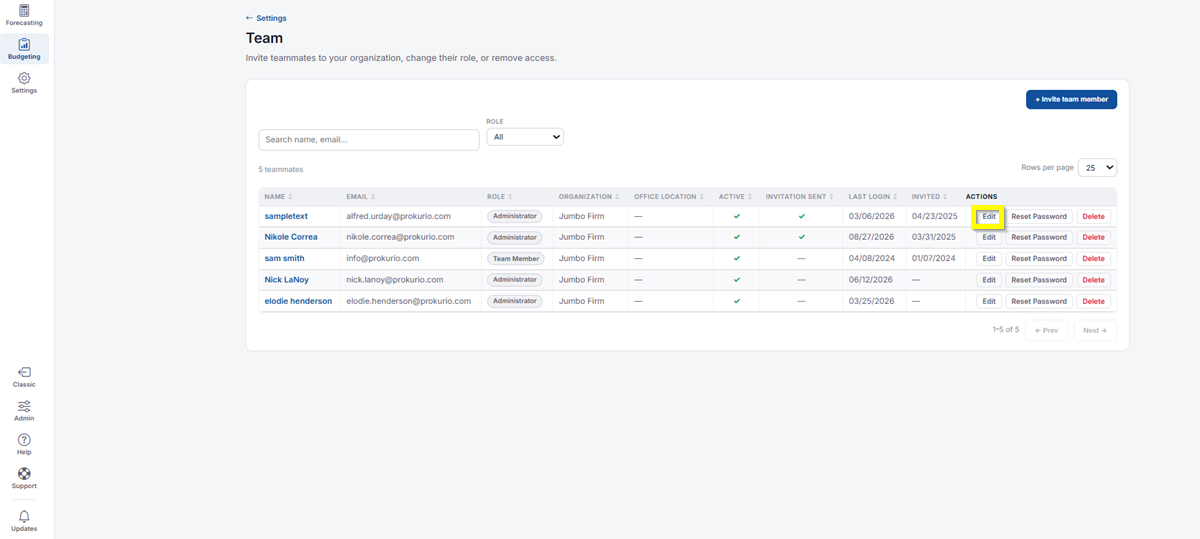
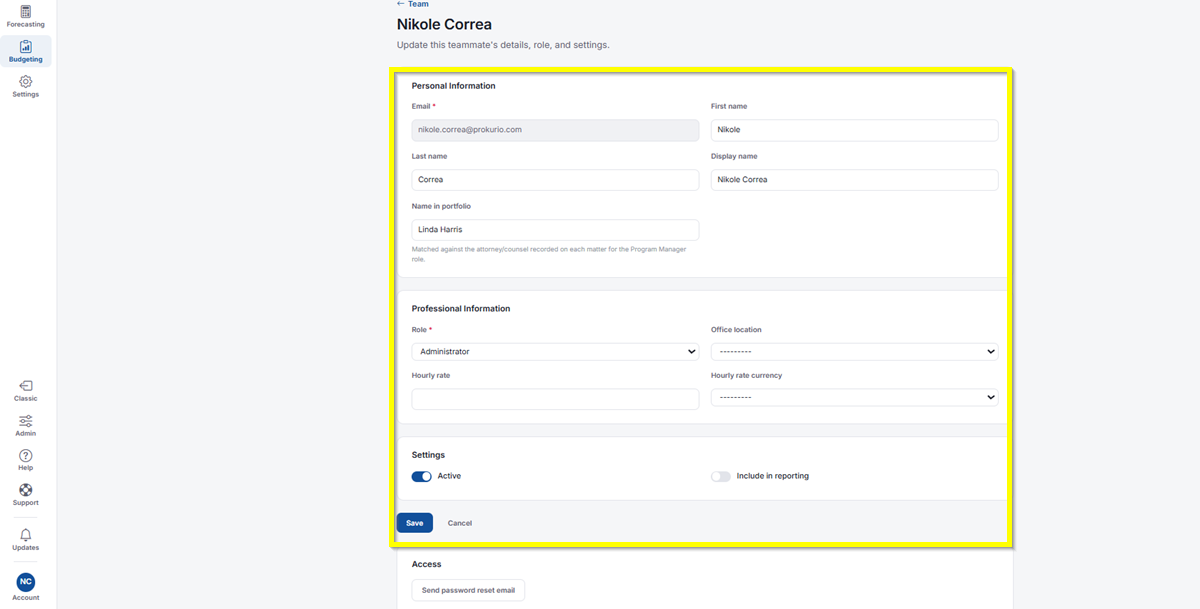
- This opens the same Personal Information, Professional Information, and Settings fields as the invite form, pre-filled with their current details. Update what you need, then click Save, or click Cancel to discard your changes.
- Under Access, click Send password reset email to have a reset link emailed to them.
If you need any additional assistance, please contact us at support@prokurio.com, and we’ll get you the answers you need!