

The Organization holds the org-wide defaults that apply to everyone in your firm. Only administrators can change these.
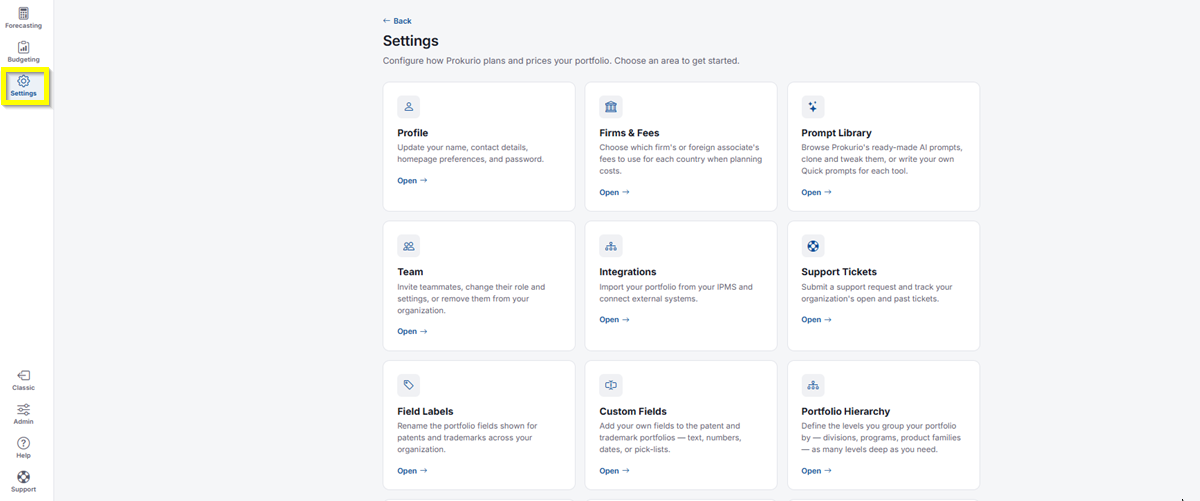
- In the top-left icon rail, click the gear icon to open Settings.
- Click Organization.
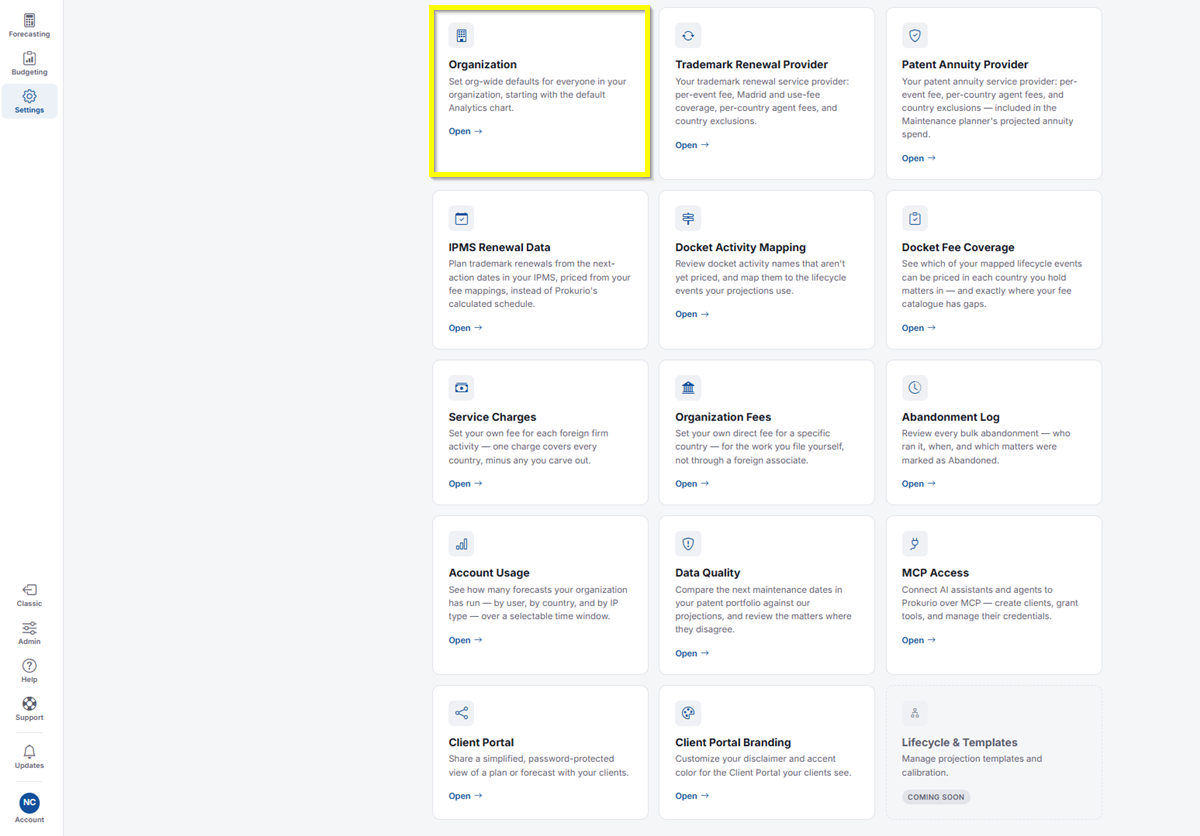
- You’ll see three tabs: General, Fees & Billing, and Setup Defaults.

General
Under Organization profile, you’ll set your organization’s profile, location, and default currency.
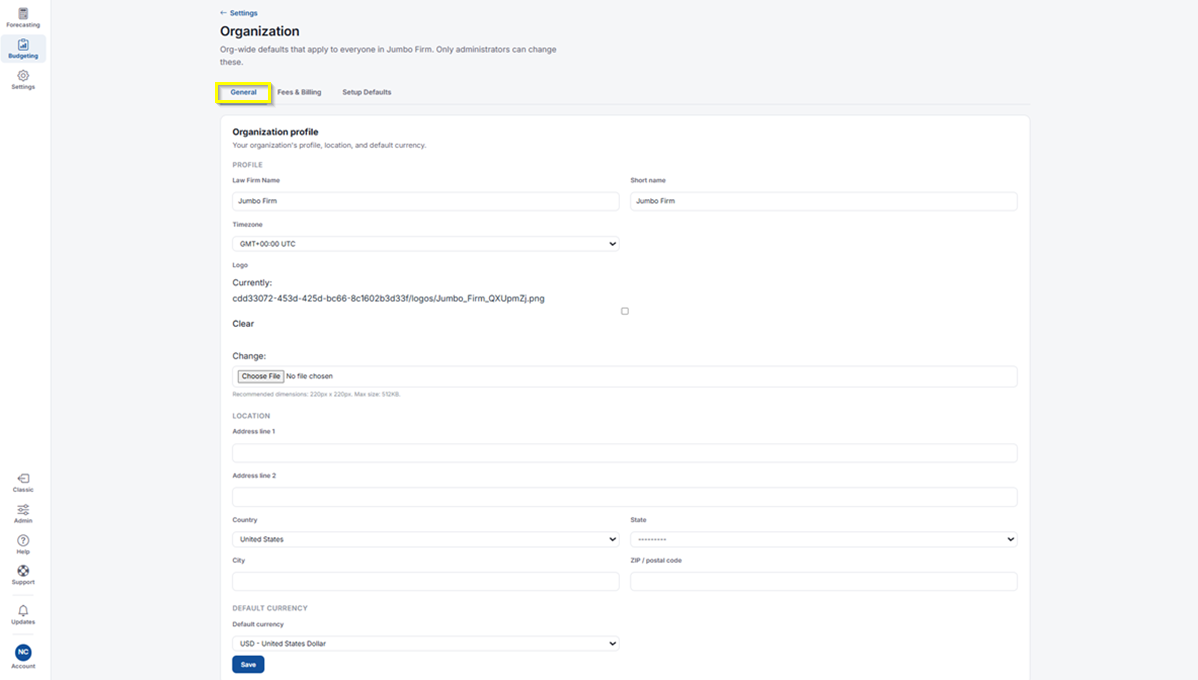
- Profile: Your Law Firm Name, Short name, and Timezone.
- Logo: Shows your current logo file. Check the box next to Clear to remove it, or click Choose File under Change to upload a new one. Recommended dimensions are 220px x 220px, max size 512KB.
- Location: Address line 1, Address line 2, Country, State, City, and ZIP/postal code.
- Default Currency: Select your organization’s Default currency.
- Click Save to apply your changes.
Fees & Billing
This covers your fee schedule email and estimate numbering, plus whether fees can be entered in more than one currency.
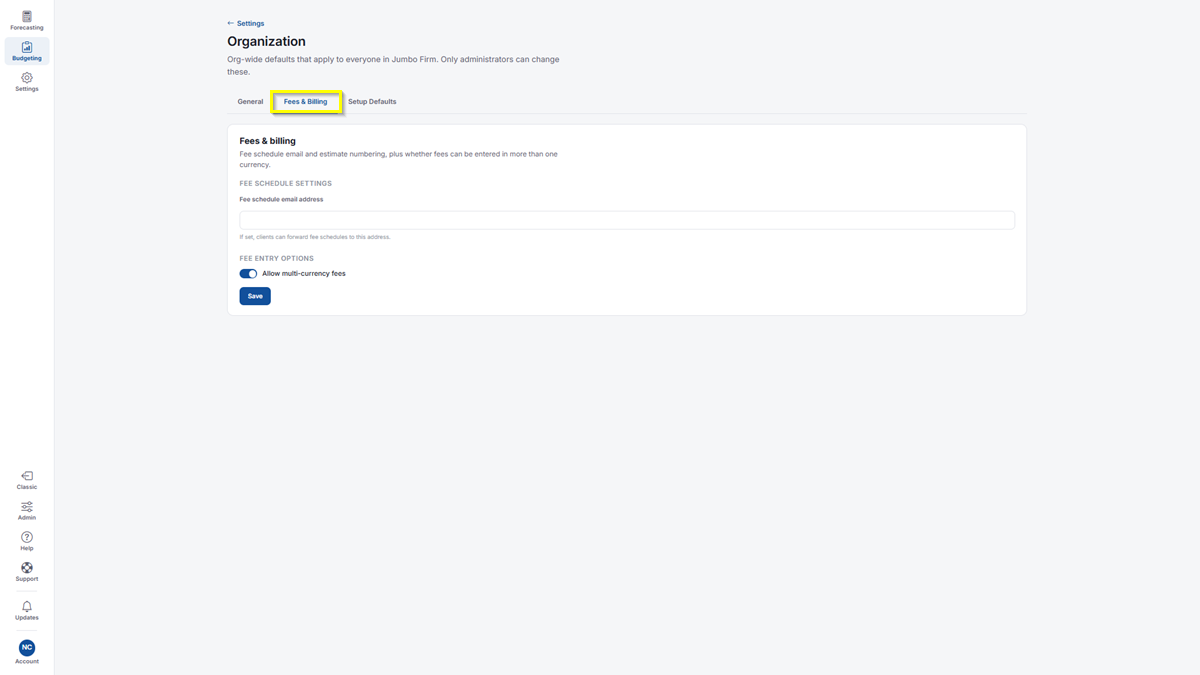
- Fee schedule email address: If set, clients can forward fee schedules to this address.
- Allow multi-currency fees: Toggle on to let fees be entered in more than one currency.
- Click Save to apply your changes.
Setup Defaults
Setup Defaults has four sub-tabs: Forecasting defaults, Planner defaults, User defaults, and Import defaults.

Forecasting Defaults
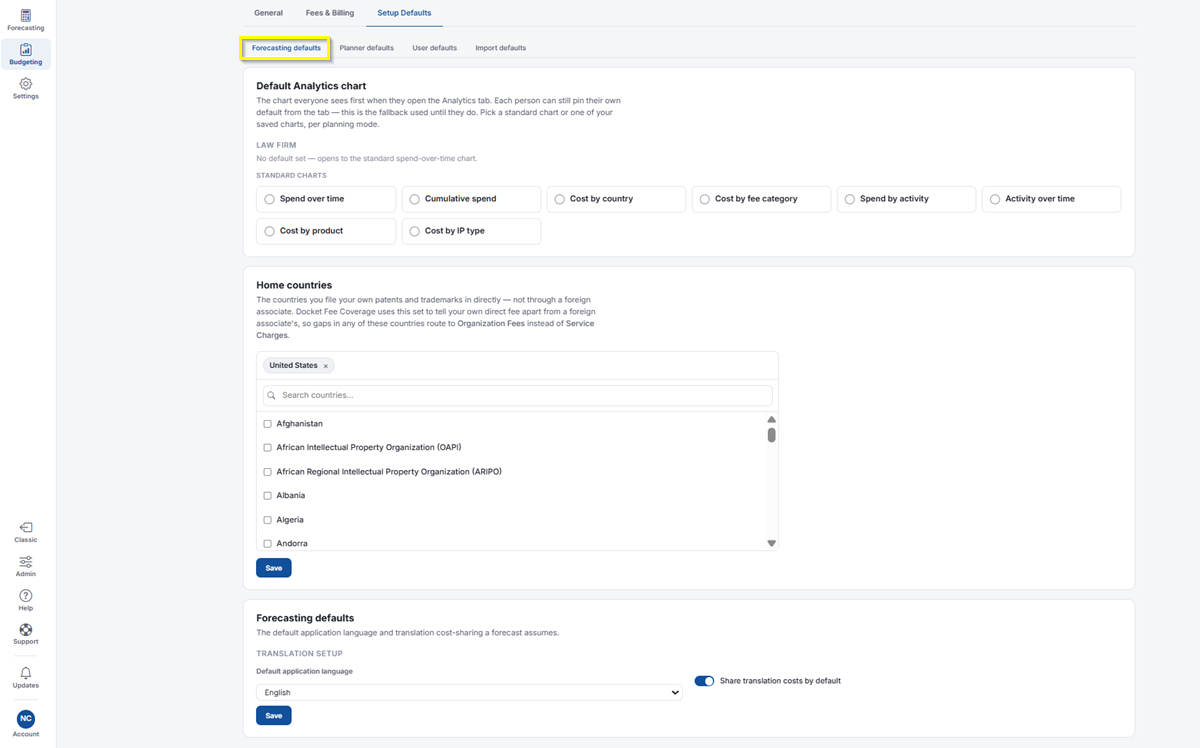
This sets the default Analytics chart everyone sees, your home countries, and the default forecasting language and translation cost-sharing:
- Default Analytics chart: The chart everyone sees first when they open the Analytics tab. Each person can still pin their own default from the tab; this is the fallback used until they do. Pick a standard chart or one of your saved charts, per planning mode. Standard charts are Spend over time, Cumulative spend, Cost by country, Cost by fee category, Spend by activity, Activity over time, Cost by product, and Cost by IP type.
- Home countries: The countries you file your own patents and trademarks in directly, not through a foreign associate. Docket Fee Coverage uses this set to tell your own direct fee apart from a foreign associate’s, so gaps in any of these countries route to Organization Fees instead of Service Charges. Search and check the countries that apply, then click Save.
- Forecasting defaults (Translation Setup): Set your Default application language and toggle Share translation costs by default on or off. This is the default application language and translation cost-sharing that a forecast assumes. Click Save.
Planner Defaults
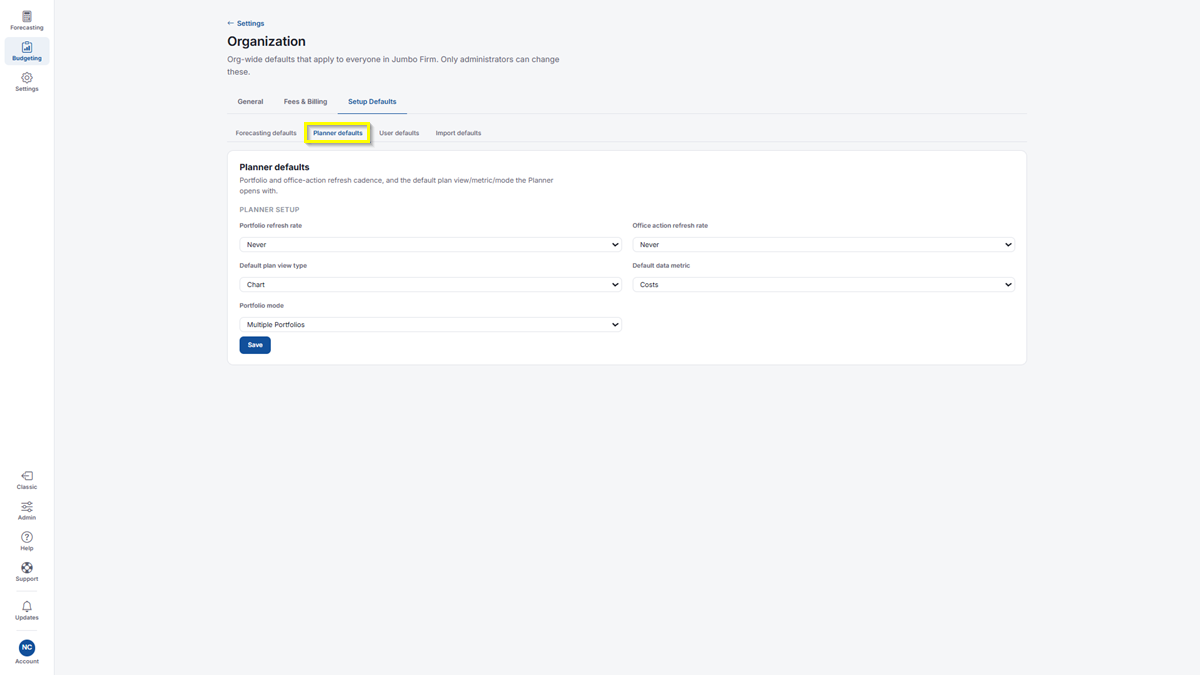
This covers the portfolio and office-action refresh cadence, and the default plan view, metric, and mode the Planner opens with
- Portfolio refresh rate and Office action refresh rate: Select how often each refreshes. Your options for both are Never, Daily, Weekly, and Monthly.
- Default plan view type: Select the view the Planner opens with. Options: Chart, Spreadsheet, and AI.
- Default data metric: Select the metric shown by default. Options: Cost and Number of Matters.
- Portfolio mode: Select whether the Planner defaults to a single portfolio or multiple. Options: Single Portfolio and Multiple Portfolio.
- Click Save to apply your changes.
User Defaults
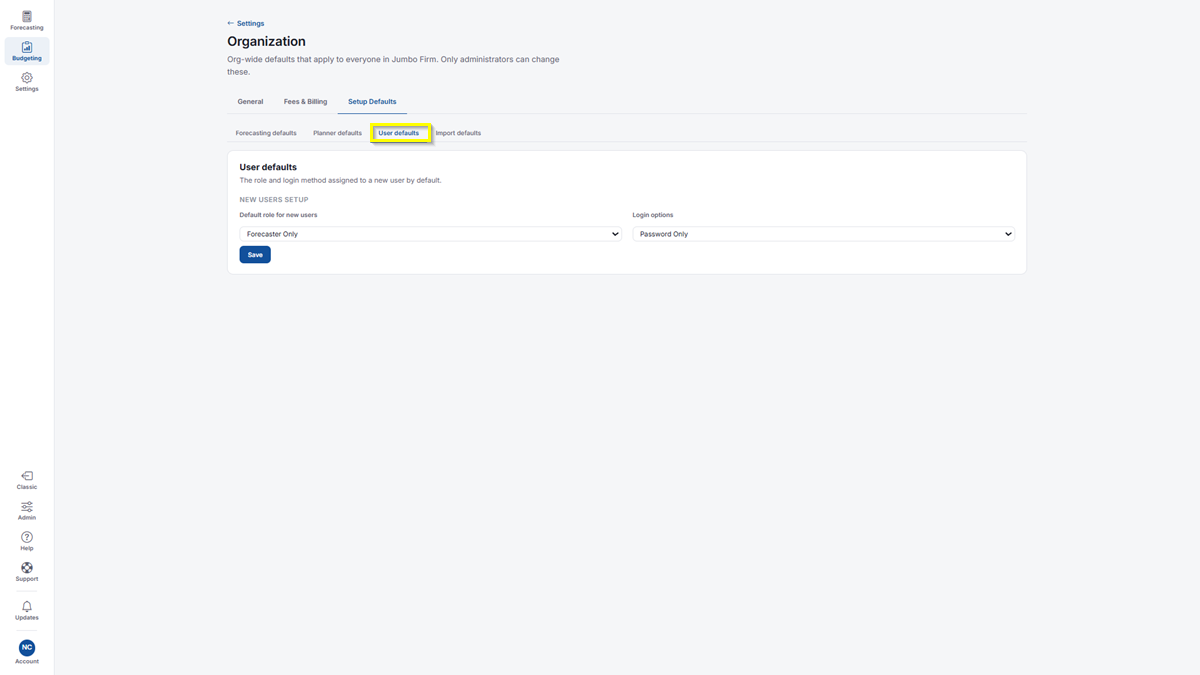
This sets the role and login method assigned to a new user by default
- Default role for new users: Select the role. Options: Administrator, Team Member, External Partner, Attorney, Forecaster Only, Pruning Agent, and IP Operations.
- Login options: Select the login method. Options: Password Only, SSO, and Both.
- Click Save to apply your changes.
Import Defaults
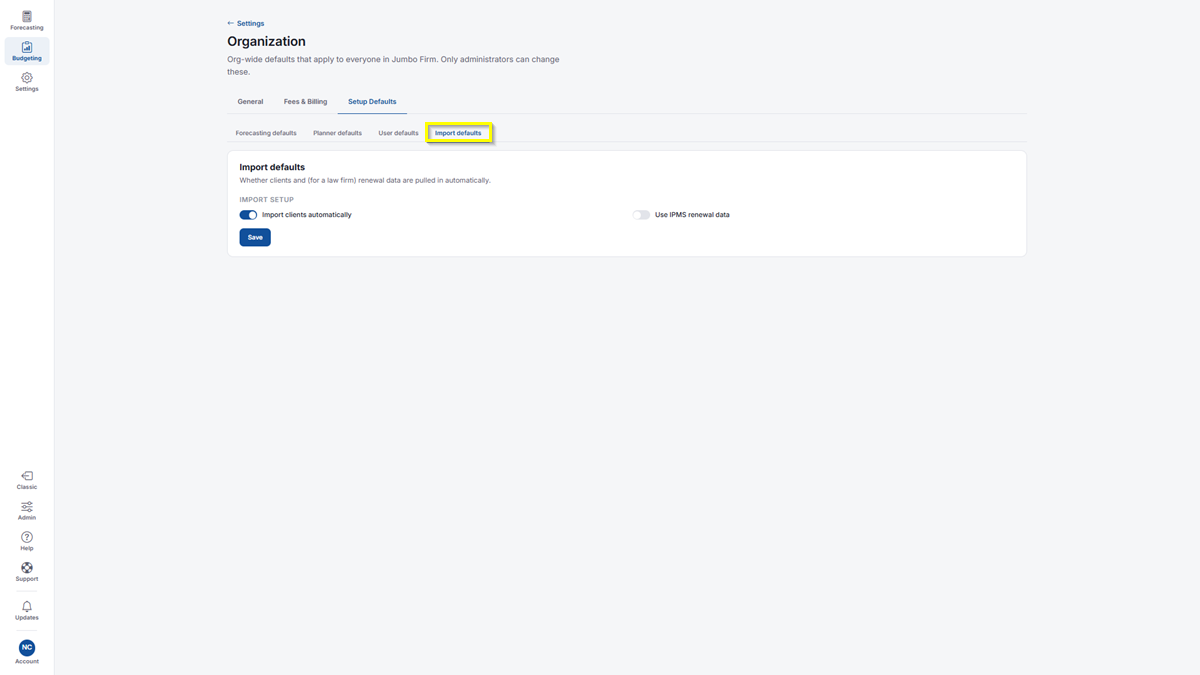
This sets whether clients and, for a law firm, renewal data are pulled in automatically
- Import clients automatically: Toggle on to have clients imported automatically.
- Use IPMS renewal data: Toggle on to use your IPMS renewal data by default.
- Click Save to apply your changes.
If you need any additional assistance, please contact us at support@prokurio.com, and we’ll get you the answers you need!