

Docket Activity Mapping links the activity names in your docket imports to the lifecycle events your projections price. Unmapped activities are skipped and reported as gaps, while routine entries like correspondence or notices can be marked as not cost-relevant.
- In the top-left icon rail, click the gear icon to open Settings.
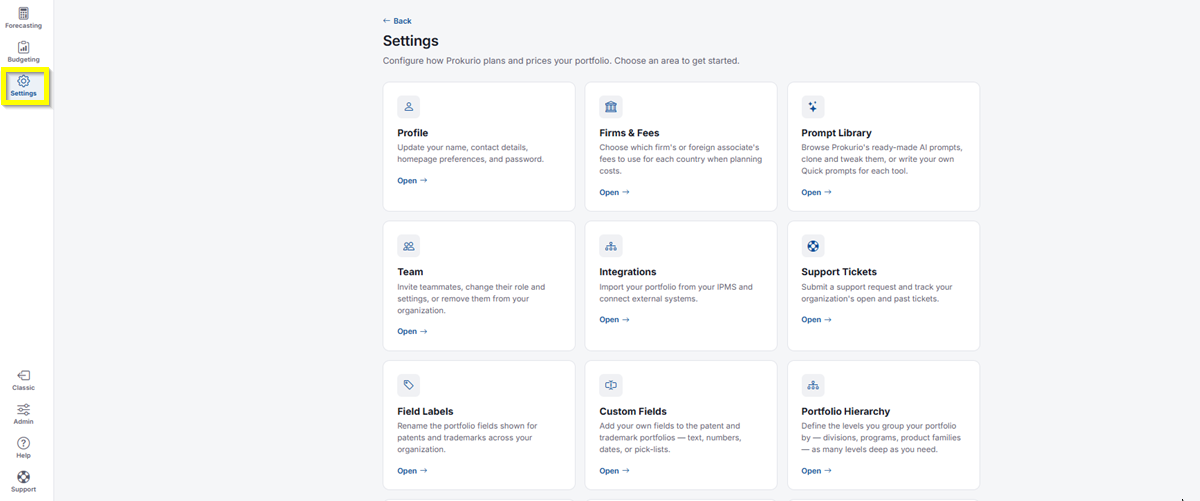
- Click Docket Activity Mapping.
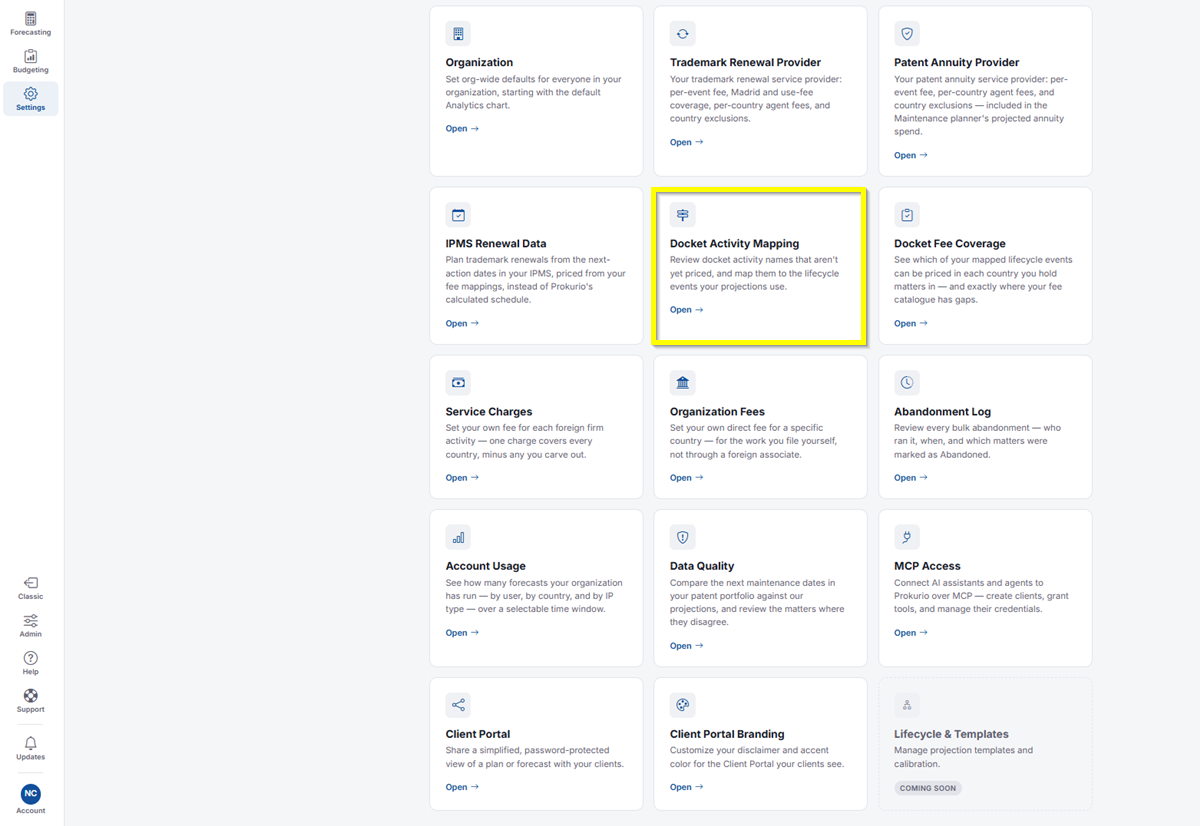
- Click Check which mapped events your fees can actually price at the top of the page. This takes you to Docket Fee Coverage, where you can see which of your mapped lifecycle events can be priced in each country and where your fee catalogue has gaps.
Mapping Unmapped Activities
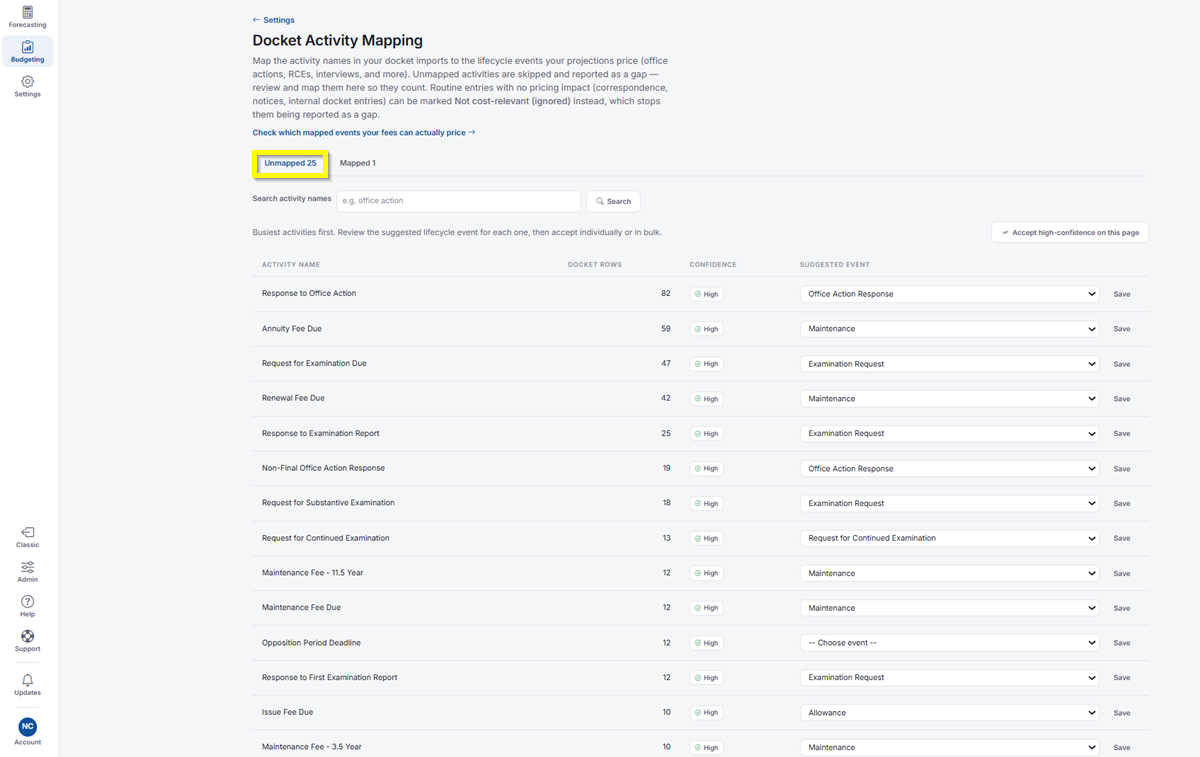
- The page opens on the Unmapped tab, which shows how many activities still need a lifecycle event.
- Use Search activity names to find a specific activity, for example, “office action,” then click Search.
- Activities are listed with the busiest first. Each row shows the Activity Name, the number of Docket Rows, the Confidence of the suggestion, and the Suggested Event.
- Review the suggested lifecycle event for each activity. If a row shows Choose event, select the lifecycle event yourself from the dropdown.
- Click Save next to an activity to accept it individually.
- To accept several at once, click Accept high-confidence on this page.
Reviewing Mapped Activities
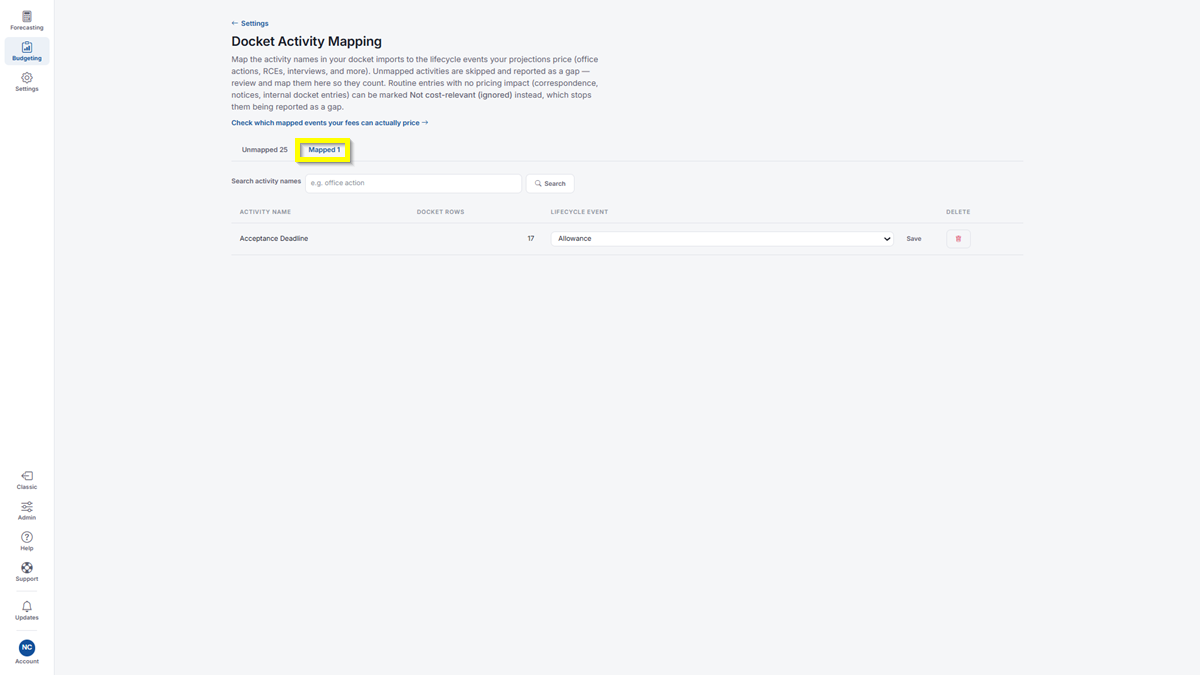
- Click the Mapped tab to see the activities you’ve already mapped. Each row shows the Activity Name, the number of Docket Rows, and its Lifecycle Event.
- To change a mapping, select a different lifecycle event from the dropdown and click Save.
- To remove a mapping, click the delete icon under Delete.
If you need any additional assistance, please contact us at support@prokurio.com, and we’ll get you the answers you need!