

Settings is where you configure how Prokurio plans and prices your portfolio. From your individual profile to organization-wide fee defaults, everything is organized into one place so you can find what you need quickly.
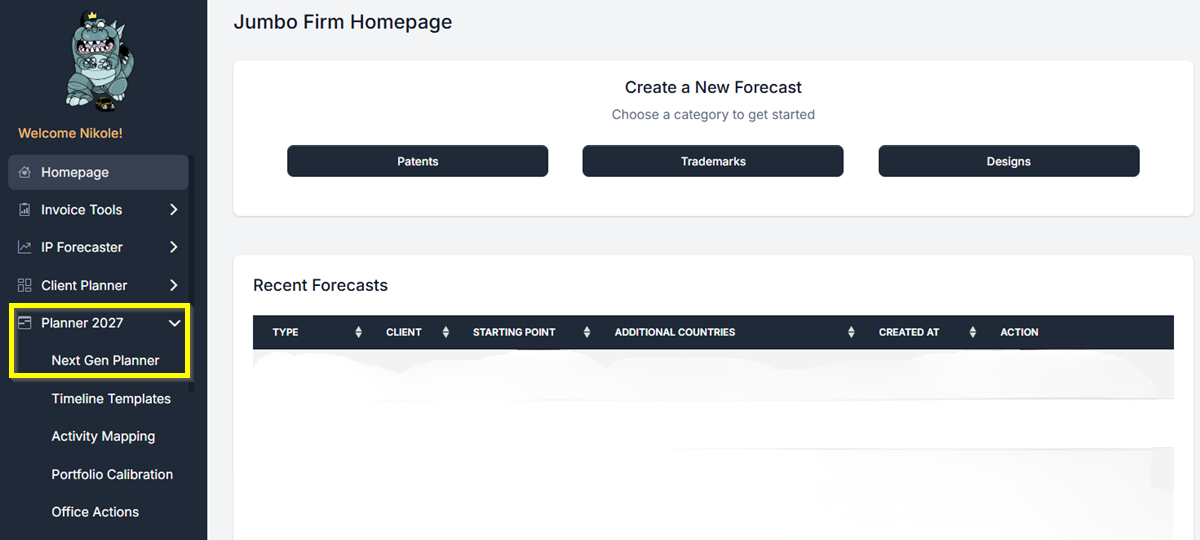
- From your Homepage, find Planner 2027 in the left-hand navigation and click it. Then click Next Gen Planner.
- The Next Gen Planner loads and takes you to the Settings page. In the top-left icon rail, click the Settings icon (Gear icon).
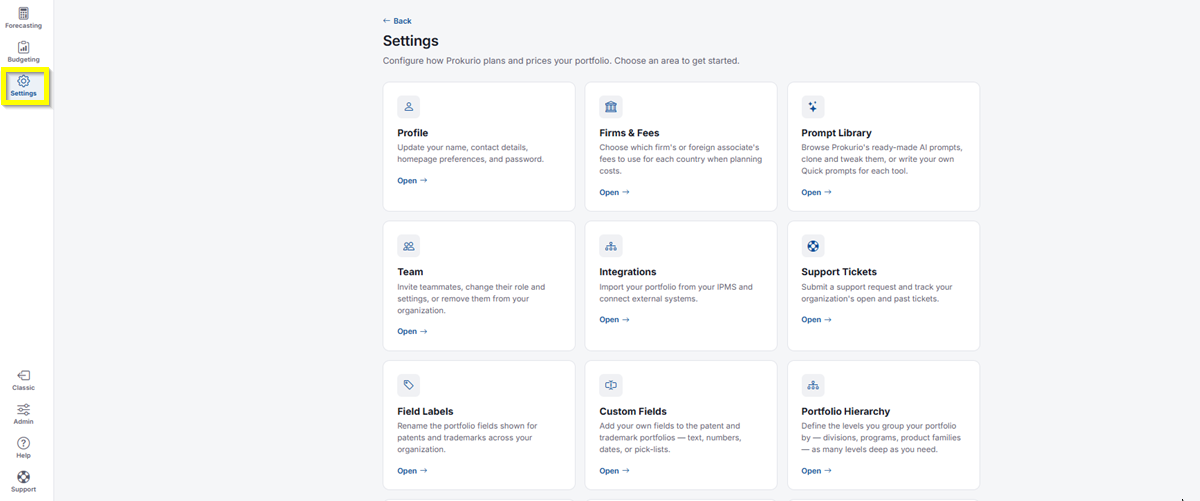
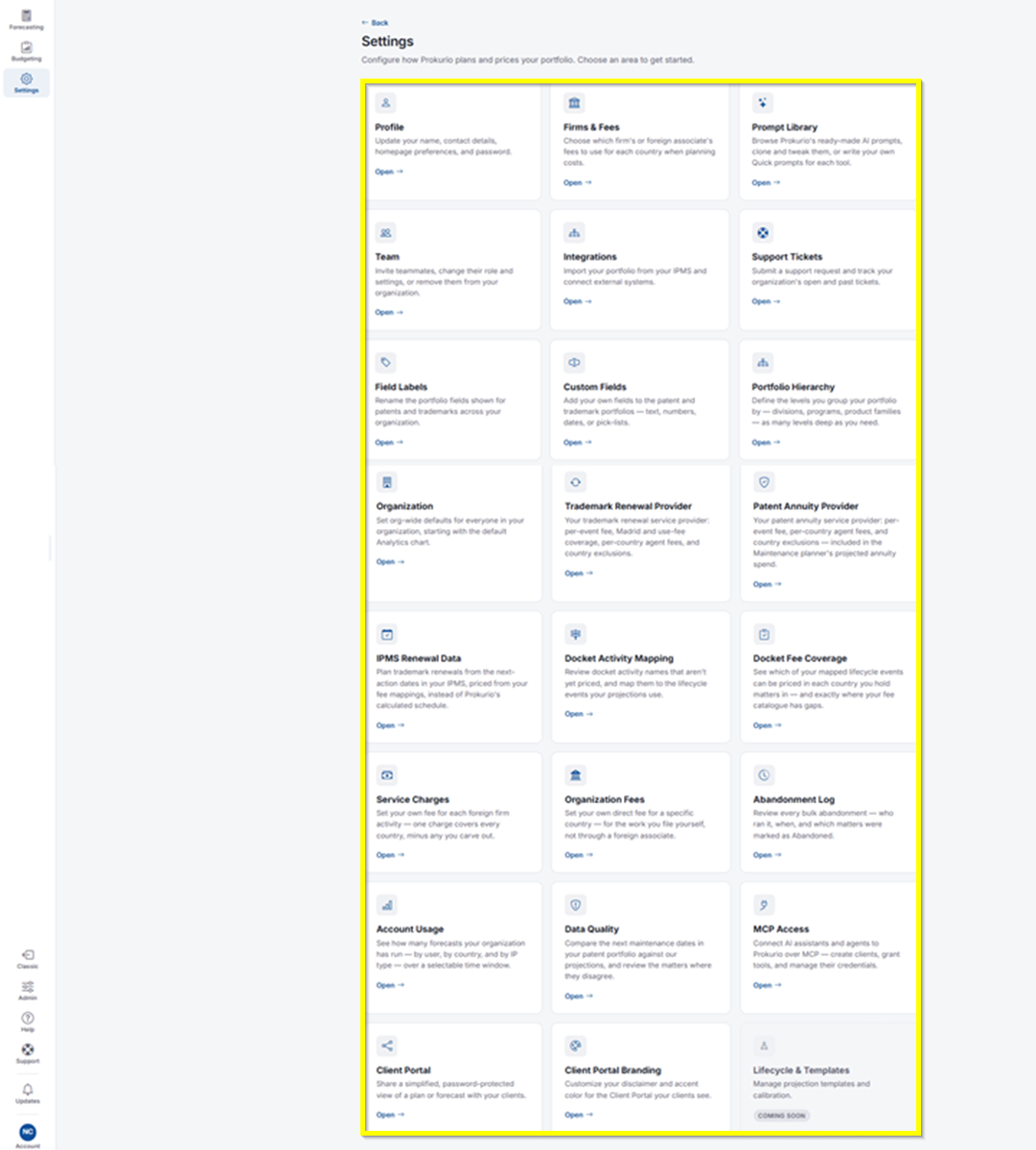
- From here, you’ll see the following areas you can configure:
- Profile: Update your name, contact details, homepage preferences, and password. This is where you set up your individual user settings, and it won’t change much day to day.
- Firms & Fees: Choose which firm’s or foreign associate’s fees to use for each country when planning costs. This is where you set your default fees.
- Prompt Library: Browse Prokurio’s ready-made AI prompts, clone and tweak them, or write your own quick prompts for each tool.
- Team: Invite teammates, change their role and settings, or remove them from your organization.
- Integrations: Import your portfolio from your IPMS and connect external systems.
- Support Tickets: Submit a support request and track your organization’s open and past tickets.
- Field Labels: Rename the portfolio fields shown for patents and trademarks across your organization.
- Custom Fields: Add your own fields to the patent and trademark portfolios, including text, numbers, dates, or pick-lists.
- Portfolio Hierarchy: Define the levels you group your portfolio by, such as divisions, programs, or product families, as many levels deep as you need.
- Organization: Set org-wide defaults for everyone in your organization, starting with the default Analytics chart.
- Trademark Renewal Provider: Your trademark renewal service provider, including per-event fee, Madrid and use-fee coverage, per-country agent fees, and country exclusions.
- Patent Annuity Provider: Your patent annuity service provider, including per-event fee, per-country agent fees, and country exclusions, included in the Maintenance planner’s projected annuity spend.
- IPMS Renewal Data: Plan trademark renewals from the next-action dates in your IPMS, priced from your fee mappings, instead of Prokurio’s calculated schedule.
- Docket Activity Mapping: Review docket activity names that aren’t yet priced, and map them to the lifecycle events your projections use.
- Docket Fee Coverage: See which of your mapped lifecycle events can be priced in each country you hold matters in, and exactly where your fee catalogue has gaps.
- Service Charges: Set your own fee for each foreign firm activity. One charge covers every country, minus any you carve out.
- Organization Fees: Set your own direct fee for a specific country, for the work you file yourself, not through a foreign associate.
- Abandonment Log: Review every bulk abandonment: who ran it, when, and which matters were marked as Abandoned.
- Account Usage: See how many forecasts your organization has run, by user, by country, and by IP type, over a selectable time window.
- Data Quality: Compare the next maintenance dates in your patent portfolio against Prokurio’s projections, and review the matters where they disagree.
- MCP Access: Connect AI assistants and agents to Prokurio over MCP. Create clients, grant tools, and manage their credentials.
- Client Portal: Share a simplified, password-protected view of a plan or forecast with your clients.
- Client Portal Branding: Customize your disclaimer and accent color for the Client Portal your clients see.
- Lifecycle & Templates: Manage projection templates and calibration. Marked Coming Soon.
If you need any additional assistance, please contact us at support@prokurio.com, and we’ll get you the answers you need!