

The Timeline and Pricing tabs control when an organization fee applies and how it is priced. They sit alongside the Core and Filing & office tabs, which are covered in Organization Fees.
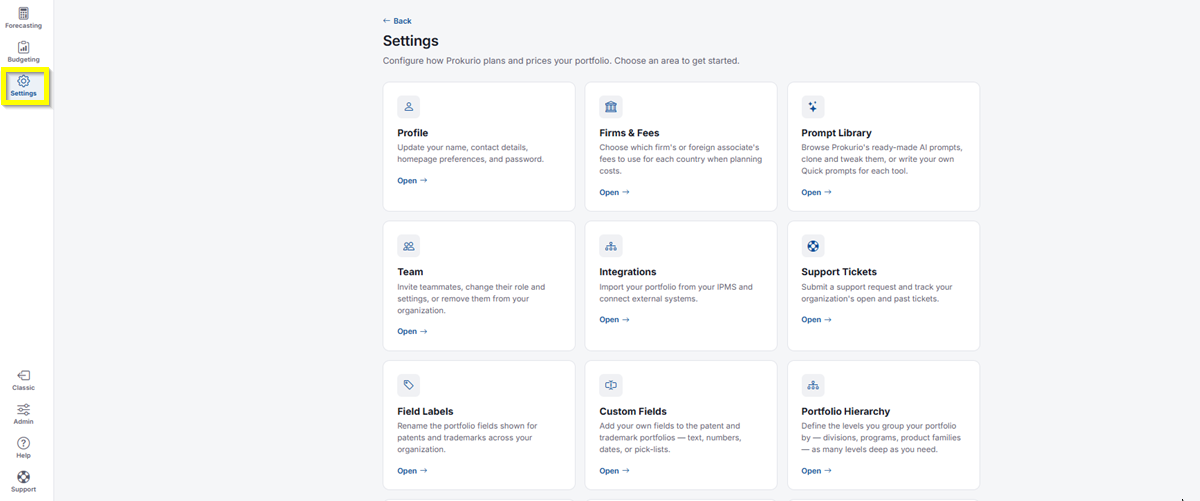
- In the top-left icon rail, click the gear icon to open Settings.
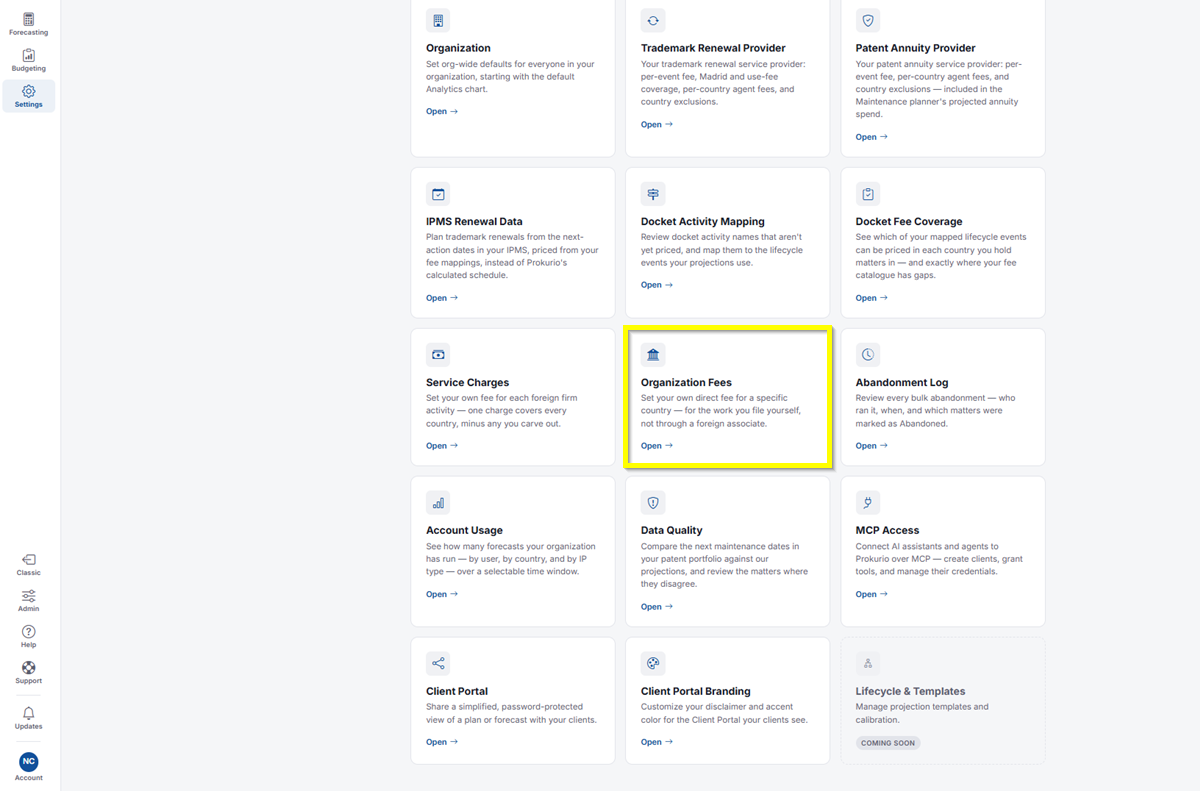
- Click Organization Fees.
Timeline
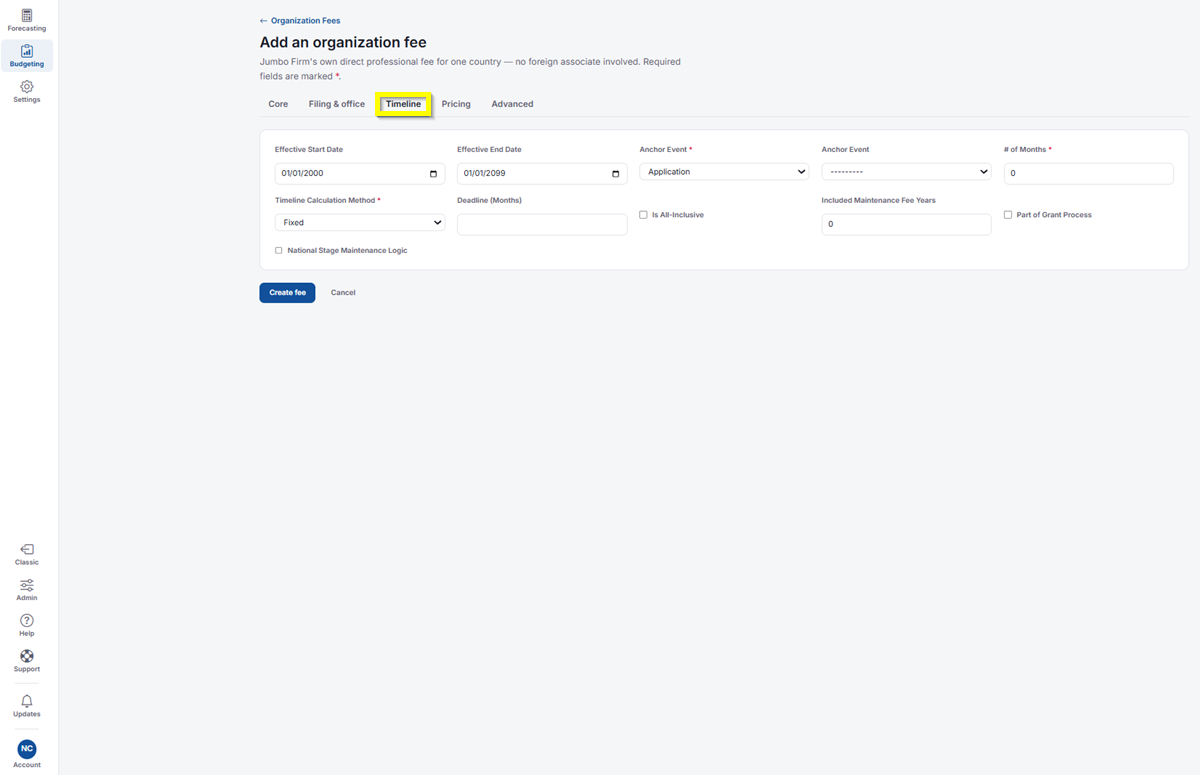
Timeline tab showing effective dates, anchor events, number of months, and timeline calculation method
- Effective Start Date and Effective End Date: Set the dates this fee is in effect.
- Anchor Event: Required. Select the event this fee is timed from, for example, Application. A second Anchor Event dropdown is available if you need another.
- # of Months: Required. Enter the number of months from the anchor event.
- Timeline Calculation Method: Required. Select the method, for example, Fixed.
- Deadline (Months): Enter a deadline in months.
- Is All-Inclusive: Check this if the fee is all-inclusive.
- Included Maintenance Fee Years: Enter the number of maintenance fee years included.
- Part of Grant Process: Check this if the fee is part of the grant process.
- National Stage Maintenance Logic: Check this to apply national stage maintenance logic.
Pricing
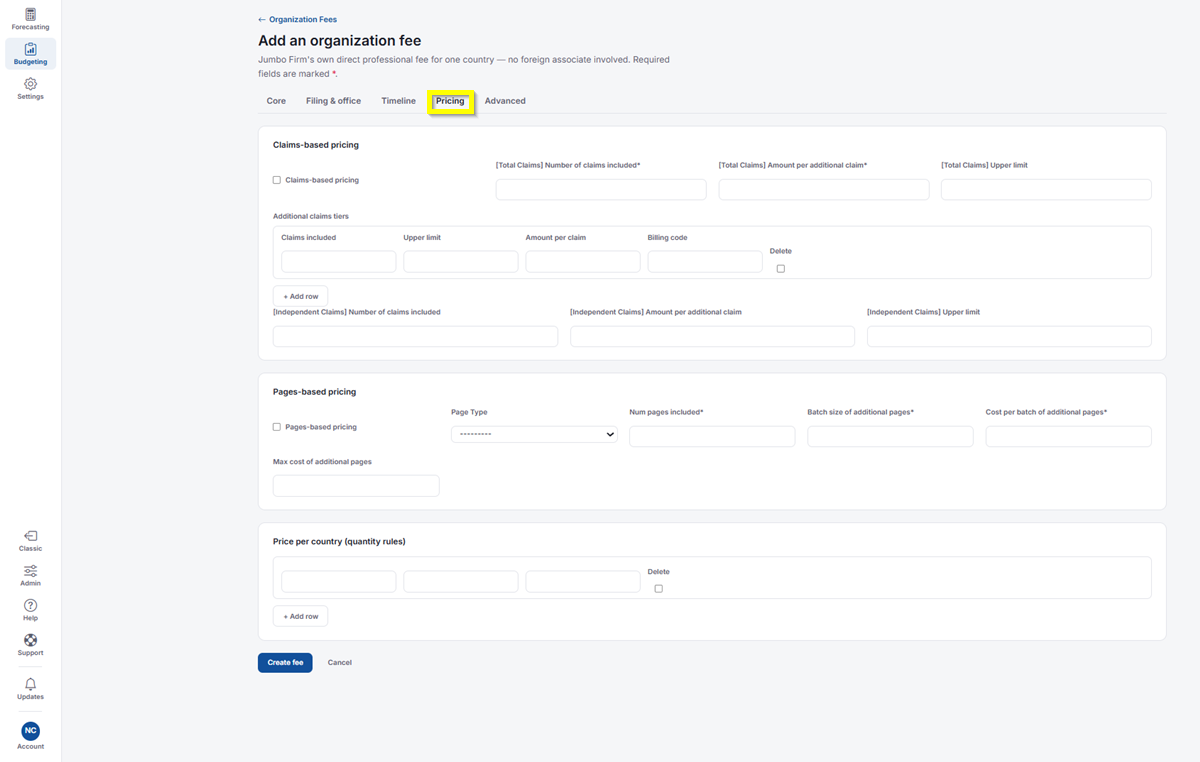
Pricing tab showing Claims-based pricing, Pages-based pricing, and Price per country sections
- Claims-based pricing: Check this to price by number of claims.
- For Total Claims, enter the Number of claims included, the Amount per additional claim, and an optional Upper limit.
- Under Additional claims tiers, click Add row to add tiers with Claims included, Upper limit, Amount per claim, and Billing code.
- For Independent Claims, enter the Number of claims included, Amount per additional claim, and Upper limit.
- Pages-based pricing: Check this to price by number of pages.
- Select a Page Type, then enter the Num pages included, the Batch size of additional pages, and the Cost per batch of additional pages.
- Enter a Max cost of additional pages to cap the total.
- Price per country (quantity rules): Click Add row to add quantity rules. Check Delete on a row to remove it.
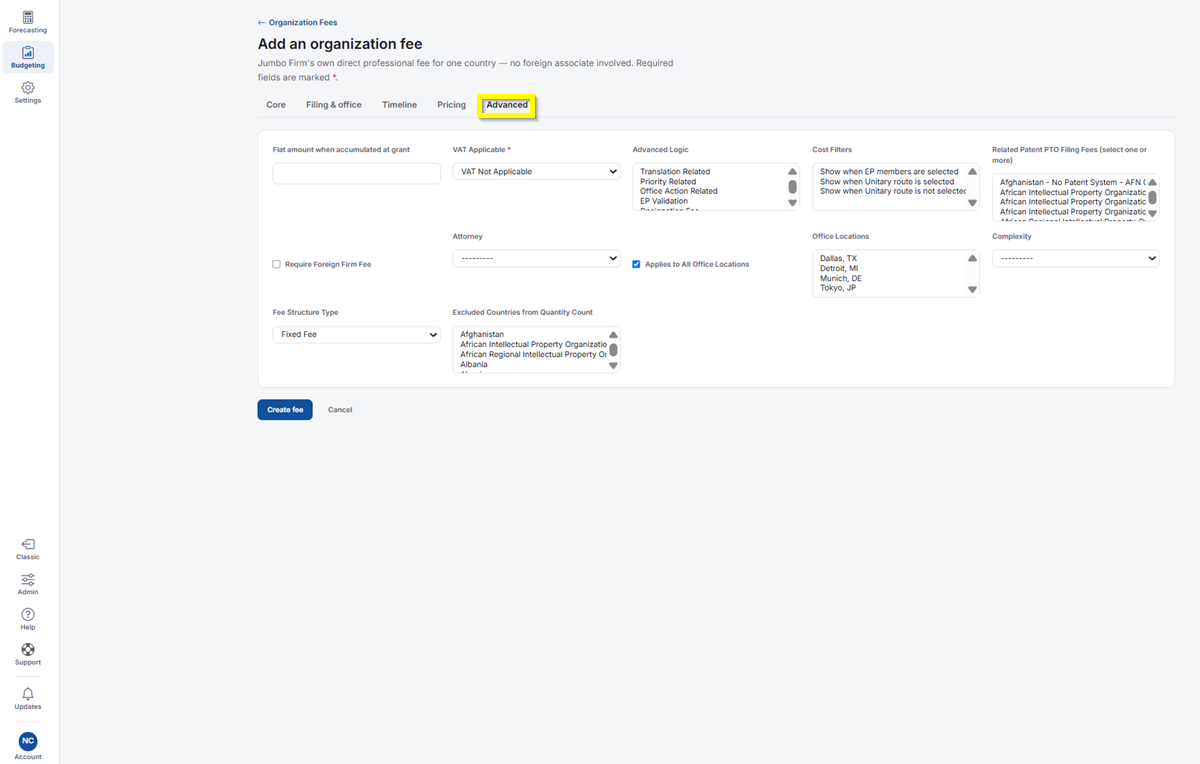
Advanced
Advanced tab showing Flat amount, VAT Applicable, Advanced Logic, Cost Filters, Office Locations, and Fee Structure Type
- Flat amount when accumulated at grant: Enter a flat amount to apply when the fee is accumulated at grant.
- VAT Applicable: Required. Select whether VAT applies, for example VAT Not Applicable.
- Advanced Logic: Select the logic that applies, such as Translation Related, Priority Related, Office Action Related, and EP Validation.
- Cost Filters: Select when this fee should show, such as when EP members are selected, when the Unitary route is selected, or when the Unitary route is not selected.
- Related Patent PTO Filing Fees: Select one or more related PTO filing fees.
- Require Foreign Firm Fee: Check this to require a foreign firm fee.
- Attorney: Select an attorney.
- Applies to All Office Locations: Check this box for the fee to apply to all office locations.
- If the fee only applies to certain offices, leave it unchecked and manually select them under Office Locations.
- Complexity: Select a complexity level.
- Fee Structure Type: Select the structure, for example, Fixed Fee.
- Excluded Countries from Quantity Count: Select any countries to leave out of the quantity count.
If you need any additional assistance, please contact us at support@prokurio.com, and we’ll get you the answers you need!