

Field Labels is where you rename the portfolio fields shown for patents and trademarks. These names apply to everyone in your organization, so leave a box blank to keep the standard name.
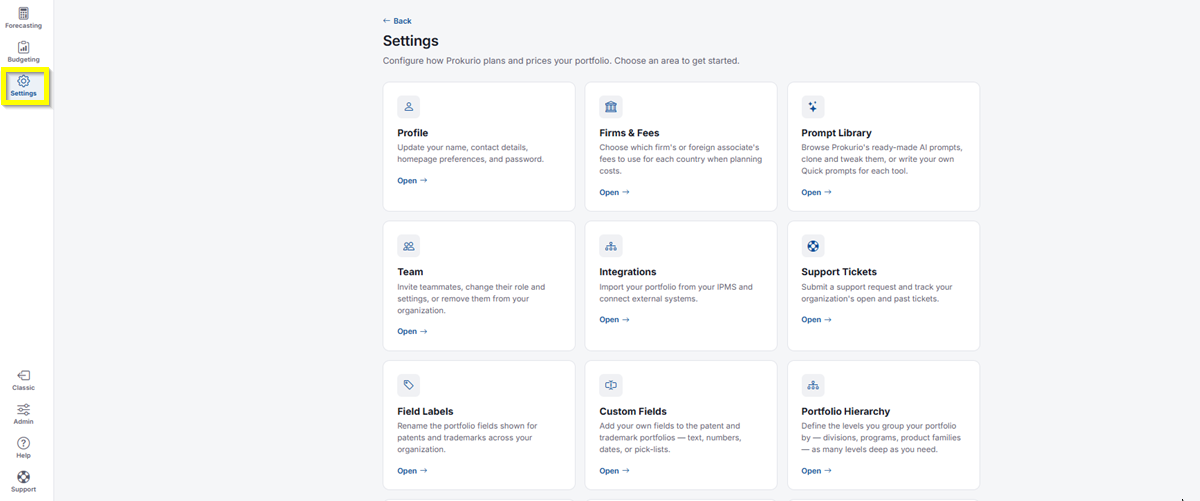
- In the top-left icon rail, click the gear icon to open Settings.
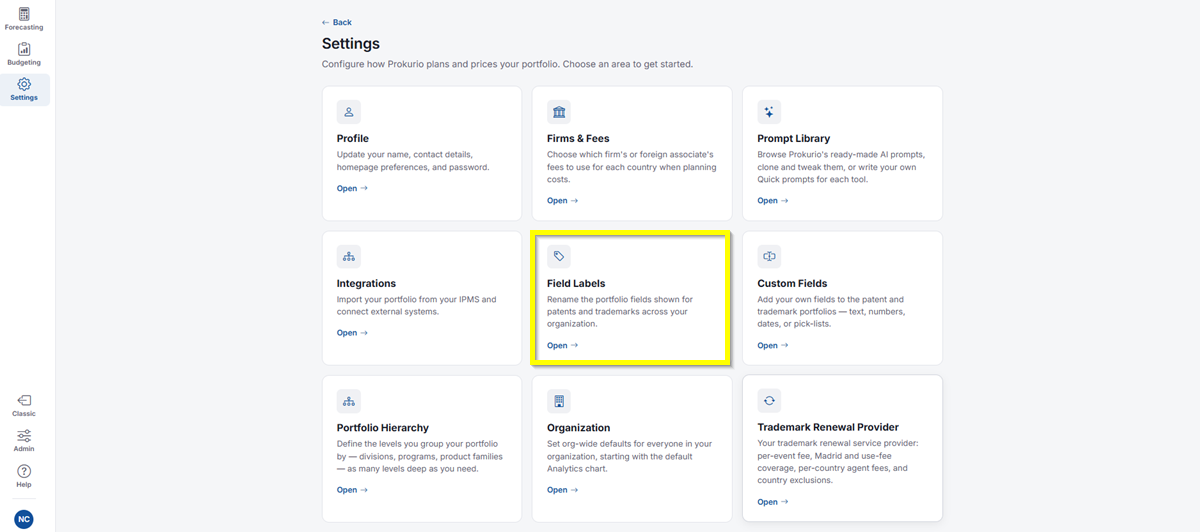
- Click Field Labels.
-
Under Patents, Portfolio fields lets you rename the columns shown in your portfolio view:
•Matter Number• Matter Family• Matter Type• Status• Title• Country• Route• Filing Type• Client• Client File Number• Responsible Attorney• Licensee• Application Number• Publication Number• Patent Number• Priority Date• Filing Date• National Filing Date• Publication Date• Grant Date• Expiration Date• Renewal Action• Next Maint. Date• Next Maint. Yr• Next Maint. Amt• Evaluation Date• Technology• Products• Business Value• Rating• Encumbrance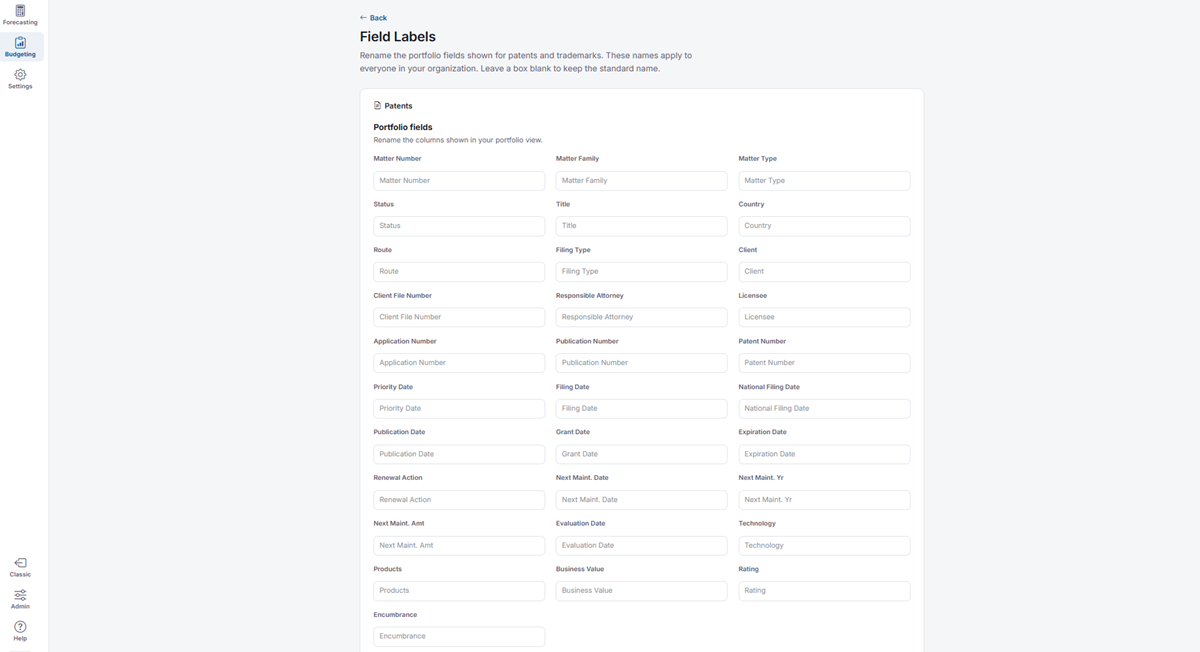
- Planning hierarchy lets you rename the classification tiers used in the planning tools and the AI assistant. These don’t appear in the portfolio grid. You can rename Business Unit and Technology.
- Under Trademarks, Portfolio fields lets you rename the columns shown in your portfolio view:
•Matter Number• Matter Family• Matter Type• Status• Mark• Country• Route• Client• Client File Number• Responsible Attorney• Client Attorney• Owner Name• Business Unit• Application Number• Registration Number• Classes• Number of Classes• Filing Date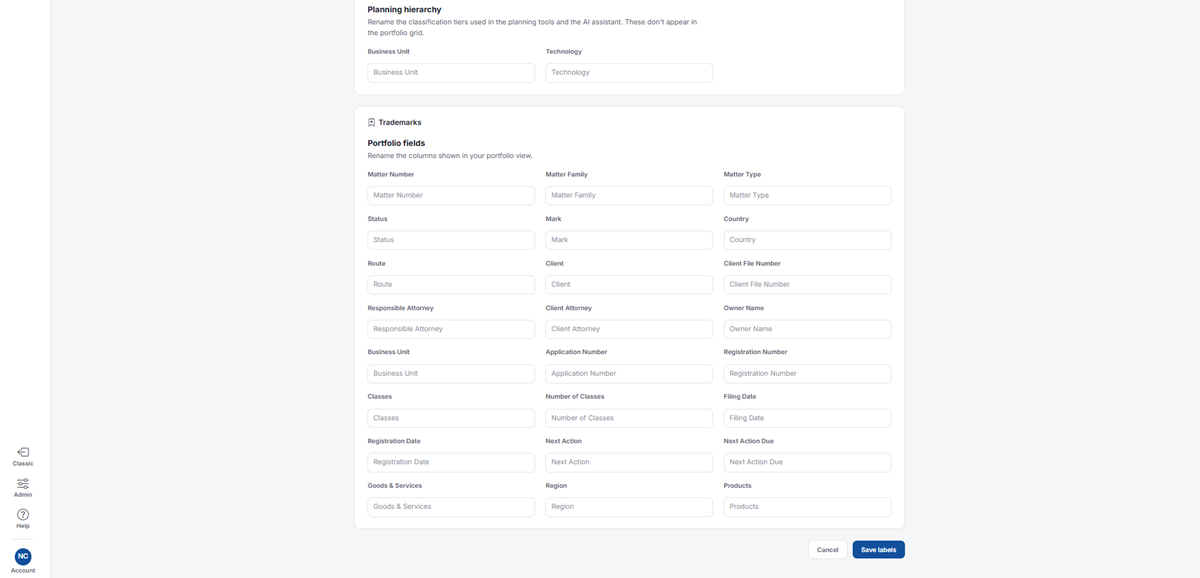
If you need any additional assistance, please contact us at support@prokurio.com, and we’ll get you the answers you need!