

Portfolio Hierarchy lets you set up the levels your portfolio is grouped by, like a Division holding Programs holding Product Families. You define the structure; your matters fill in the groups.
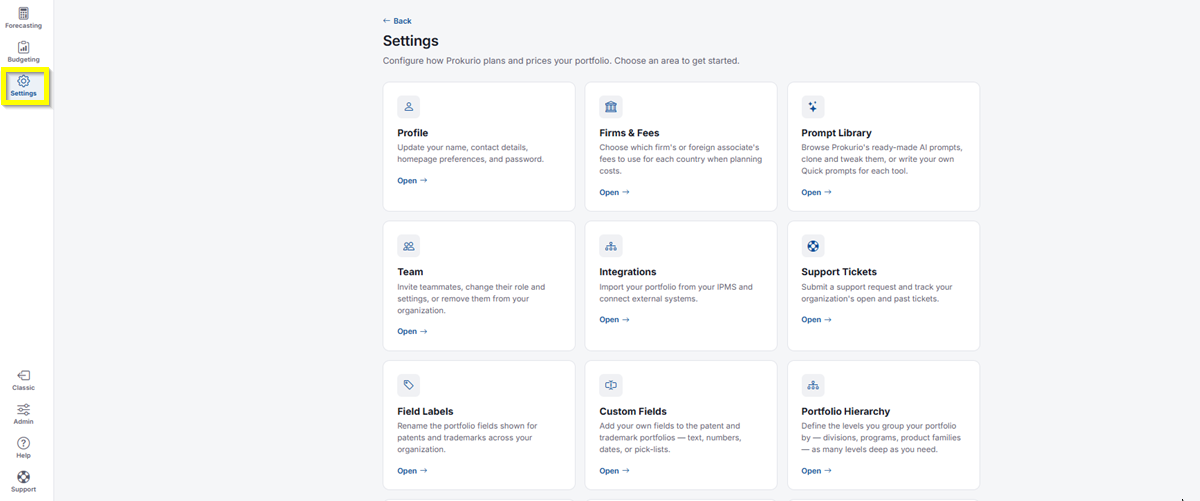
- In the top-left icon rail, click the gear icon to open Settings.
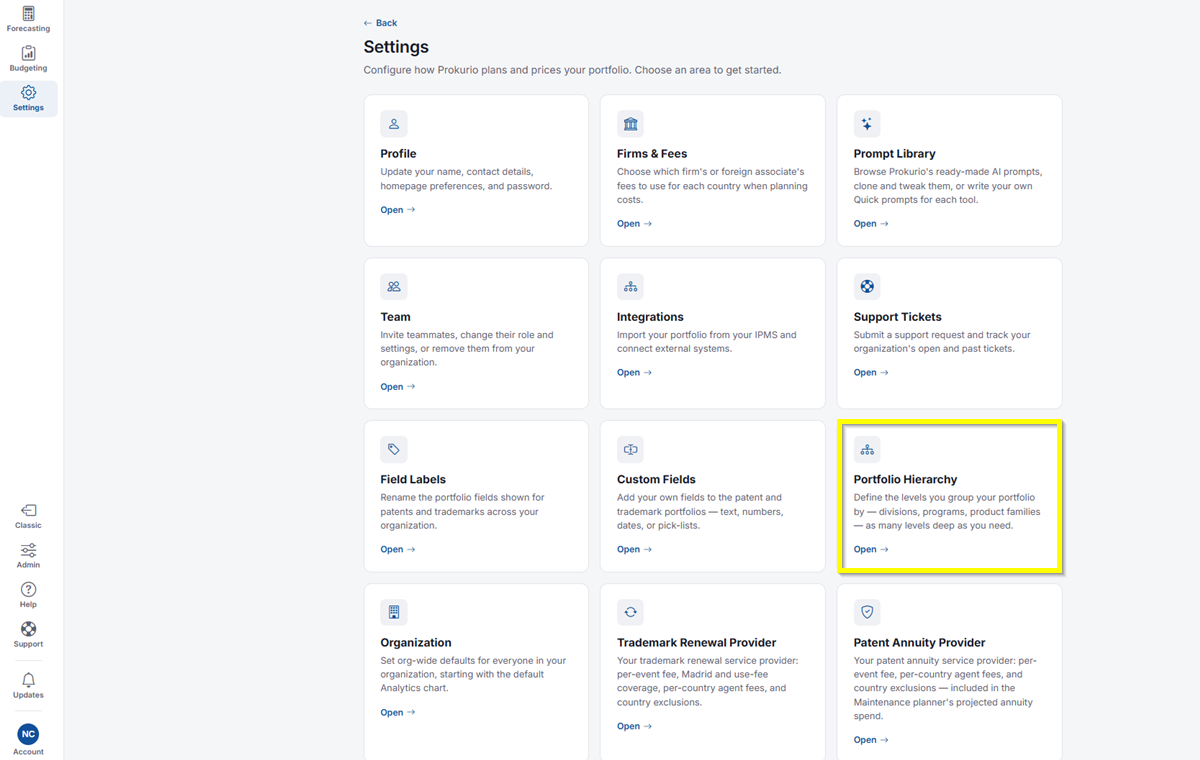
- Click Portfolio Hierarchy.
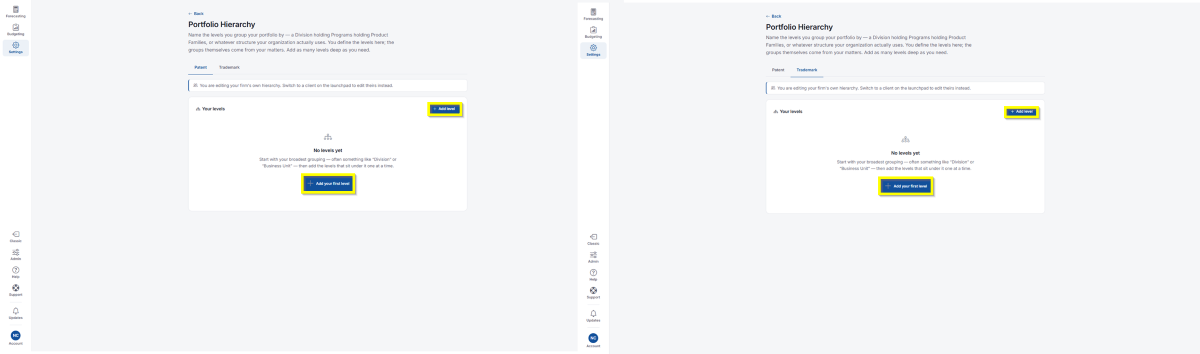
- Portfolio Hierarchy has separate tabs for Patent and Trademark, so you can define a different structure for each.
- If you haven’t added any levels yet, you’ll see a message letting you know. Start with your broadest grouping, often something like “Division” or “Business Unit,” then add the levels that sit under it one at a time.
- Click Add your first level to get started, or click Add level in the top right to add another level once you have at least one. This opens the Add a level screen.
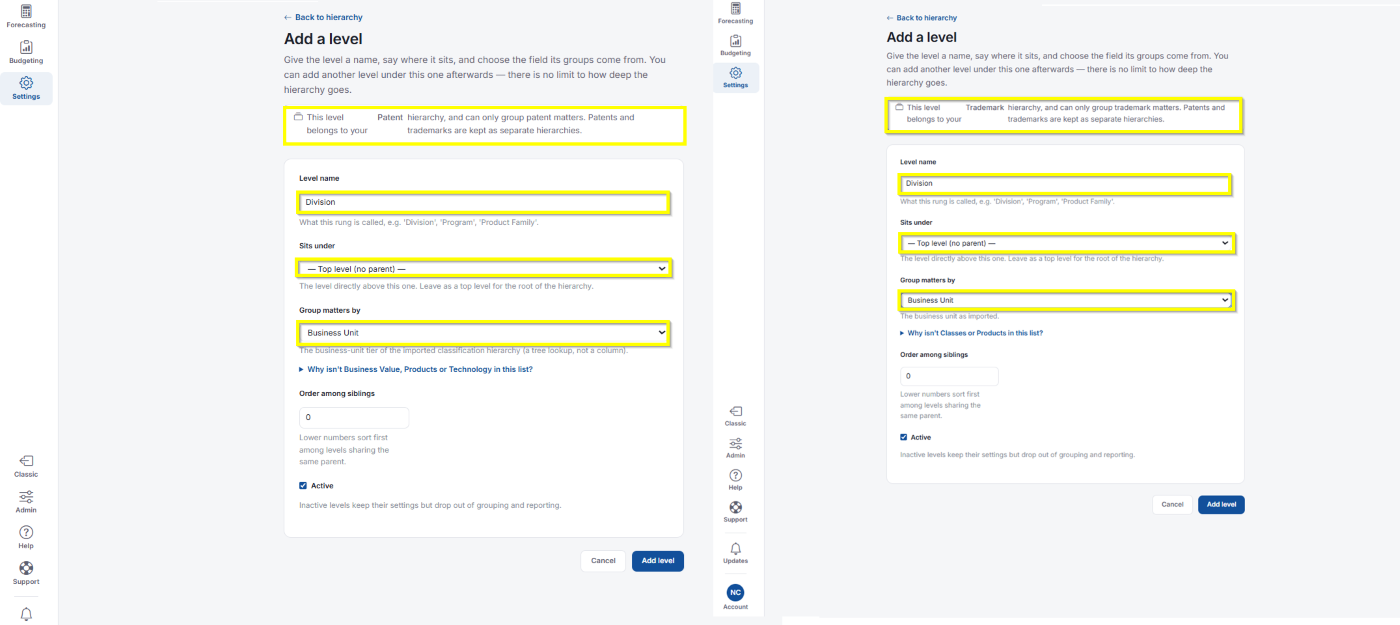
- Give the level a name, say where it stays, and choose the field its groups come from. You can add another level under this one afterwards; there’s no limit to how deep the hierarchy goes.
- You’ll see a note confirming this level belongs to your Patent (or Trademark) hierarchy, and can only group matters of that type. Patents and trademarks are kept as separate hierarchies.
- Level name: Name the label to your preference
- Sits under: The level directly above this one. Leave as Top level (no parent) for the root of the hierarchy. Once you have a first level, you can select it here for your next level, or leave this one as the top level too.
- Group matters by: Select the field its groups come from. This is the field whose value decides which group a matter falls into at this level.
- On the Patent tab, this list is split into two sections:
- Standard fields: Client, Country, Filing Type, Licensee, Matter Family, Matter Type, Next Maint. Yr, Rating, Renewal Action, Responsible Attorney, Route, and Status.
- Classification tiers: Business Unit, Classification, Portfolio Ref, Subrank, and more below.
- On the Trademark tab, this list only has one section:
- Standard fields: Business Unit, Client, Client Attorney, Country, Mark, Matter Family, Matter Type, Next Action, Number of Classes, Owner Name, Region, Responsible Attorney, Route, and Status.
- Standard fields: Business Unit, Client, Client Attorney, Country, Mark, Matter Family, Matter Type, Next Action, Number of Classes, Owner Name, Region, Responsible Attorney, Route, and Status.
- Why isn’t Business Value, Classes, Products, or Technology in this list? – A matter can carry several of these fields at once, so groups would overlap instead of splitting the portfolio cleanly. The per-group costs would add up to more than the portfolio total. Grouping by multi-valued fields is planned for a later release.
- Order among siblings: Enter a number; lower numbers sort first among levels sharing the same parent.
- Active: Checked by default. Inactive levels keep their settings but drop out of grouping and reporting.
- Below Active, once a level exists, you’ll also see its Identifier, set when the level was created and fixed from then on, so saved groupings that point at it keep working. It also shows who last changed the level and when.
- Click Add level once done to save, or Cancel to discard.
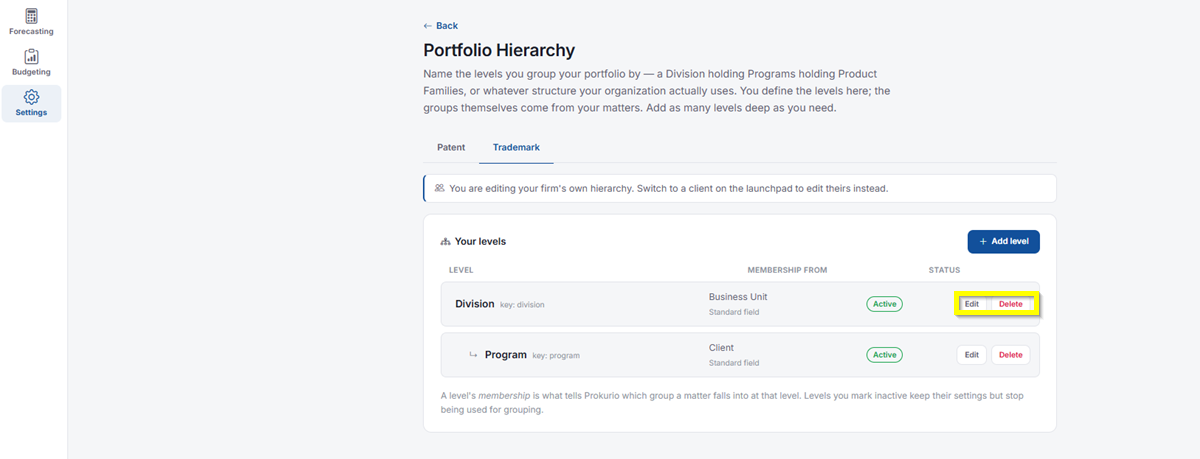
- Edit Level – Once you have a level, you can open it again to rename it, move it under a different parent, or change which field decides its groups. Update what you need and click Save level to apply your changes, or Cancel to discard.
- Delete Level – If a level has levels underneath it, you won’t be able to delete it right away. You’ll see a message like: “Division” has levels underneath it, so you can’t delete it until you move or remove them. Try anyway? Move or remove the levels sitting under it first, then you’ll be able to delete it.
If you need any additional assistance, please contact us at support@prokurio.com, and we’ll get you the answers you need!