

Client Portal lets your firm generate a password-protected link to a simplified, read-only view of a plan, budget, or forecast, so your clients can see their data without a Prokurio login of their own. It works like Prokurio Secure Share, and you can use it for both patents and trademarks.
Your organization needs to be subscribed to Client Portal first to have this available.
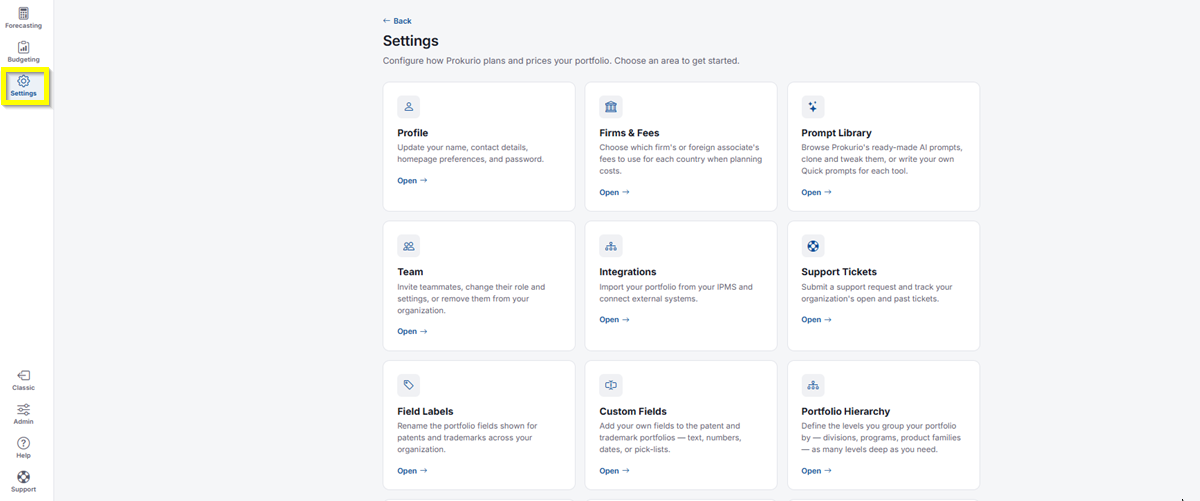
- In the top-left icon rail, click the gear icon to open Settings.
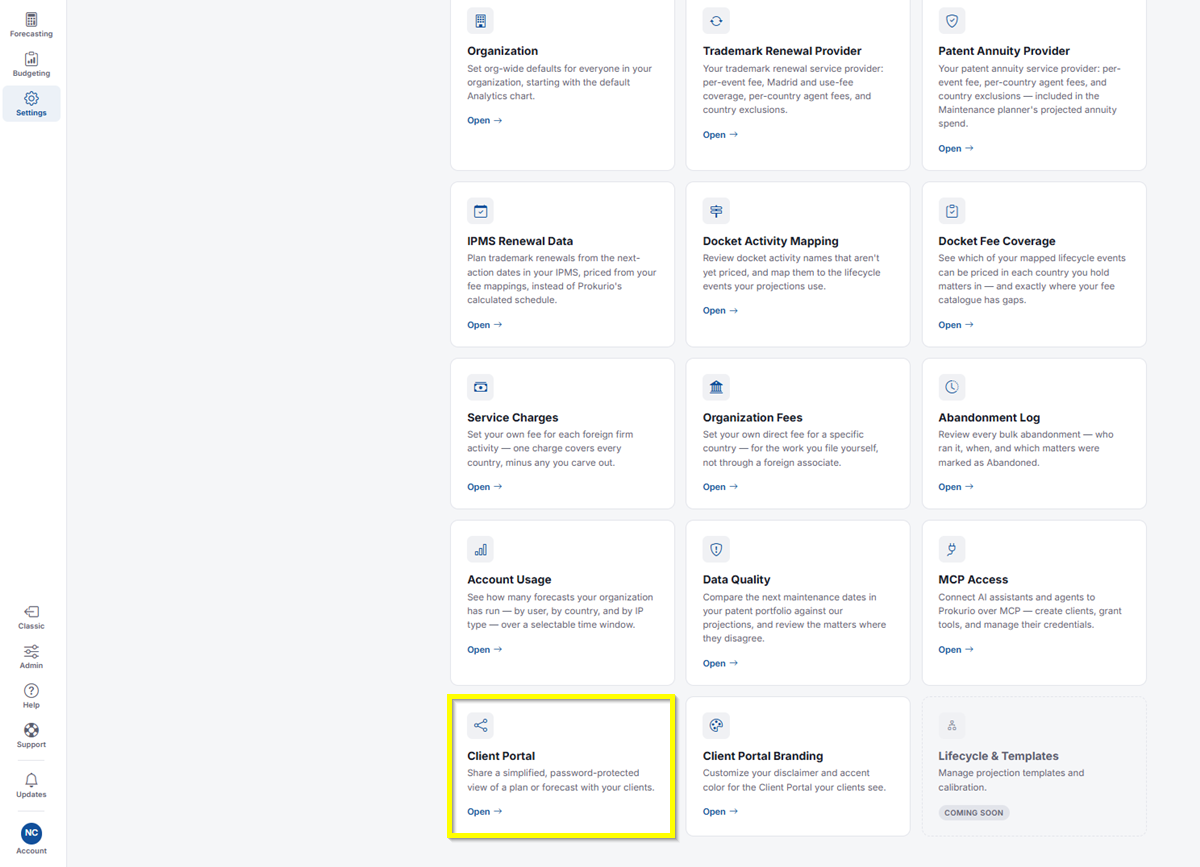
- Click Client Portal.
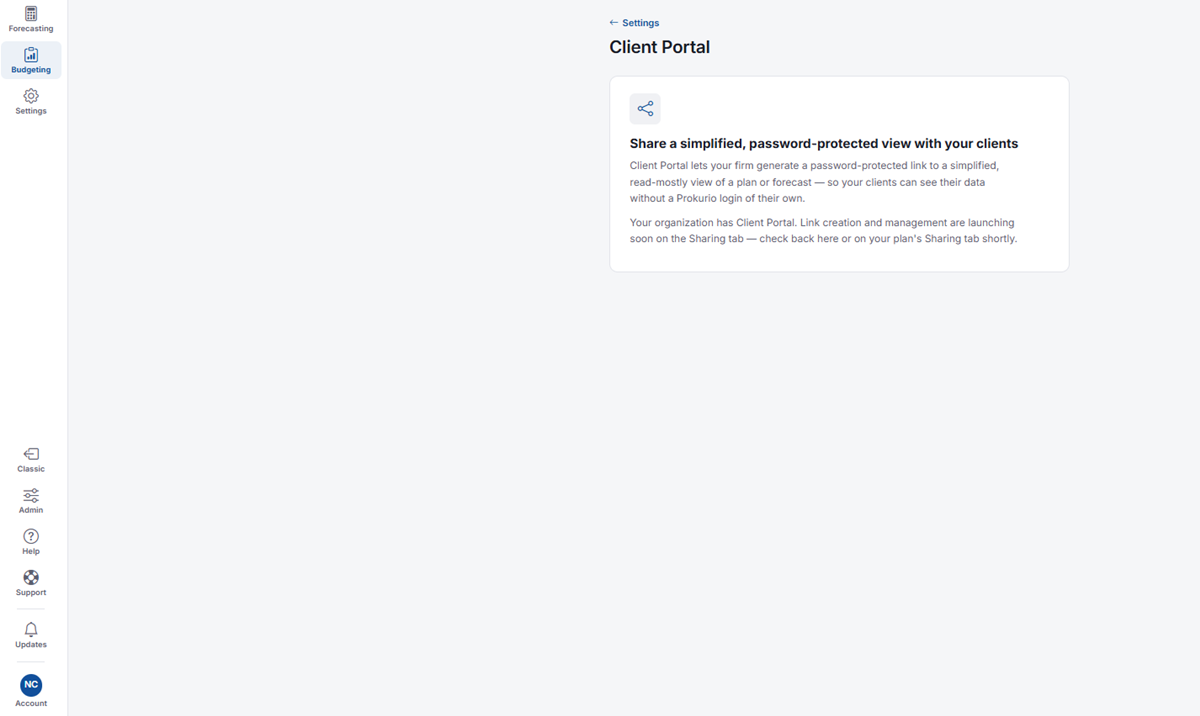
Client Portal lets your firm generate a password-protected link to a simplified, read-mostly view of a plan or forecast — so your clients can see their data without a Prokurio login of their own.
How to Start Sharing
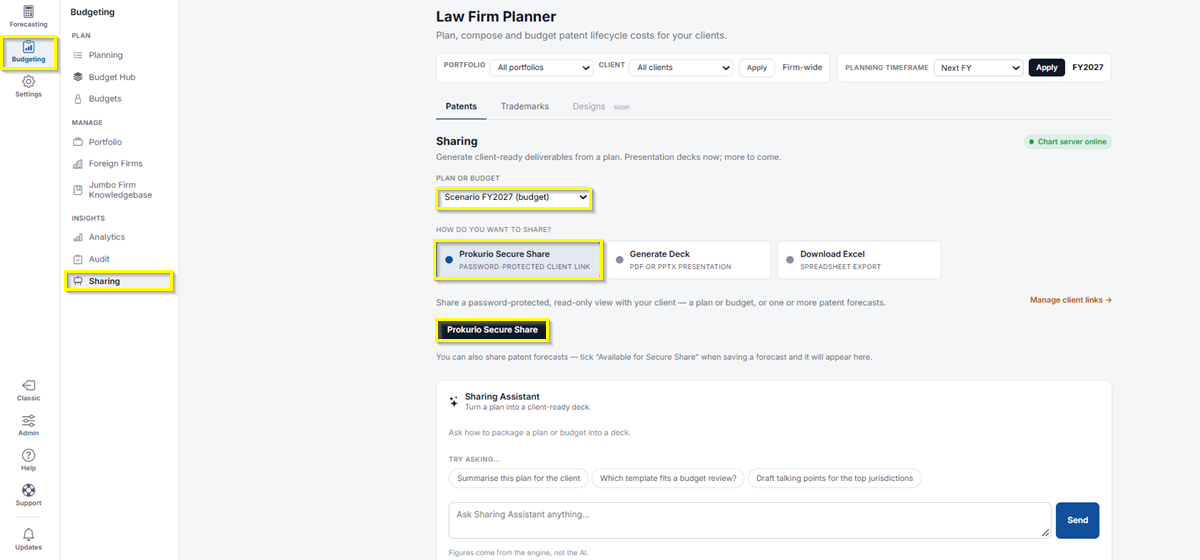
- In the left-hand navigation, click Budgeting, then click Sharing.
- Choose the Patents or Trademarks tab, depending on what you want to share. Secure Share works the same way for both.
- Under Plan or Budget, select the patent or trademark plan or budget you want to share.
- Under How do you want to share?, select Prokurio Secure Share. This shares a password-protected, read-only view with your client.
- Click the Prokurio Secure Share button.
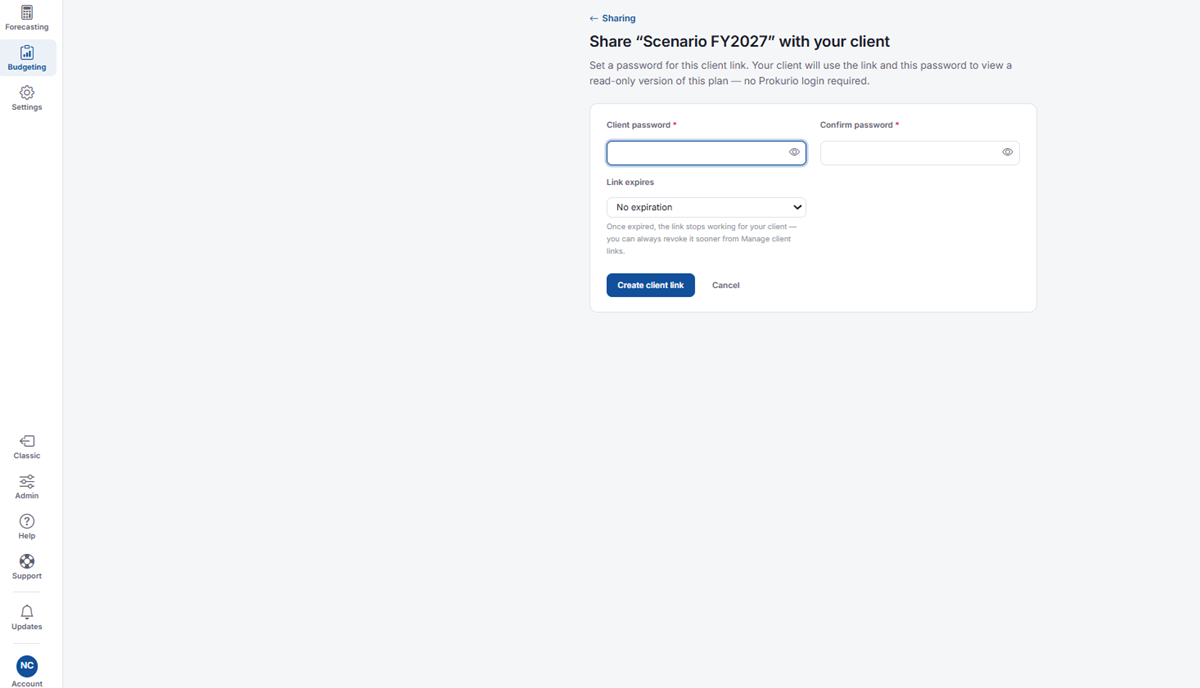
- Enter a Client password, then enter it again under Confirm password. Your client will use the link and this password to view a read-only version of the plan, with no Prokurio login required.
- Use Link expires to choose when the link stops working, for example, No expiration. You can always revoke a link sooner from Manage client links.
- Click Create client link, or Cancel to discard.
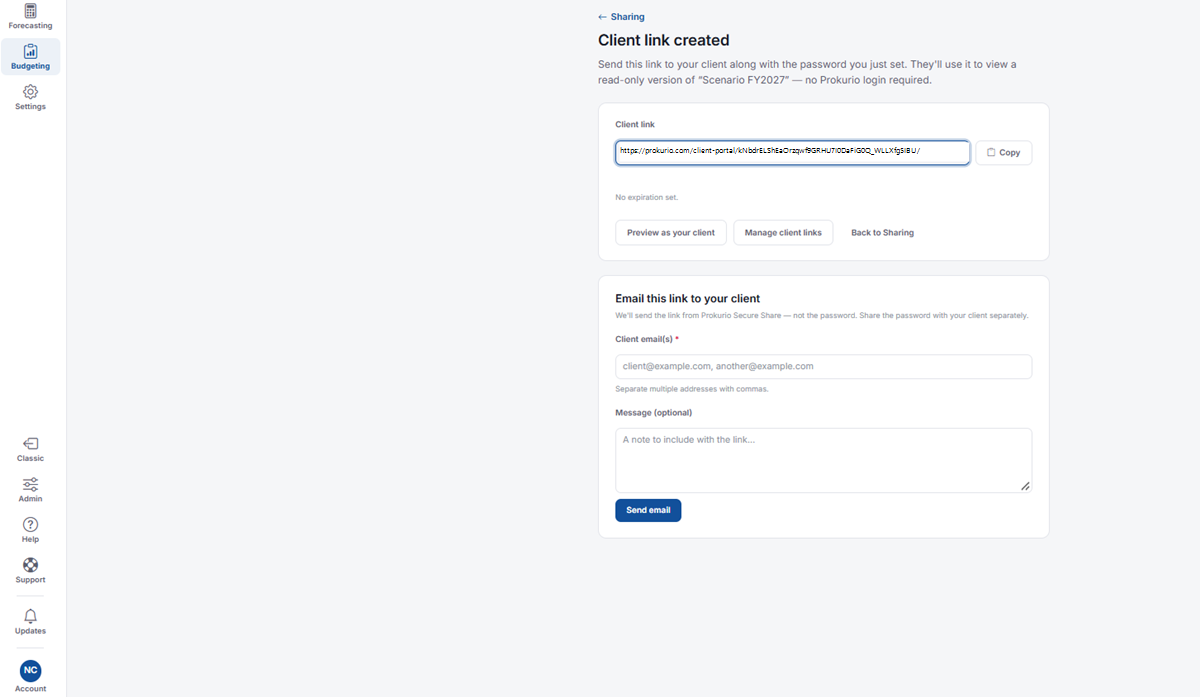
- Once your link is created, click Copy to copy the Client link and send it to your client yourself, along with the password you set.
- Click Preview as your client to see what your client will see.
- Click Manage client links to review your links or revoke one.
- Click Back to Sharing to return to the Sharing page.
- To email the link from Prokurio, enter the Client email(s) under Email this link to your client, separating multiple addresses with commas.
- Add a Message if you’d like to include a note with the link.
- Click Send email. Prokurio sends the link from Prokurio Secure Share, not the password, so share the password with your client separately.
- To share a patent forecast, tick Available for Secure Share when saving the forecast, and it will appear here.
- You can add your firm’s disclaimer and accent color to the Client Portal from the Client Portal Branding page in Settings.
If you need any additional assistance, please contact us at support@prokurio.com, and we’ll get you the answers you need!