
Client Planner is Prokurio’s easy-to-use budgeting tool that helps IP firms simplify client cost planning and portfolio forecasting. It works with data from any IP management system, enabling firms to quickly create accurate annual or long-term IP budget estimates.
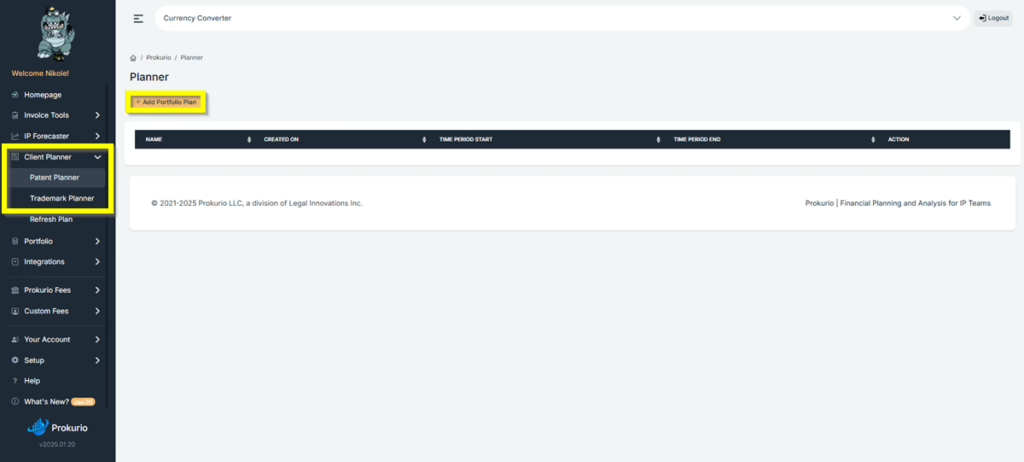
Let’s add a Patent or a Trademark Portfolio Plan to your Client Planner.
- On the right side of your homepage, under Client Planner, click Patent Planner or Trademark Planner, then click Add Portfolio Plan.
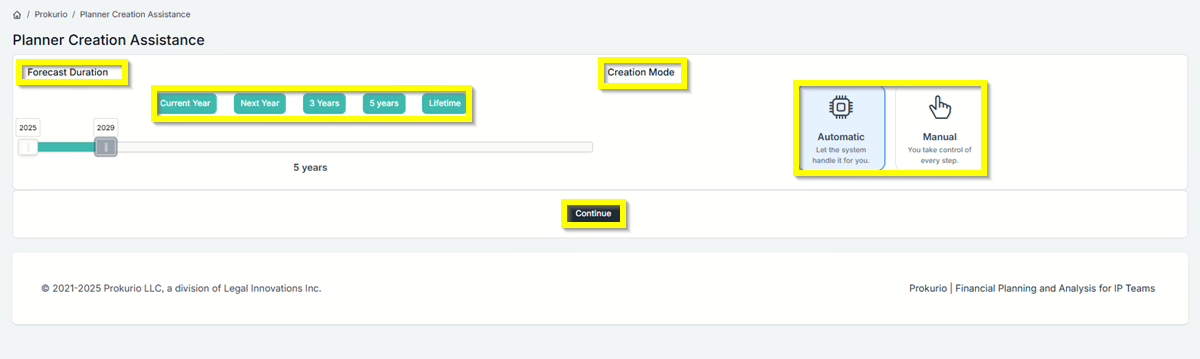
- Under Forecast Duration, you can select from the following options: Current Year, Next Year, 3 Years, 5 Years, or Lifetime. You can also use the Range Slider to choose the specific date range you need.
- Under Creation Mode, you can choose between Automatic and Manual.
- Click Continue to proceed.
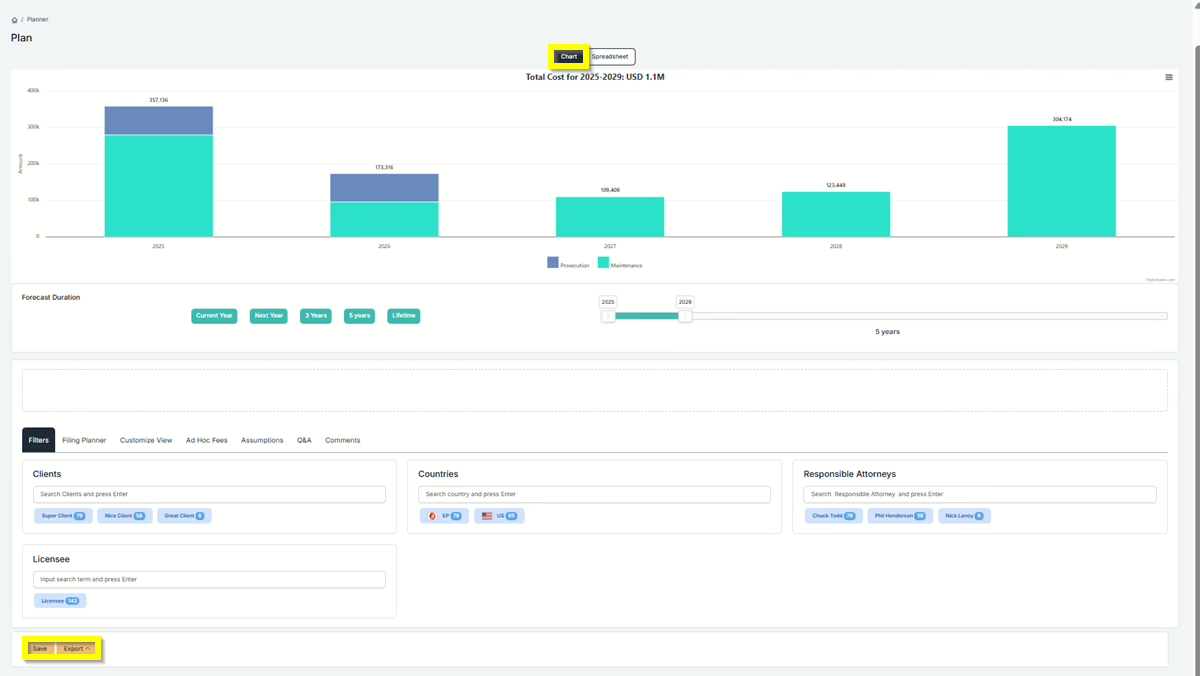
- You will then see the Plan on a Chart and a Spreadsheet that you can “Save” and “Export”.
Chart #
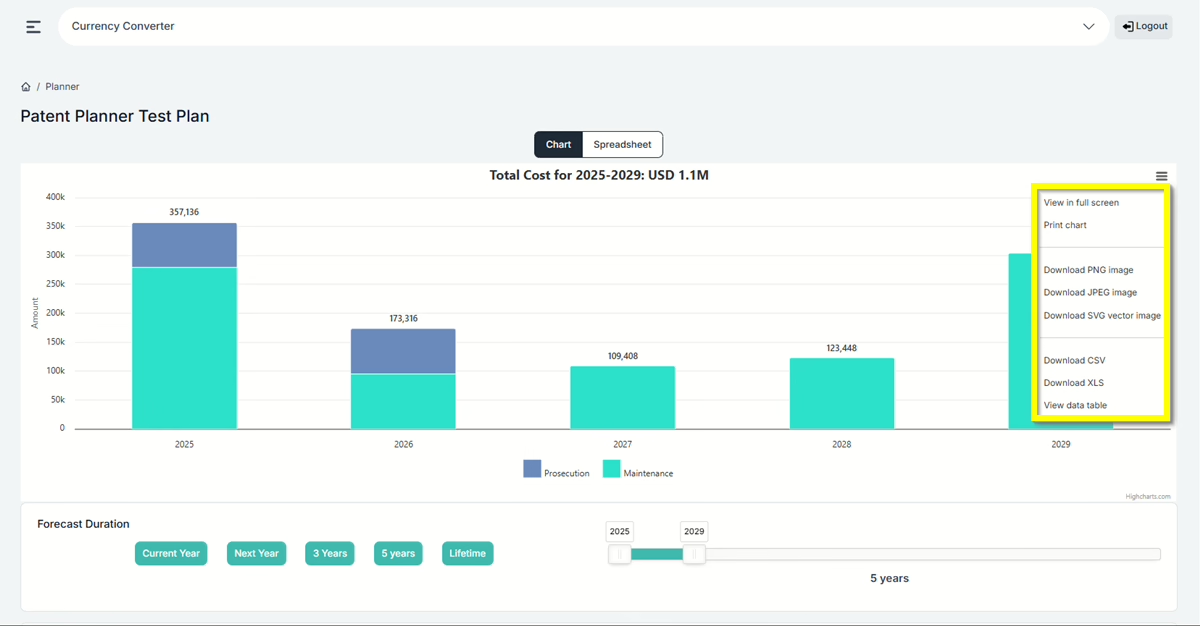
- To access additional chart options, click the Menu icon located in the top-right corner of the chart. From there, you can choose to view the chart in full screen, print it, or download it in various formats, including PNG, JPEG, and SVG. You can also export the chart data as a CSV or XLS file, or view the underlying data in a table format.
Spreadsheet #
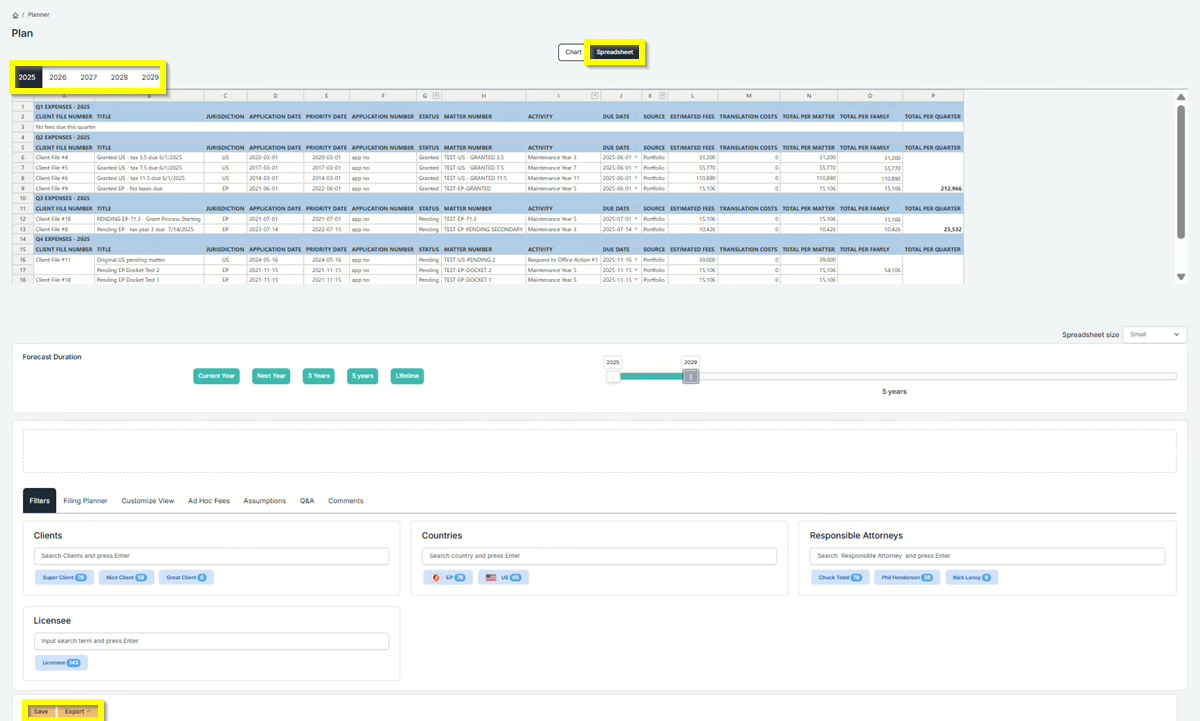
- You have 3 Export options: Summary, Detail, and Export to DB.
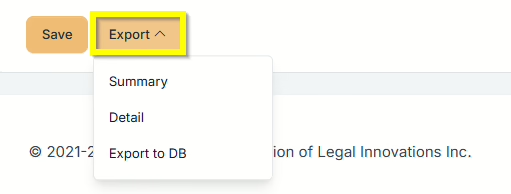
- At the bottom of the page, you can add filters to your chart or spreadsheets. There are seven tabs available: Filters, Filing Planner, Customize View, Ad Hoc Fees, Assumptions and Comments.
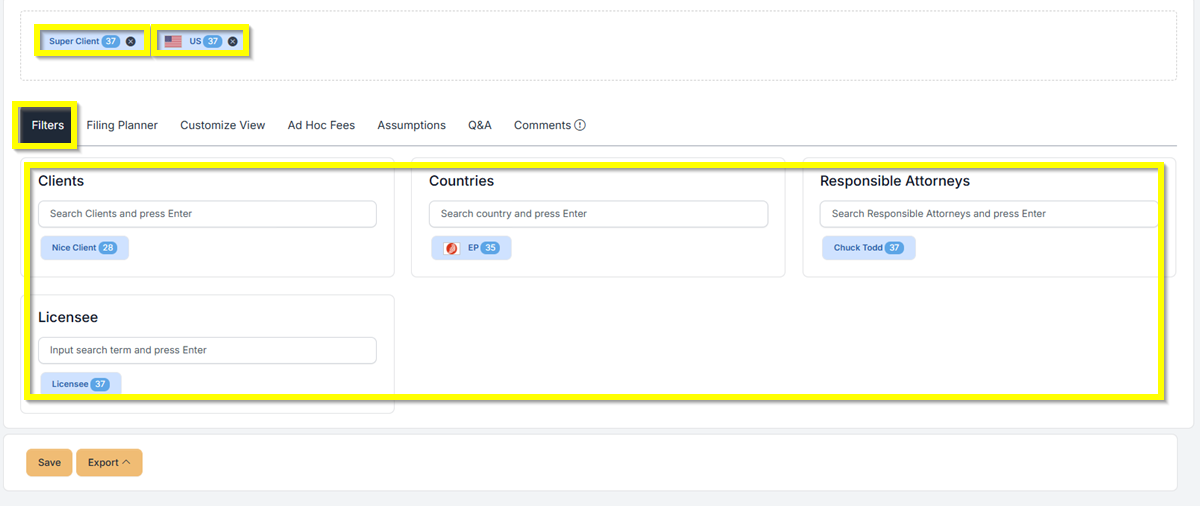
Filters (Patent) #
- Search for the Clients, Countries, Responsible Attorneys, and Licensees you want. Then, drag and drop them into the filter area to decide what appears in the chart or spreadsheet.
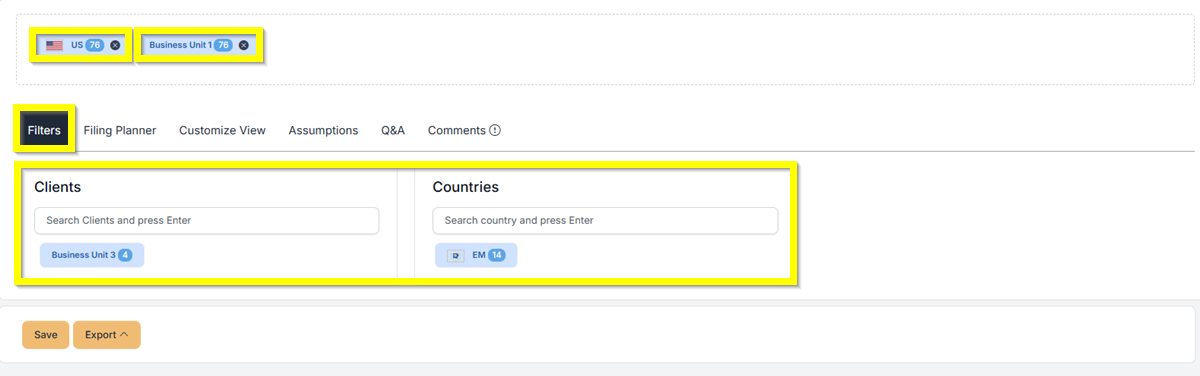
Filters (Trademark) #
- Search for the Clients and Countries you want. Then, drag and drop them into the filter area to decide what appears in the chart or spreadsheet.
 #
#
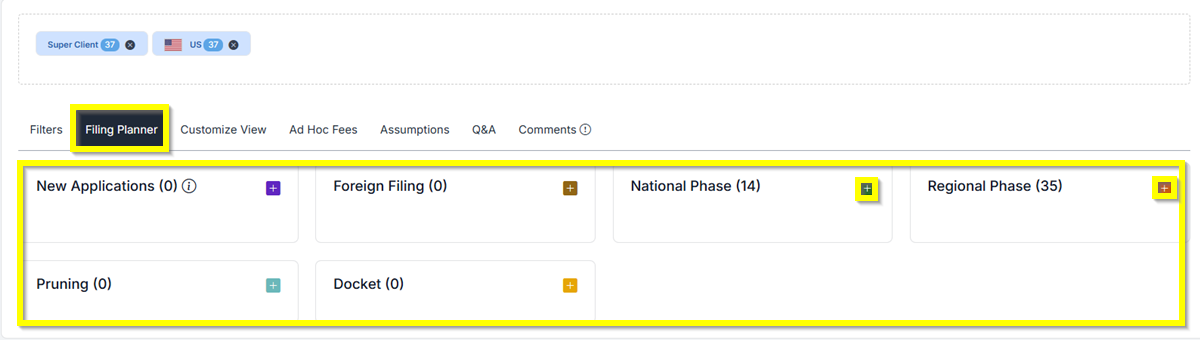
Filing Planner #
- Add New Applications, Foreign Filing, National Phase, Regional Phase, Pruning, and Docket.
- Just click on the (+) icon to add it, and then you can drag and drop it to be added to the chart or spreadsheet
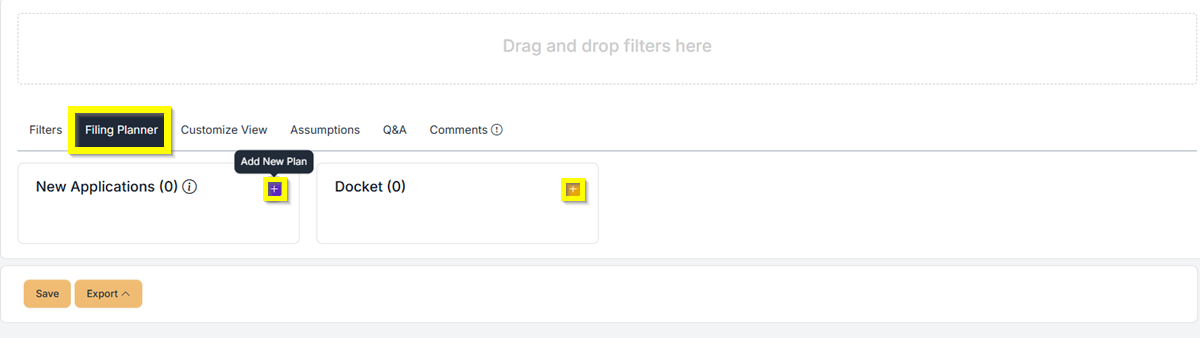
Filing Planner (Trademark) #
- Add New Applications and Docket.
- Just click on the (+) icon to add it, and then you can drag and drop it to be added to the chart or spreadsheet
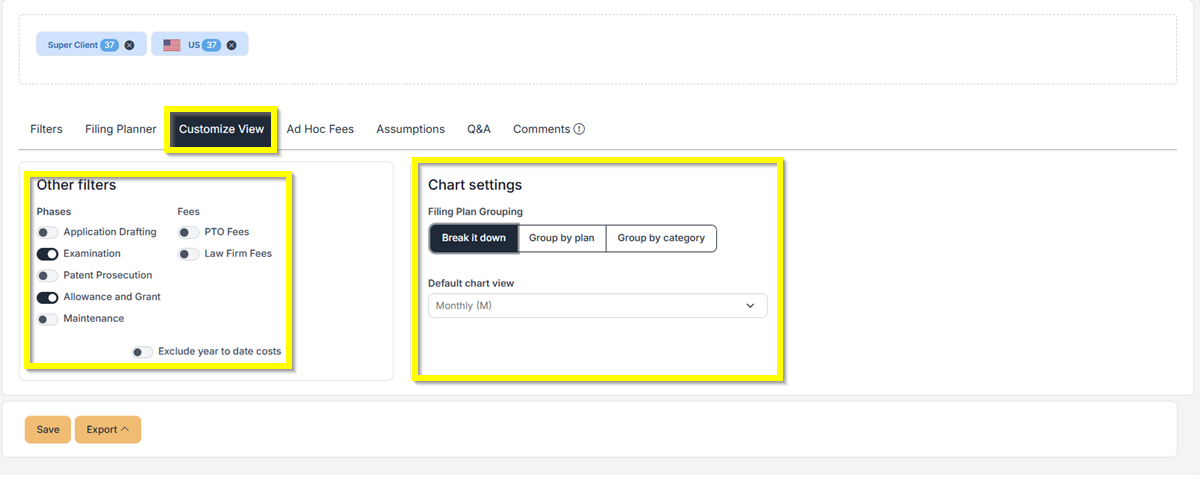
Customize View #
- You can select the phases and fees and modify the Chart Settings.
- Toggle the switch under other filters for the Phase and Fees.
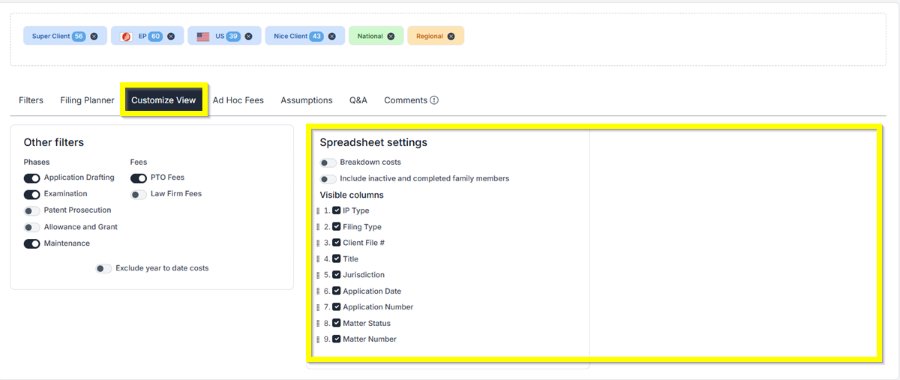
- Also in the Spreadsheet Settings, you can select the Visible Columns that you want to include.
#
Ad Hoc Fees #
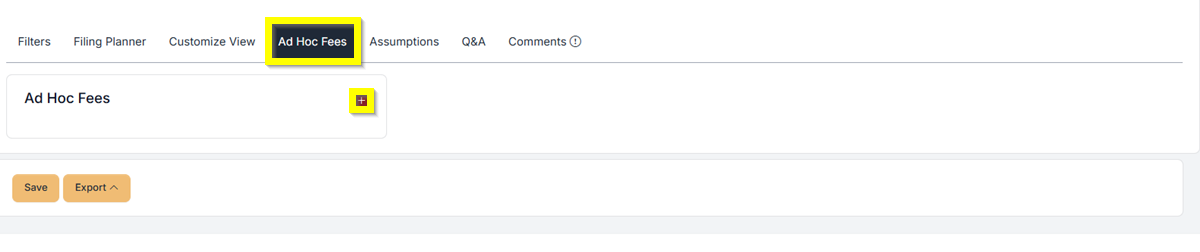
- This is where you can add ad hoc fees.
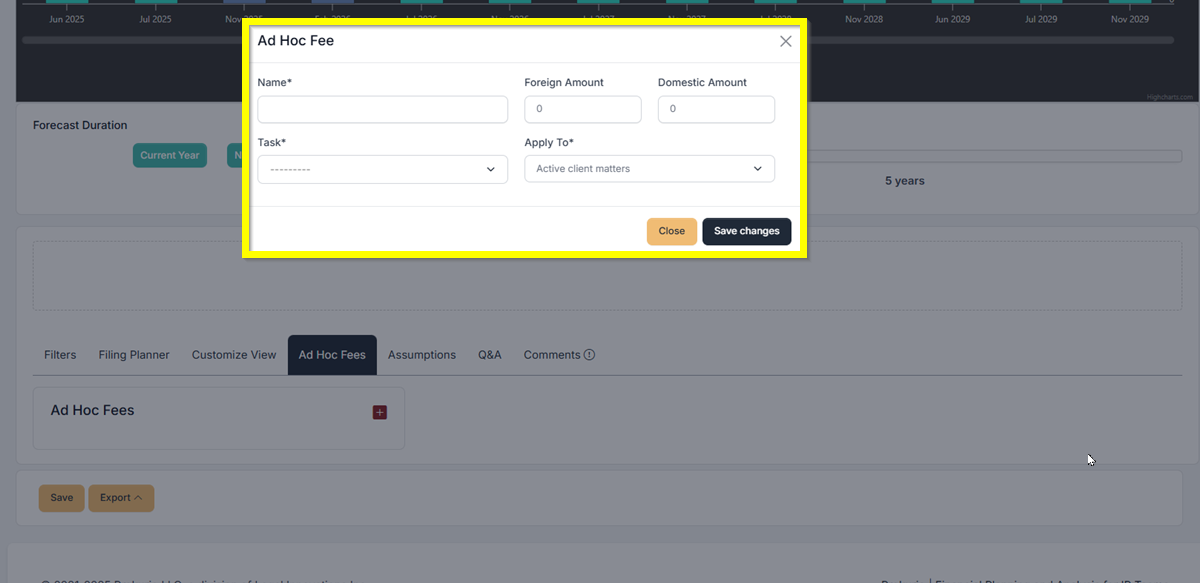
- You can set the name of the fee, select the task, set the foreign and domestic amount, and also select which it will be applied to.
Assumptions #
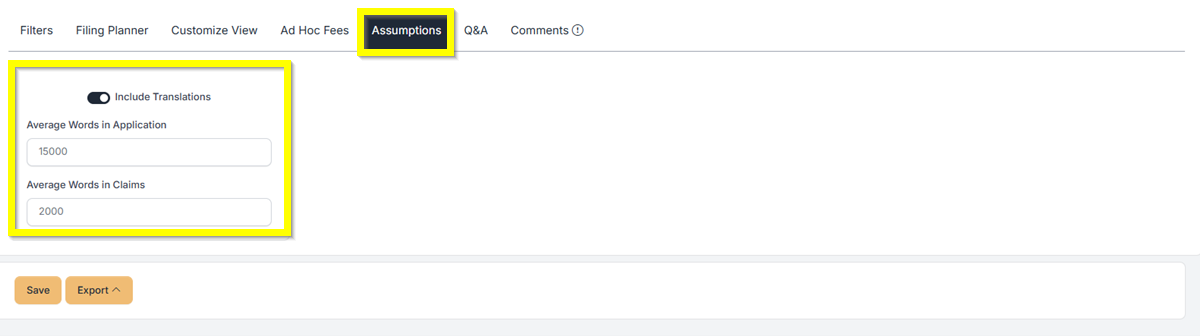
- This is where you modify if you will include translation, the number of average words in claims and applications.
Comments #
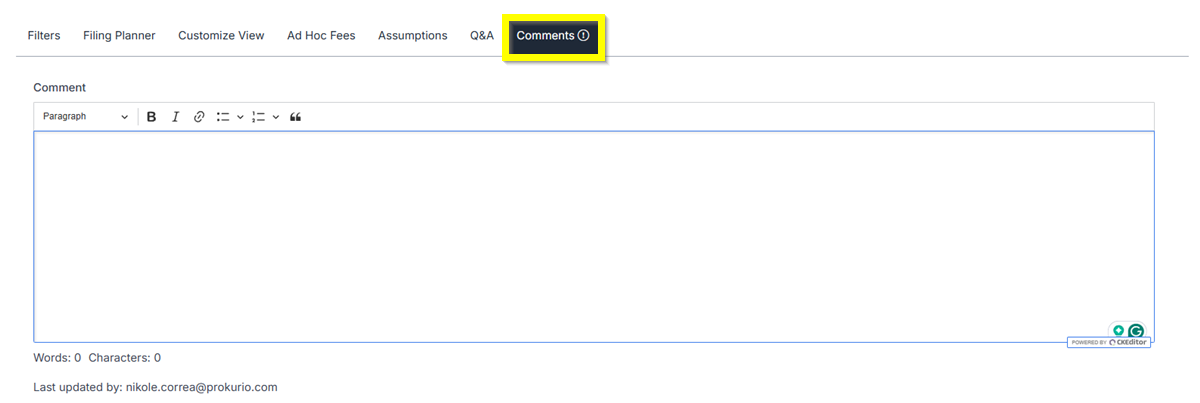
- This is where comments are added. You can add comments, or other team members can add comments on this field.
If you need any additional assistance, please contact us at support@prokurio.com, and we’ll get you the answers you need!

