
IP Forecaster can quickly and easily create National Stage Entry cost forecasts, including custom selections for receiving offices, ISAs, SISAs & IPEAs. These forecasts can be saved, emailed, and/or exported for later use or distribution to team members or clients for review.
Let’s generate a National Stage Entry Forecast, nationalizing in China, EPO, and Japan, with the US as your Receiving Office and ISA. Your application has 1 priority app, 15 total claims, 2 independent claims, and 32 pages.
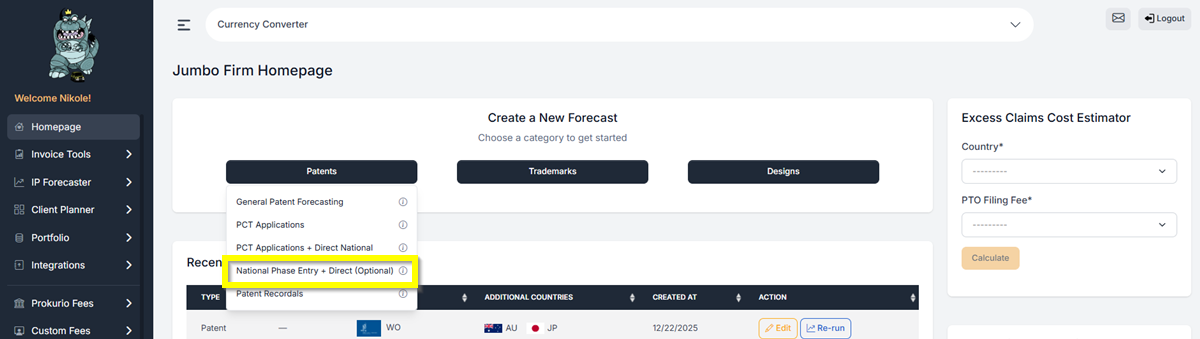
- From your Homepage at the top under Create a New Forecast, click the button labeled Patent. Then select National Phase Entry + Direct (optional). This will take you directly to the Patent Forecast Request screen for national filing forecasts.
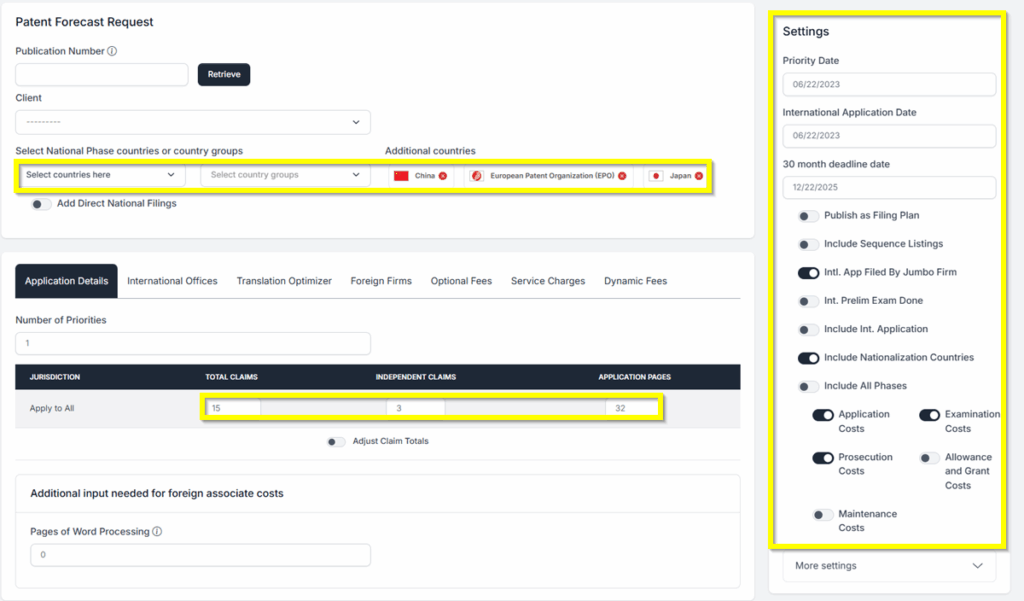
- Under Select National Phase countries or country groups, click the select countries here dropdown and search using type-ahead for China, hit the enter key, or click on the country to select it. Repeat the same for EPO and Japan.
Note: Select country groups will store any groupings of countries you have created for faster bulk addition of multiple countries at once. - Under the Application Details tab, enter 1 for Number of Priorities, 15 for Total Claims, 3for Independent Claims, and 32 for pages.
- Under Settings on the right of your screen, you can enter your Priority and Intl Application Dates (defaults to the current date), and your 30-month deadline date will calculate automatically. For Phase costs, the default is to exclude Allowance and Grant, and Maintenance costs from the report. You may toggle off/on any phase costs as needed.
- International App Filed By (Firm Name) – Use this toggle if you have different fees set up based on the origination of the PCT application. This allows you to charge a higher fee to handle applications originating externally
- International Offices tab: The system allows you to set defaults for these, but you can change the selections at any time by navigating to this tab.
Note: The system will dynamically filter the selections for you as you select your Receiving Office and ISA. For this example, select the United States for both.

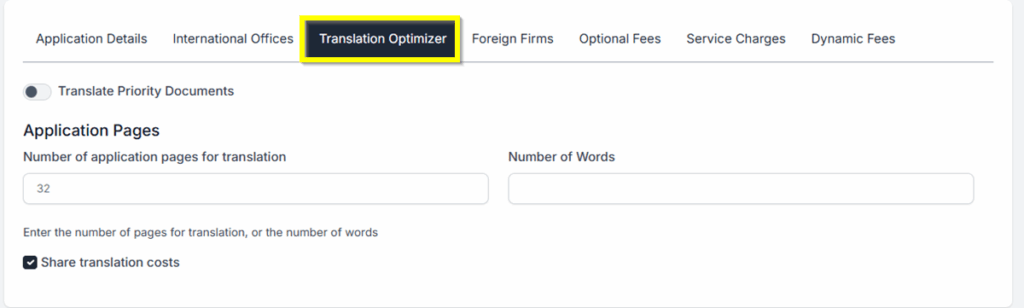
- Translation Optimizer tab: Based on the countries selected above, any translations will be shown if required. The number of pages from the application details is automatically copied into the Number of Translation pages field. You may manually change this number as desired. For your translations, IP Forecaster does include default average baseline translation costs, but if you have custom translation firms/vendors set up in the system, you may select them from the dropdown. Each time you change the selection, the cost will automatically update in real time.
- Foreign Firms tab: If you have any foreign firms with fee schedules set up in the system for any country selected above, this allows you to select any of those firms to apply their fees for each jurisdiction. Additionally, the system will show you the age of the fee schedule you have entered. If there aren’t any fee schedules entered for a jurisdiction, Prokurio Baseline Fees will be used.

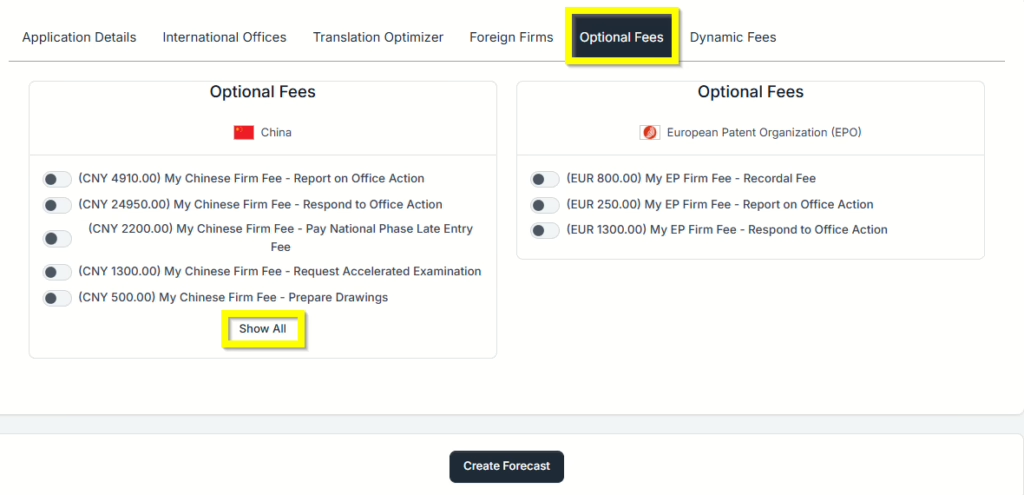
- Optional Fees tab: This tab will display any optional PTO and/or law firm fees (in-house and foreign) for each country selected. To include any of these fees in your forecast results, simply turn the toggles on beside the fee(s) you would like to be included in your report.
Note: For countries with a larger number of optional fees, click on the Show All button to display the full list for that country.
Direct National Filing – You can also add a Direct National Filing by toggling the Add Direct National switch.
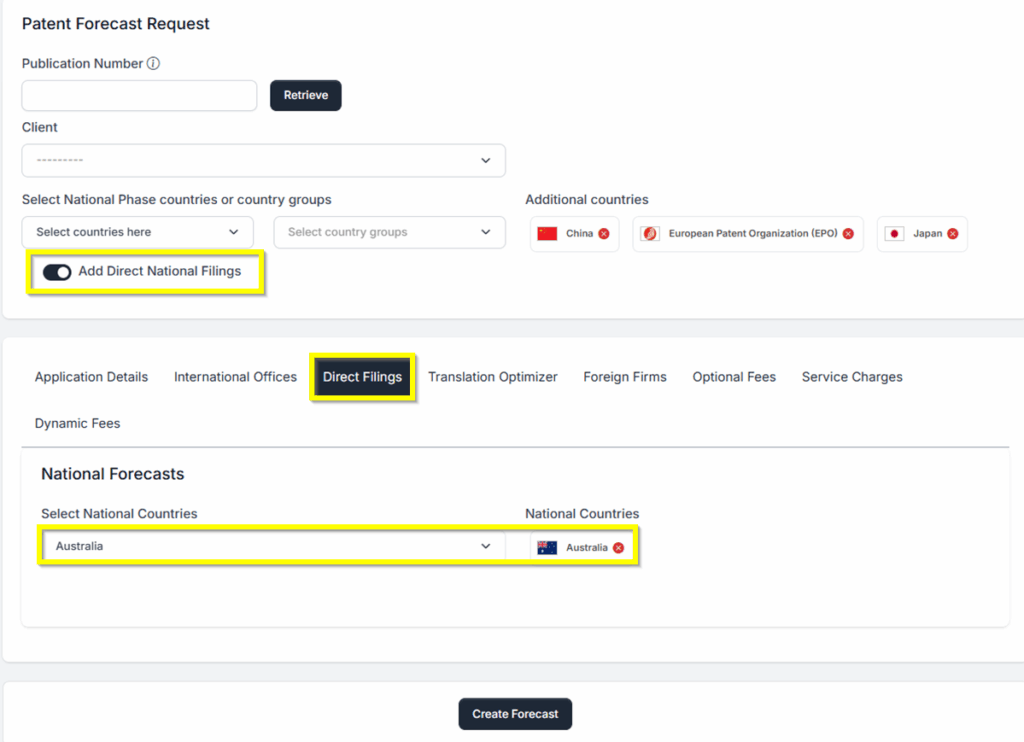
- Now that you have clicked through each tab and understand the features, you are now ready to create your PCT forecast.
- At the bottom of your screen, click the Create Forecast button to generate your forecast report.
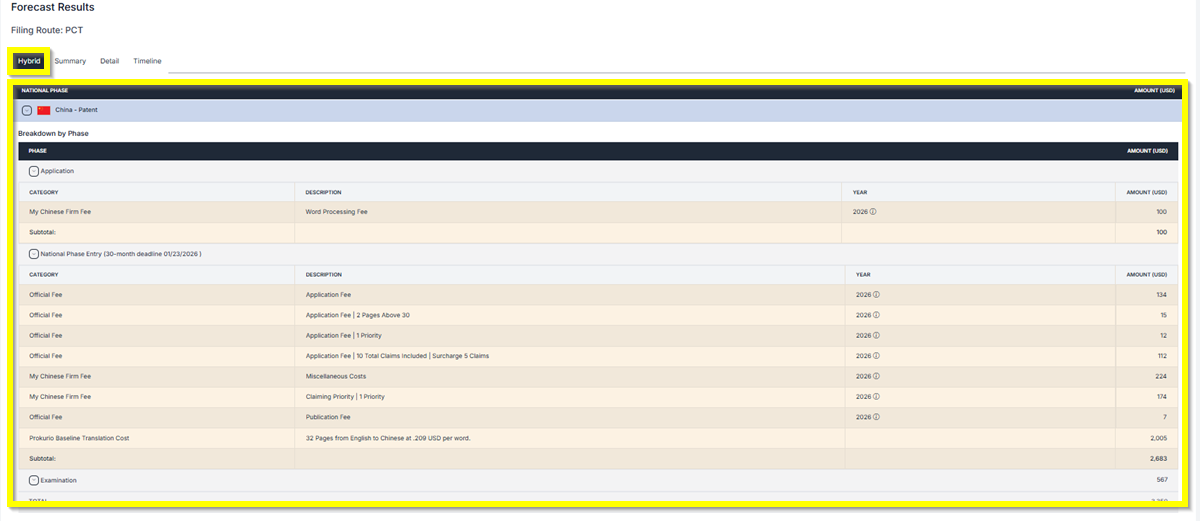
National Phase Results – You will have 3 different views of the results: Hybrid, Summary, and Detailed Timeline.
- Hybrid Results – Detailed results of the forecast.
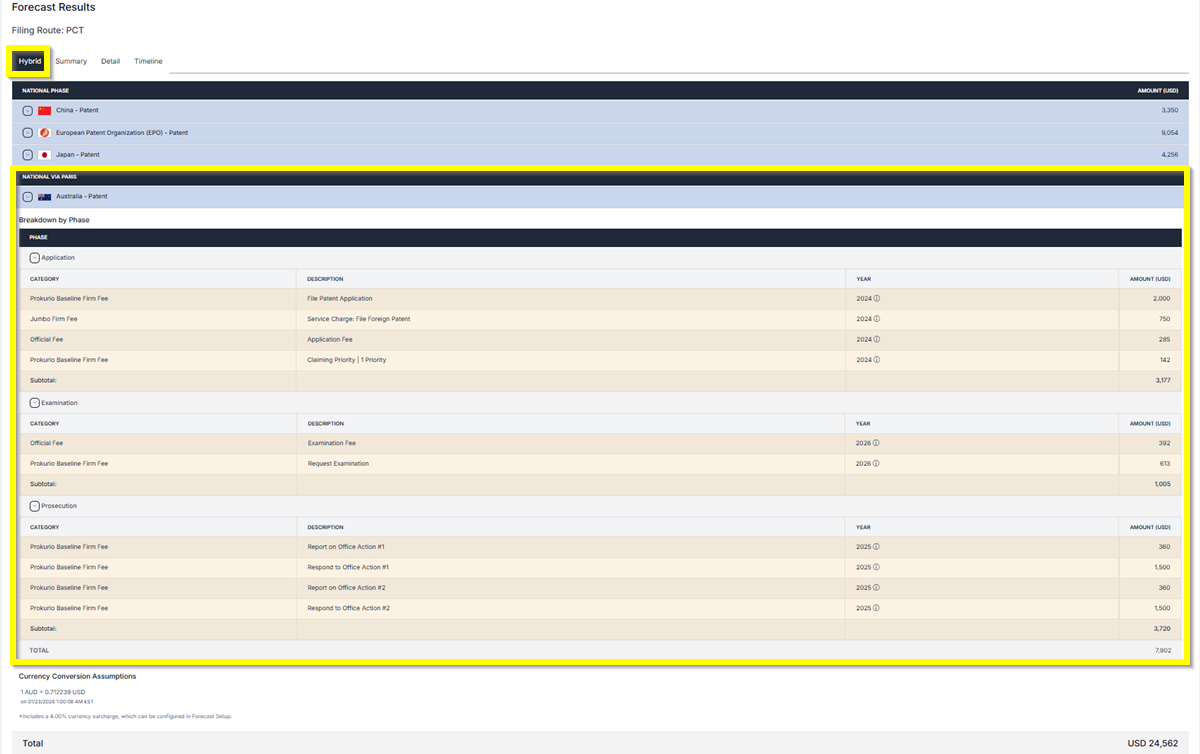
National Phase with Direct National Results – You will have 3 different views of the results: Hybrid, Summary, and Detailed Timeline.
- Hybrid Results – Detailed results of the forecast.
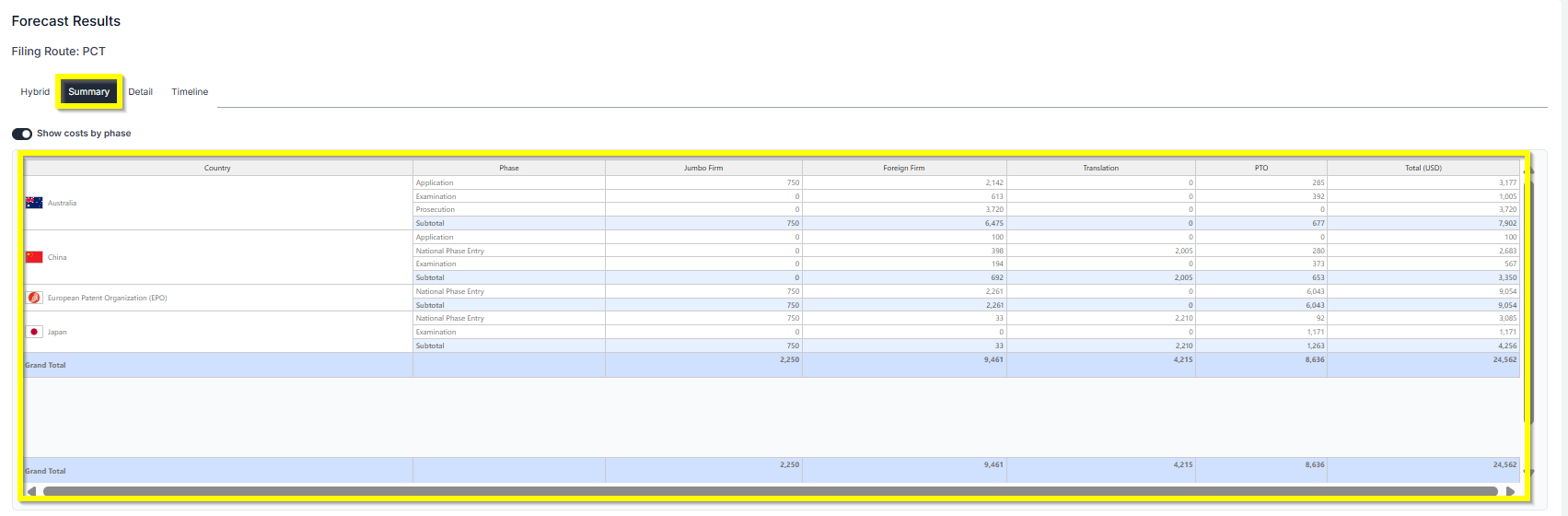
Summary Results – Provides a concise overview of the results. Has the ability to show cost by phase.
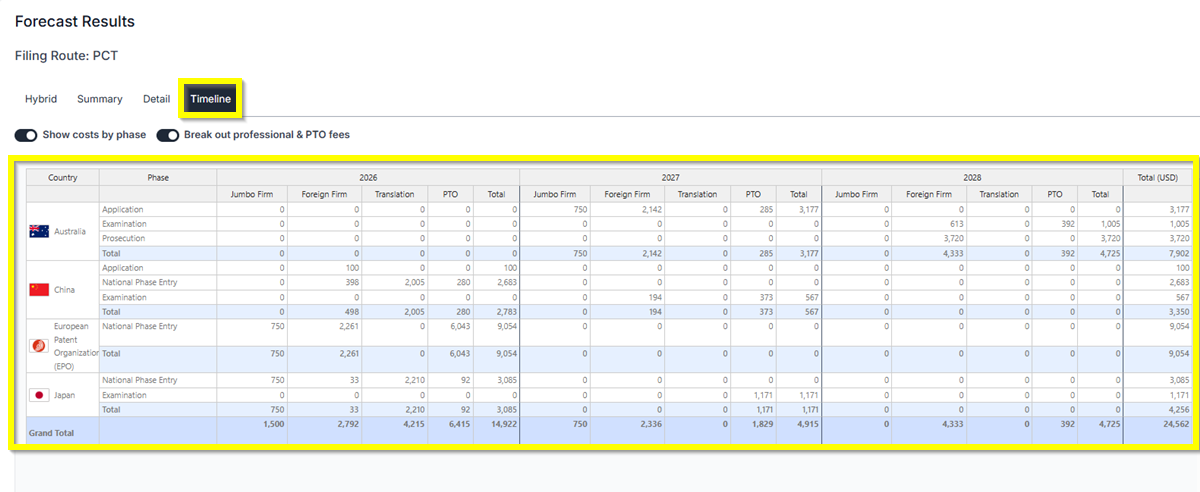
Timeline Results– Provides the results for the current year and also the next 3 years. Has the ability to show cost by phase and show Breakout professional & PTO fees.
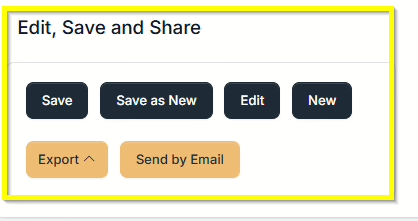
- Saving and Sharing (bottom left) allows you to Save, Edit, Export, Create New, or Send by Email your forecast results.
If you need any additional assistance, please contact us at support@prokurio.com, and we’ll get you the answers you need!

