
From your Homepage, select “Custom Fees”. Then click your {Firm Name} Fees. You can now select the service charge you want to create by clicking on Add Recordal Service Charge.
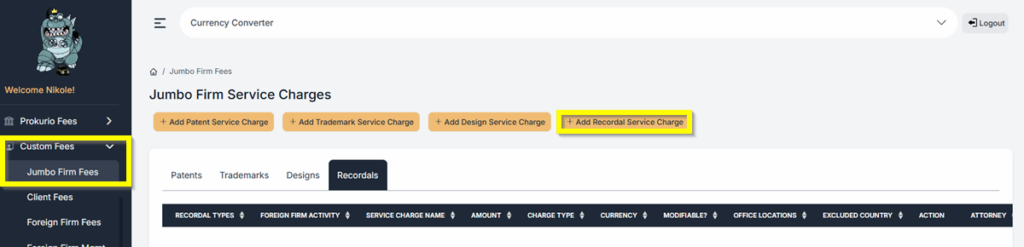
If you want to create a specific Service charge name, you can do that by creating a task, which can also be found under custom fees.
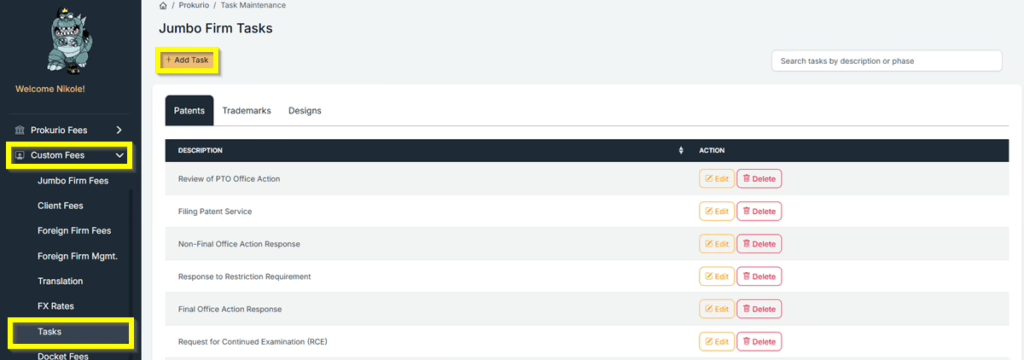
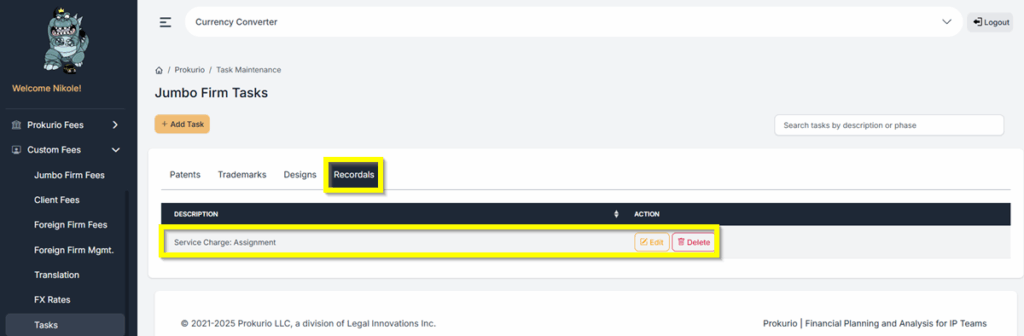
- Click on Custom Fees in the sidebar to expand the section, then on Tasks.
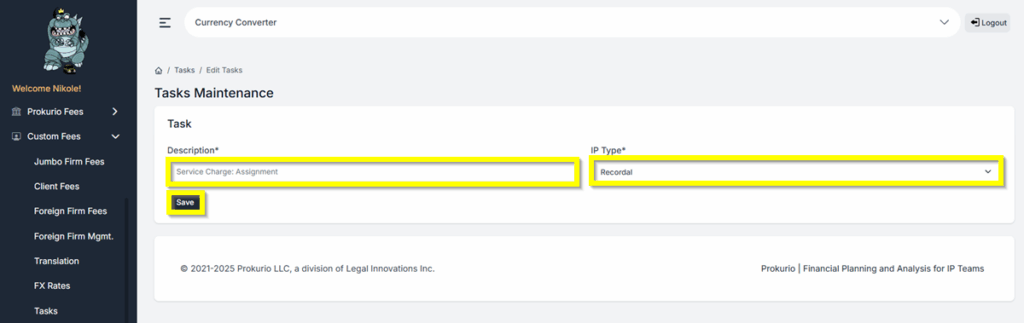
- Under Description, type in the name of the Service Charge you want. For this example, we will type in Service Charge: Assignment.
- Under IP Type, Select Recordal.
- Click Save to create the task.
- You will then have the option to Edit or Delete the Task.
Now, let’s set up a Recordal Service Charge: $350 for an Assignment Recordal Application with a Per Recordal Charge Type.
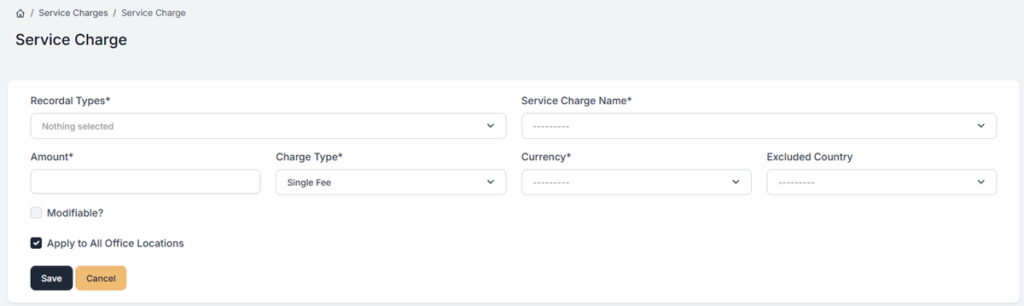
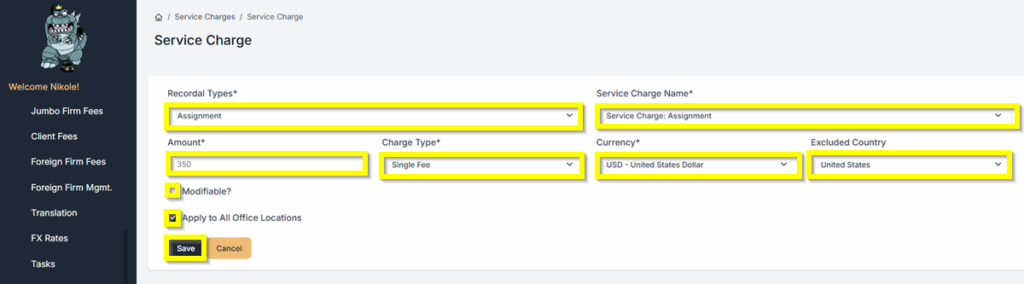
Once you are on the Recordal Service Charge page, simply fill out the required details. See the list below as an example. Click Save once done.
- Recordal Type – Assignment
- Service Charge Name – Service Charge: Assignment
- Amount – $350
- Charge Type – Single Fee
- Currency – USD
- Excluded Country – United States
- Modifiable? – Yes
- Apply to All Office Locations – Yes
- If you select ‘Yes’ under Modifiable, you will be able to modify the amount in your forecasts.
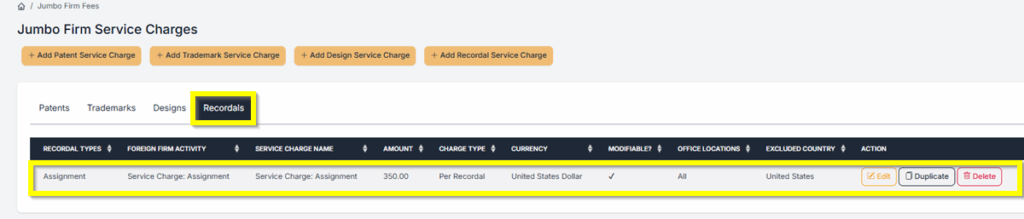
- You can also Edit, Duplicate, or Delete the Service Charge that was created.
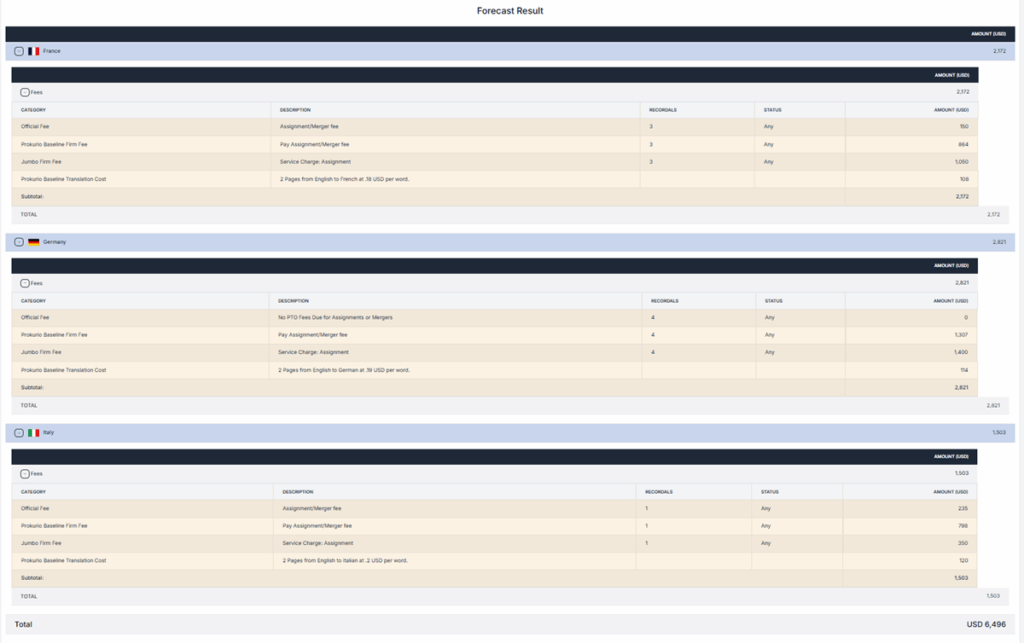
- Let’s now run a Recordal Forecast in France, Germany, and Italy.
- We will set the Recordals as follows: 3 for France, 4 for Germany, and 1 for Italy.
- If you selected Modifiable when creating the Service Charge, you will have the option to edit the amount of the applicable Service Charge when doing a forecast.
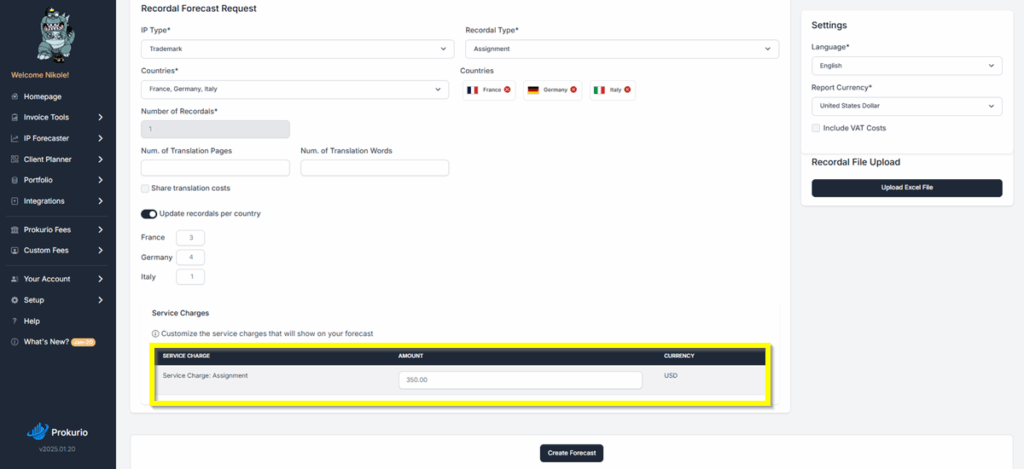
- Recordal Forecast Results with the Service Charge Fee added in the Forecast.
If you need any additional assistance, please contact us at support@prokurio.com, and we’ll get you the answers you need!

