
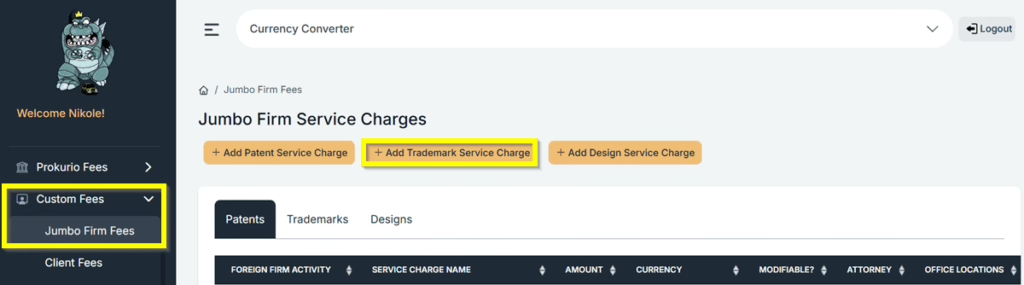
From your Homepage, select “Custom Fees”. Then click your {Firm Name} Fees. You can now select the service charge you want to create by clicking on Add Trademark Service Charge.
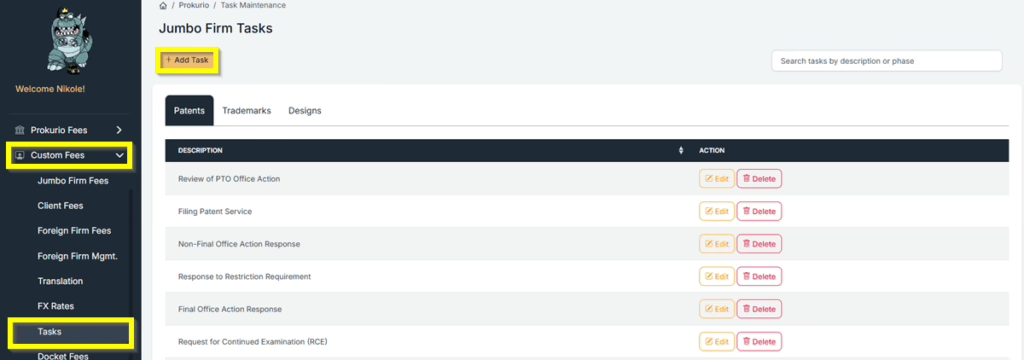
If you want to create a specific Service charge name, you can do that by creating a task, which can also be found under custom fees.
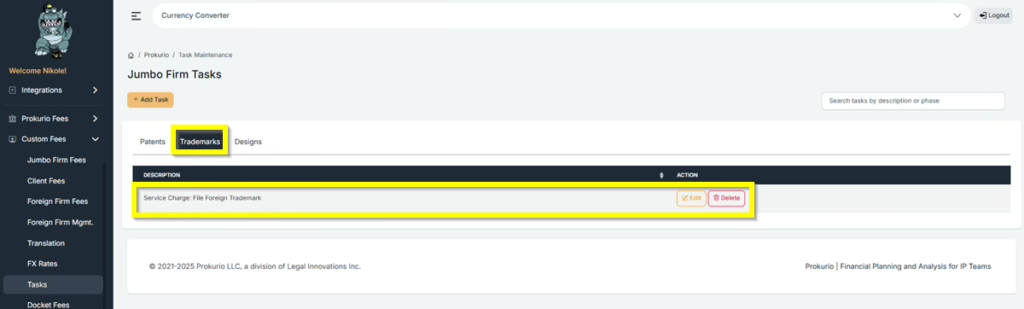
- Click on Custom Fees in the sidebar to expand the section, then on Tasks.
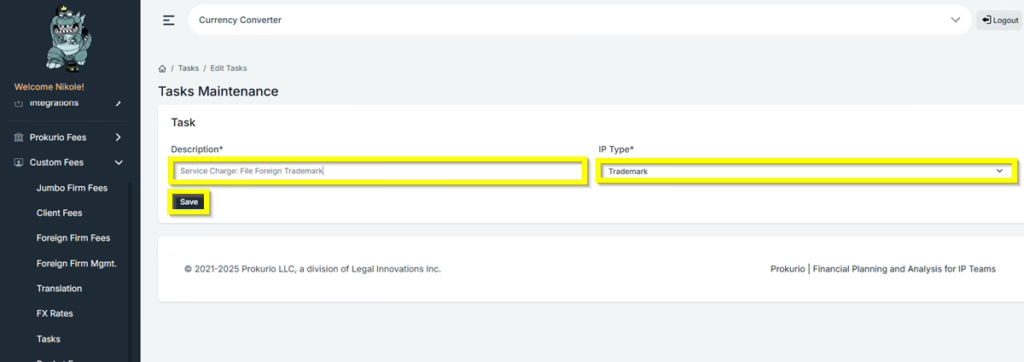
- Under Description, type in the name of the Service Charge you want. For this example, we will type in Service Charge: File Foreign Trademark.
- Under IP Type, Select Trademark.
- Click Save to create the task.
- You will then have the option to Edit or Delete the Task.
Now, let’s set up a Trademark Service Charge: $650 for a Foreign Trademark Application and an extra $200 for each additional class.
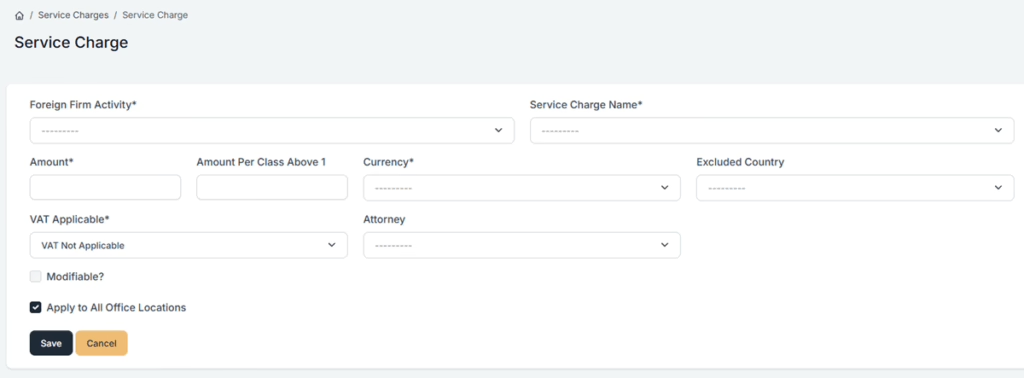
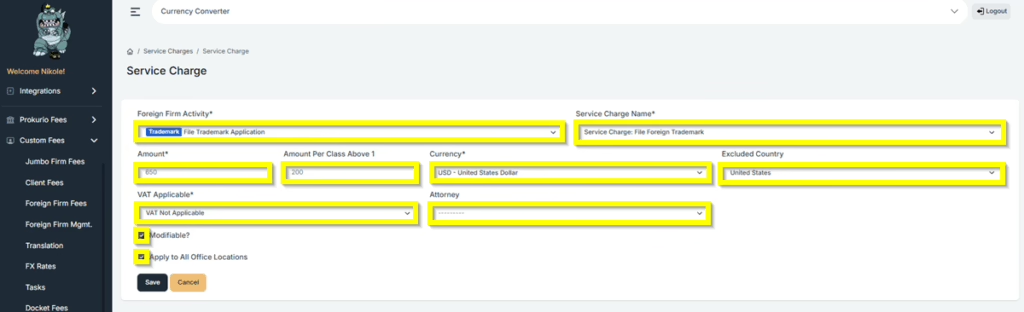
Once you are on the Trademark Service Charge page, simply fill out the required details. See the list below as an example. Click Save once done.
- Foreign Firm Activity – File Trademark Application
- Service Charge Name – Service Charge: File Foreign Trademark
- Amount – $650
- Amount Per Class Above 1 – $200
- Currency – USD
- Excluded Country – United States
- VAT Applicable – VAT Not Applicable
- Attorney – None
- Modifiable? – Yes
- Apply to All Office Locations – Yes
- If you select Yes under Modifiable, you will be able to change the Amount.
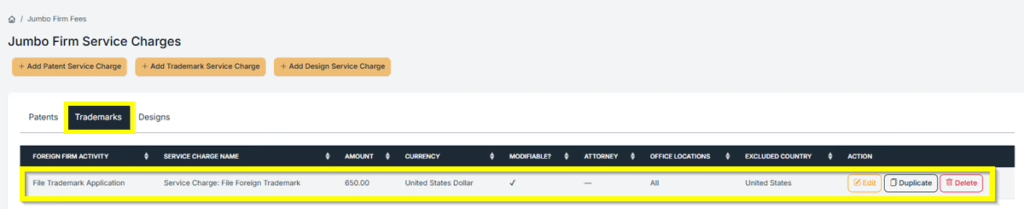
- You can also Edit, Duplicate, or Delete the Service Charge that was created.
- Let’s now run a Trademark Forecast in Australia, China, Japan, and South Korea.
- If you selected Modifiable when creating the Service Charge, you will have the option to edit the amount of the applicable Service Charge when doing a forecast.
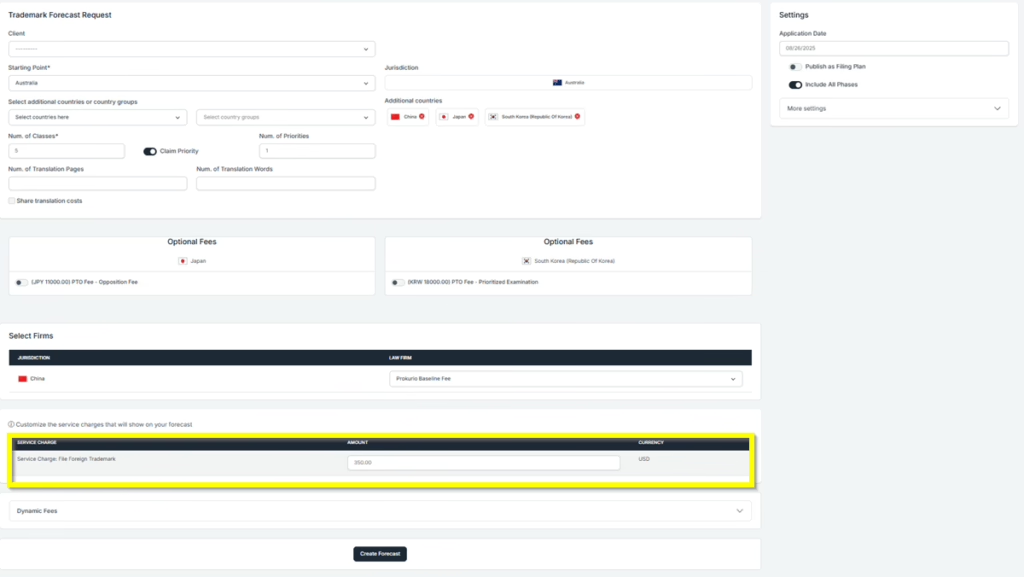
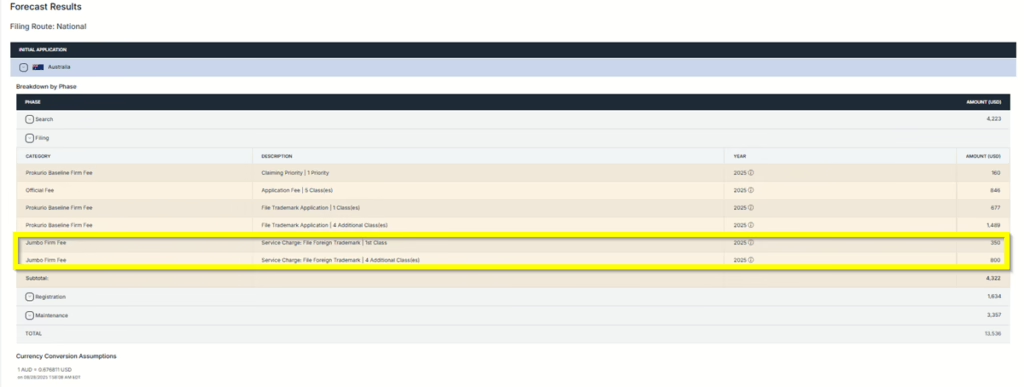
- Trademark Forecast Results with the Service Charge Fee added in the Forecast.
If you need any additional assistance, please contact us at support@prokurio.com, and we’ll get you the answers you need!

