
Prokurio’s IP Forecaster can quickly and intuitively create trademark estimates. These forecasts can be saved, emailed, and/or exported for later use or distribution to team members or clients to review.
Let’s generate a new trademark forecast in the US, Canada, and Mexico.
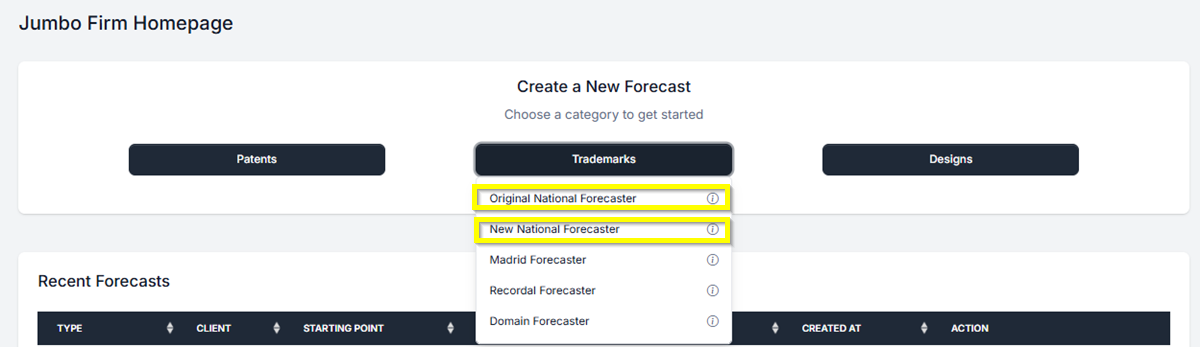
- From your Homepage, at the top under “Create a New Forecast”, click the button labeled Trademarks. Then choose either Original National Forecaster or New National Forecaster. This will take you directly to the Trademark Forecast Request screen.
- Under Application Details, click the Select Countries drop-down. Enter a country name in the search field and select it from the list. Let’s select Canada, Mexico, and the United States for this example.
- You can now create and manage country groups right from your forecast screen. Easily reuse common groups of countries. To know more about it, click on this LINK.
- The number of classes is required and must be entered to proceed. Enter 2 for this example.
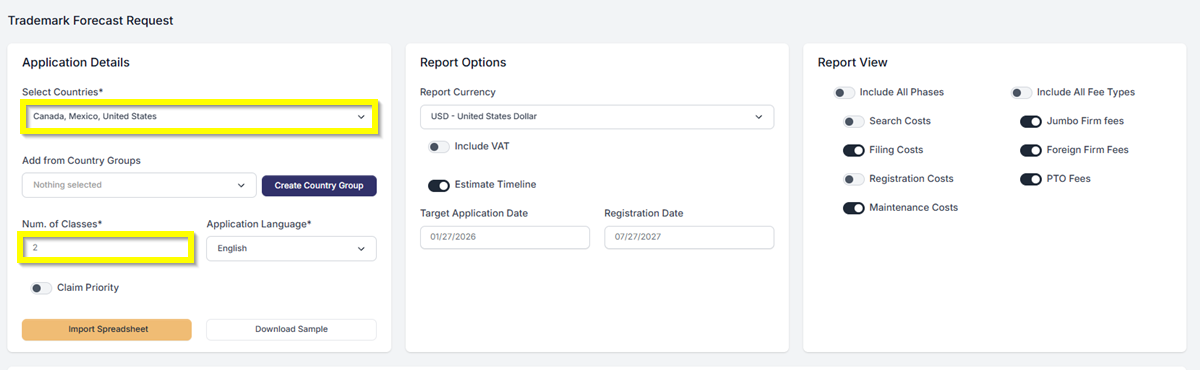
- Easily import a spreadsheet and skip the process of manually setting up your forecast. If you dont have a spreadsheet yet, just click download sample. To know more about this feature, click this LINK for detailed information about it.
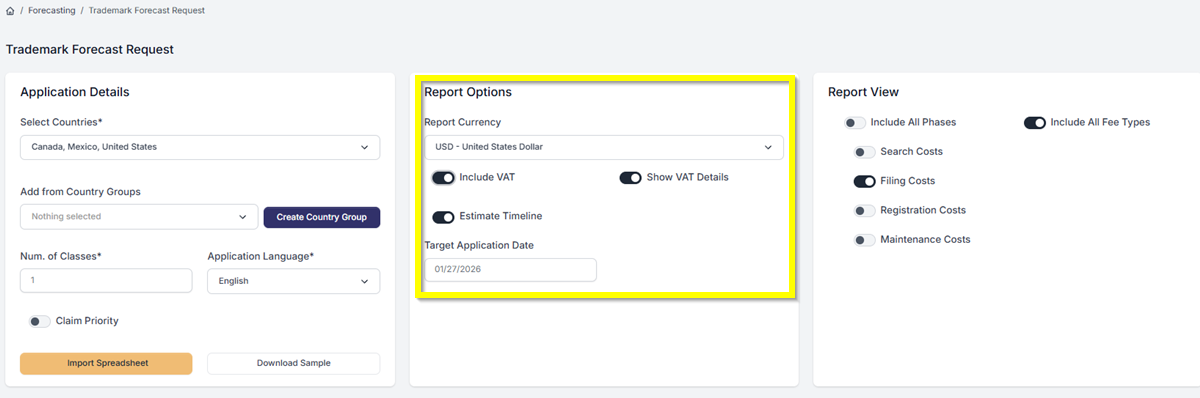
- In Report Options, choose the currency you want to use. You can turn on options like Include VAT, Show VAT Details, and Estimate Timeline using the toggle switches.
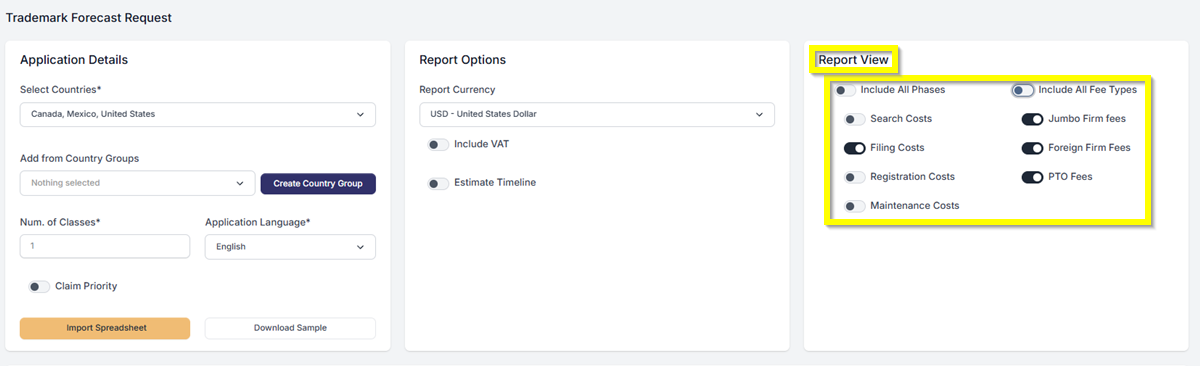
- Under Report View, use the toggle switches to control which data appears in the forecast. You can include all phases or select specific cost types such as Search Costs, Filing Costs, Registration Costs, and Maintenance Costs. You may also choose to Include All Fee Types, such as foreign firm fees, your firm’s fees, or PTO fees.
- Under Country Settings, you can set a different number of classes for each country. You may also select the Foreign Associate to use, choose the country option, or add additional fees as needed. For more details about Country Settings, click this LINK.
- Under Service Charge, you can customize the service charge amount that will be reflected in your forecast.

- Click on the Create Forecast button at the bottom of the screen.
Forecast Results Screen
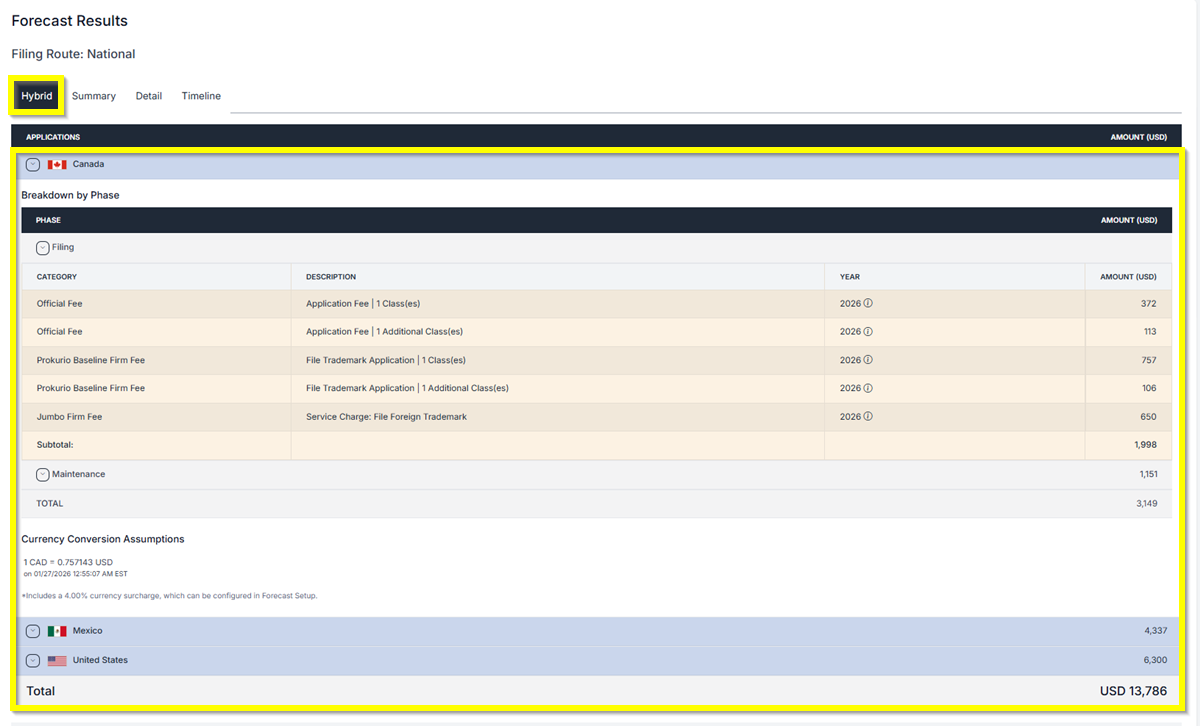
- Hybrid Results – Detailed results of the forecast.
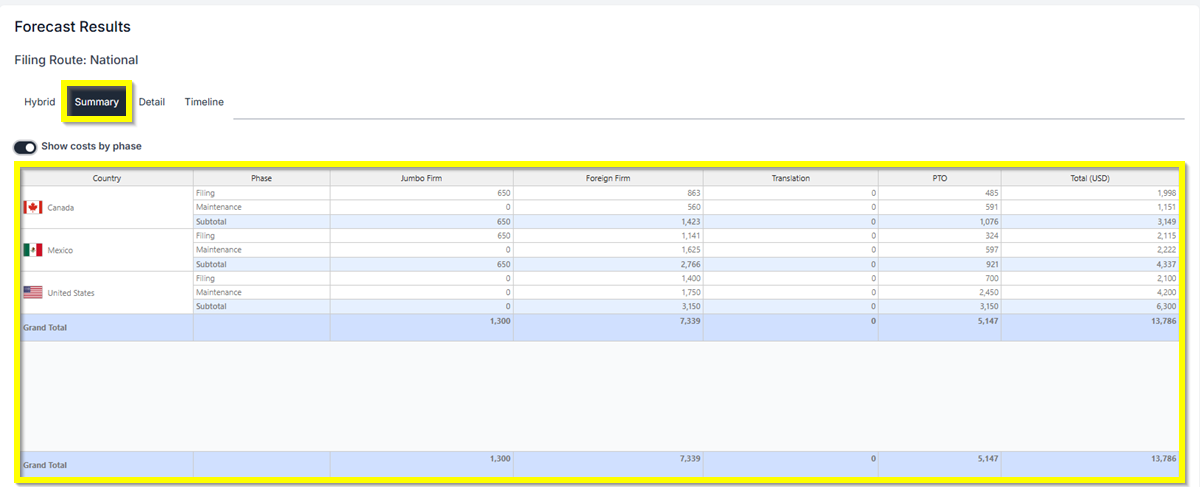
- Summary Results – Provides a concise overview of the results. Has the ability to show cost by phase.
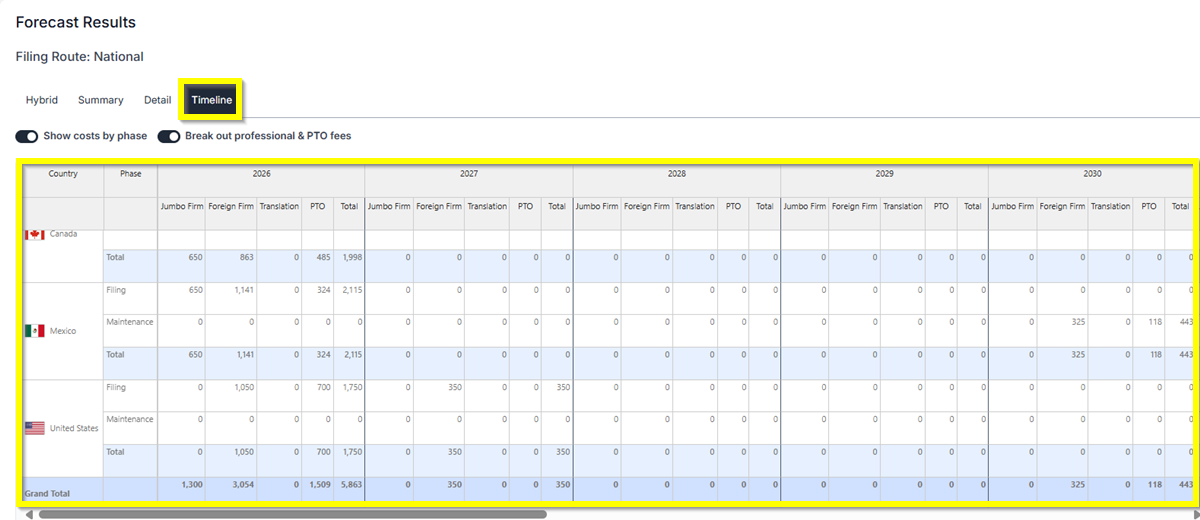
- Timeline Results – Provides results for the current year and the next few years. Has the ability to show cost by phase and show Breakout professional & PTO fees.
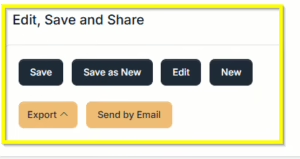
- Additionally, you can Save, Export and/or email the reports in PDF, Word, or Excel formats.
If you need any additional assistance, please contact us at support@prokurio.com, and we’ll get you the answers you need!

