
Bulk Recordal Upload allows you to quickly create a recordal forecast from a single file. The forecasts can then be saved, emailed, and/or exported for future use or distribution.
Let’s take a look at how it works.
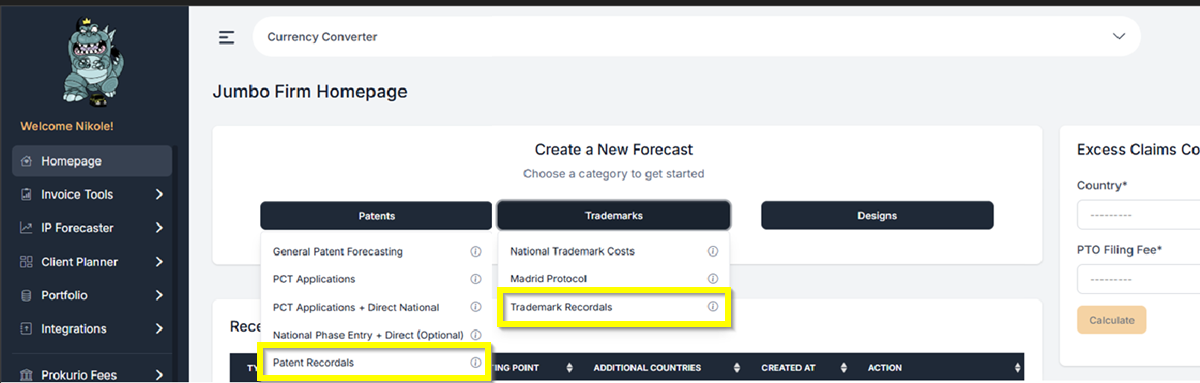
- From your Homepage, at the top under Create a New Forecast, click the Patents or Trademarks button. Then you can select the Recordal type that you need. It can either be Patent Recordals or Trademark Recordals. This will take you to the Recordals Forecast Request screen.
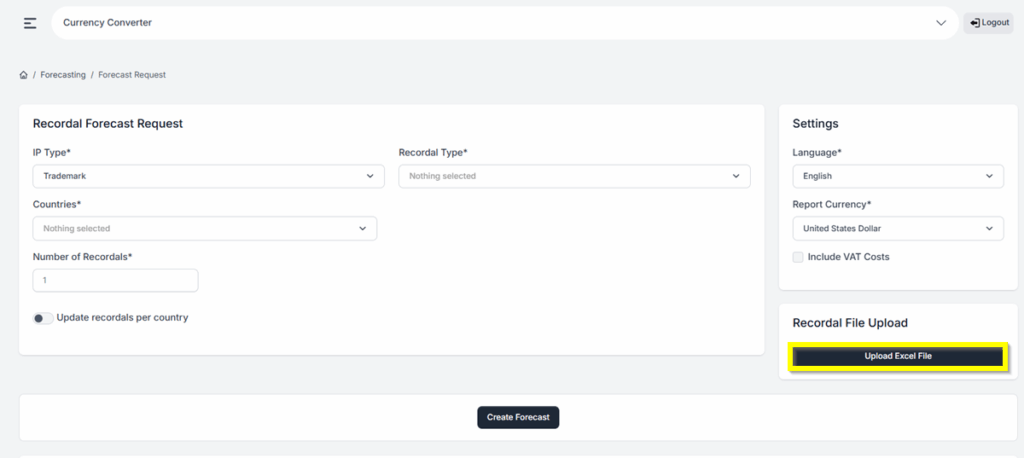
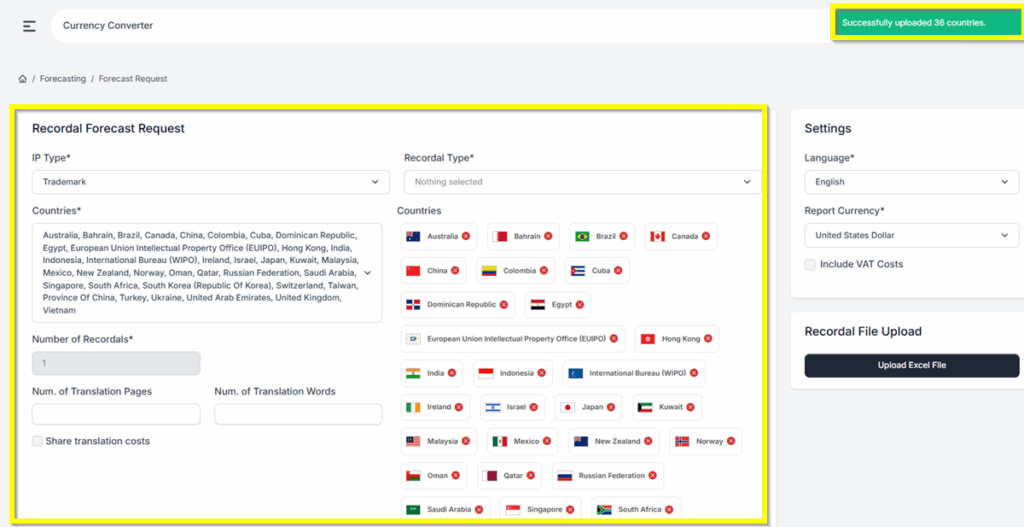
- Once you are at the Recordal Forecast Screen, on the Right side of the screen, click on Upload Excel File.
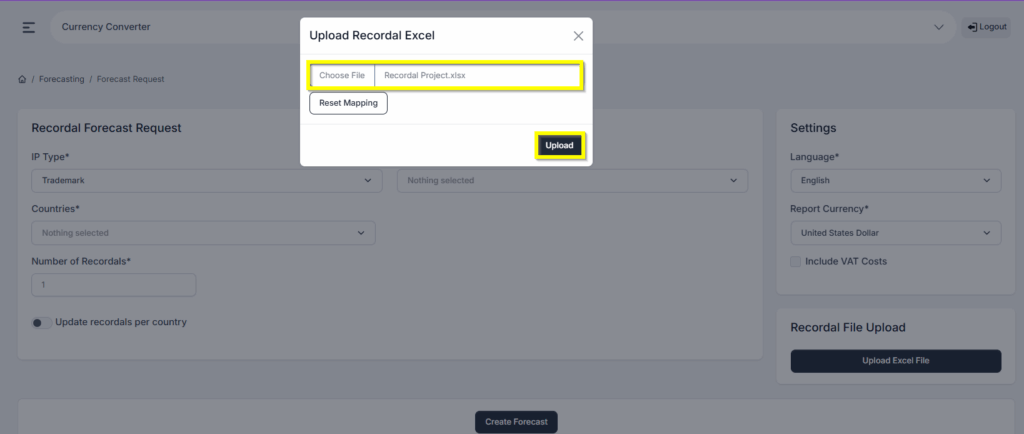
- A pop-up will appear and will have you locate the Excel file found on your device. Select the Excel file, then click upload.
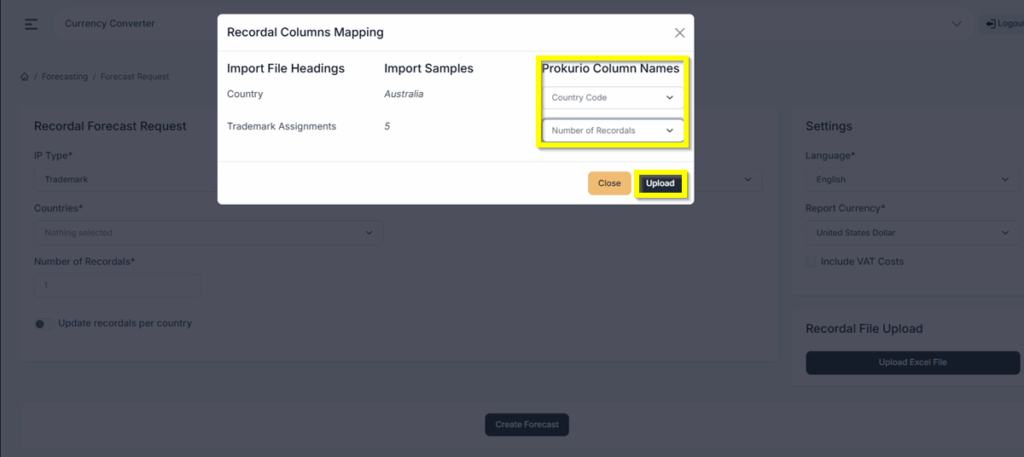
- The Recordal Mapping Column Pop-up will appear. Under the Prokurio Column Names, select the fields that align with the Import File Headings in your spreadsheet. Note: Country Name or Code and number of recordals are all that’s needed.
- Then click Upload.
- You will then see a confirmation at the top right corner of the screen confirming the Success of the upload with the number of countries included.
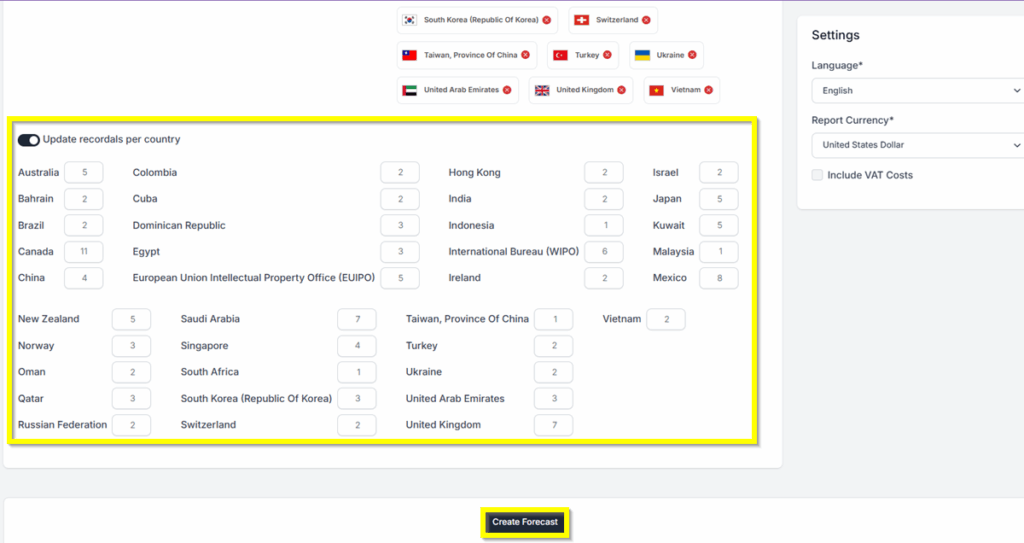
- The itemized number of recordals per country will also be listed.
- Click ‘Create Forecast’ once you have completed all required fields.
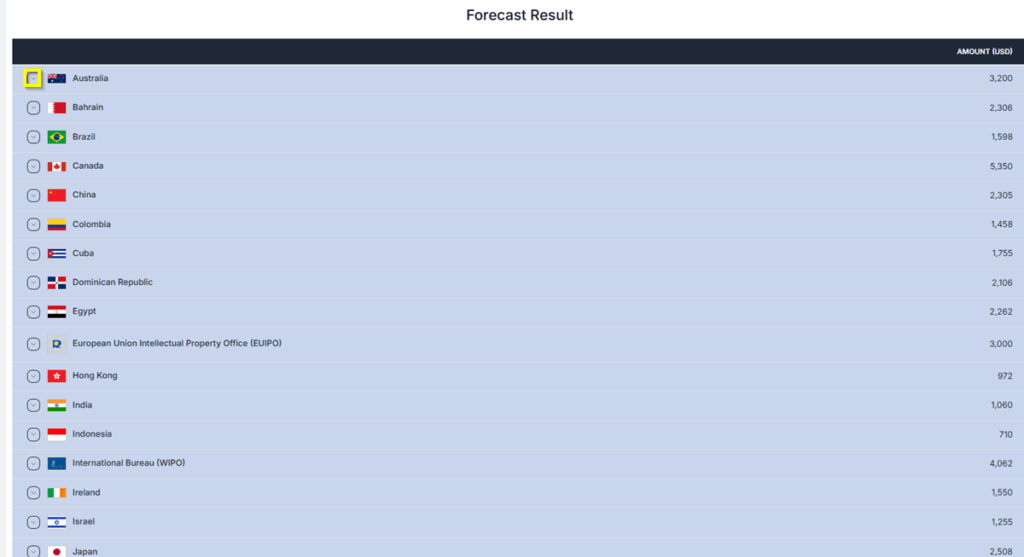
Forecast Results: You are now at your forecast results screen. You may click on the expansion arrows on each phase to view more details.
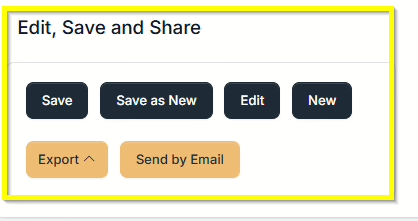
- Saving and Sharing (bottom left) allows you to Save, Edit, Export, Create New, or Send by Email your forecast results. Export options include PDF, Word and Excel.
If you need any additional assistance, please contact us at support@prokurio.com, and we’ll get you the answers you need!

