
The Filing Planner tab allows you to add filing options directly to your chart or spreadsheet. For patents, you can add New Applications, Foreign Filing, National Phase, Regional Phase, Pruning, and Docket entries. For trademarks, you can add New Applications and Docket. Simply click the (+) icon to add an item, then drag and drop it into the chart or spreadsheet.
New Applications Chart – Patents and Trademarks #
- Under New Applications, click the + icon and select either Clean Start or Start with last year’s numbers.
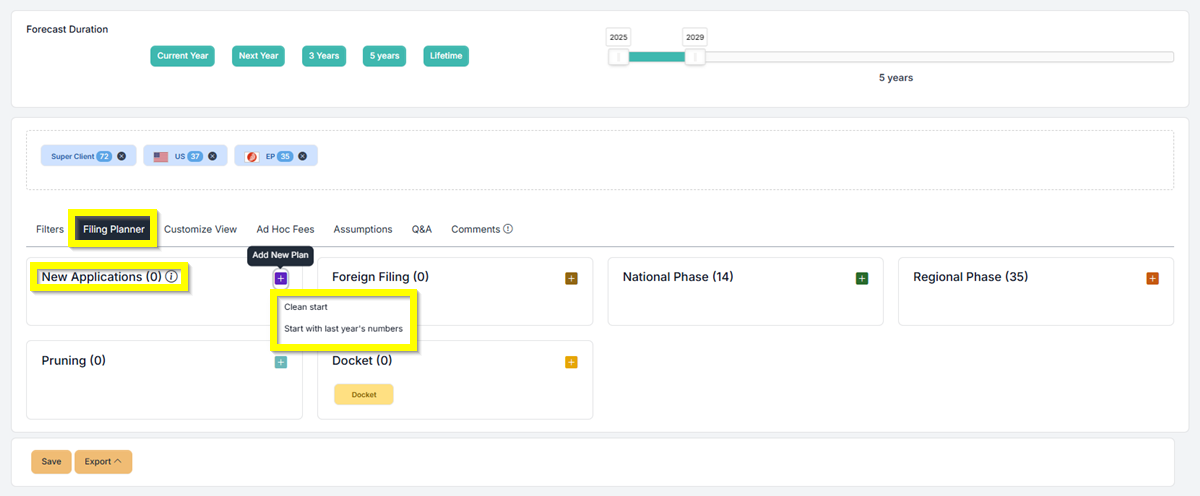
- Once you have selected one, fill out the New Application.
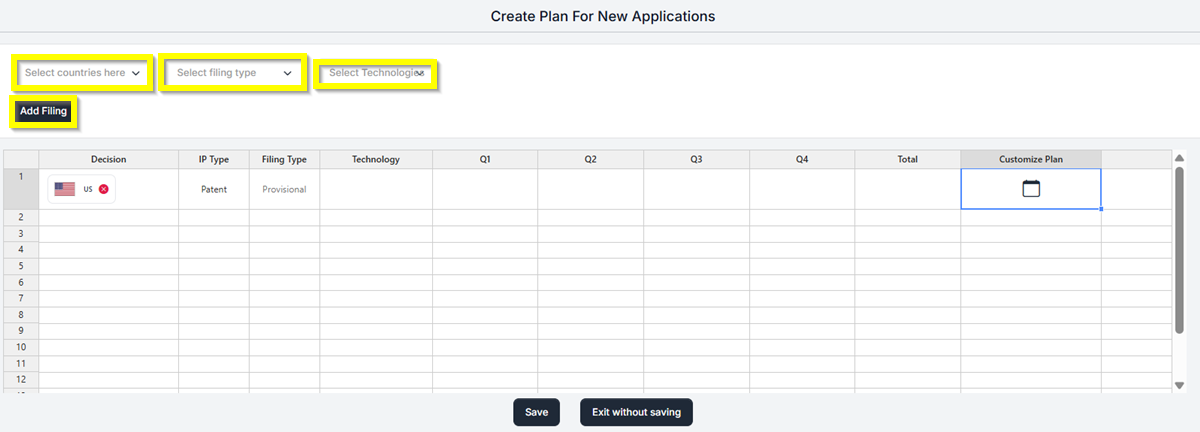
- In the “Country” drop-down, select the countries you want to add.
- Under the ” Select Filing type” drop-down, select the type of filing you want to include.
- Then, under the “Technologies” drop-down, optionally select any technologies that you also want to include.
- Then click Add Filing.
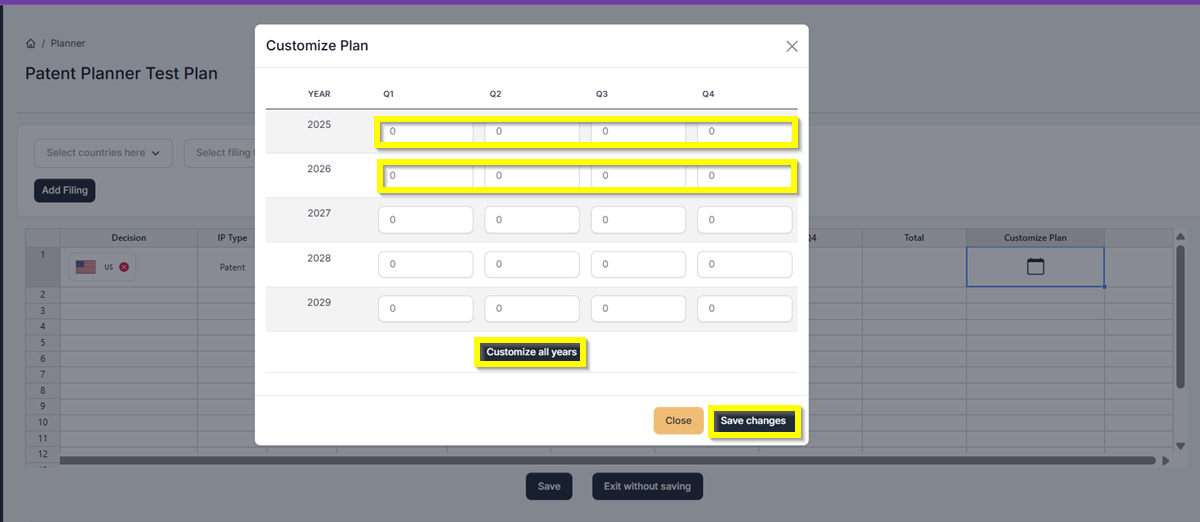
- Now, Click the Calendar Icon, under the Customize Plan column.
- Enter the number of anticipated filings for each quarter per year as desired, then click Save Changes.
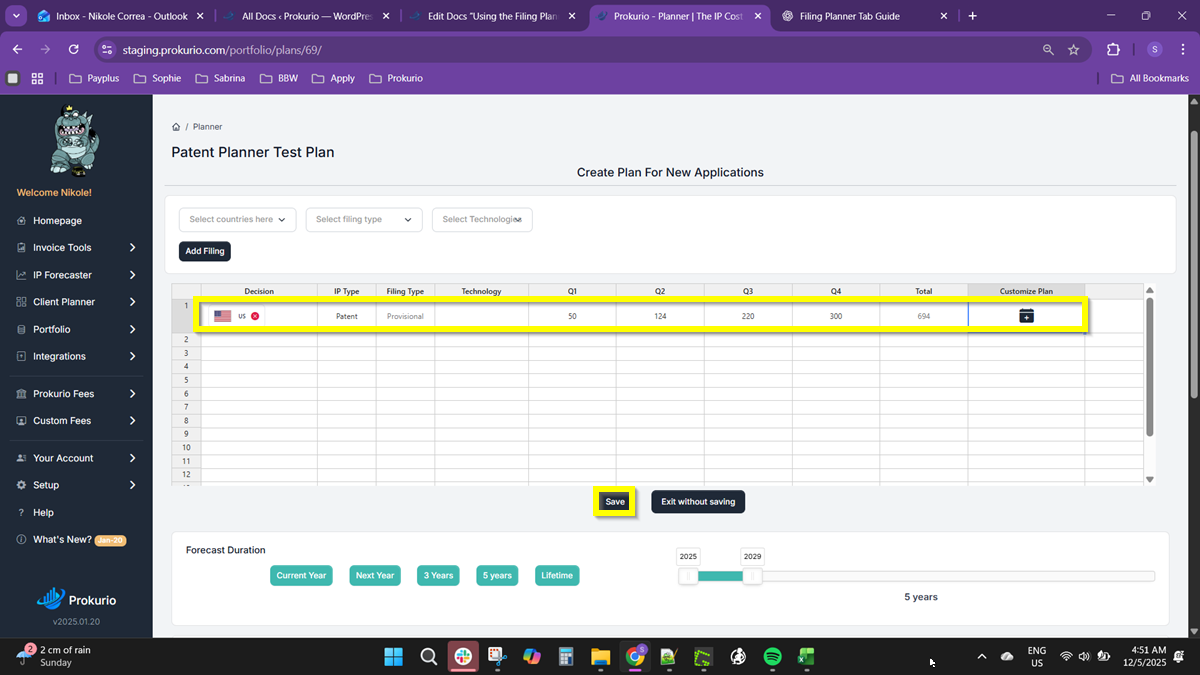
- Once you have viewed the data, click Save and name this filing plan according to your preference. and click Save and Apply.
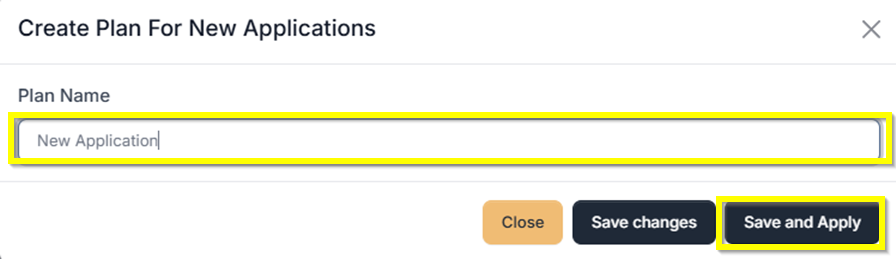
- If you just saved the plan or have multiple new application plans, you can simply drag and drop them in the space above the tabs to add them to the chart and spreadsheet.
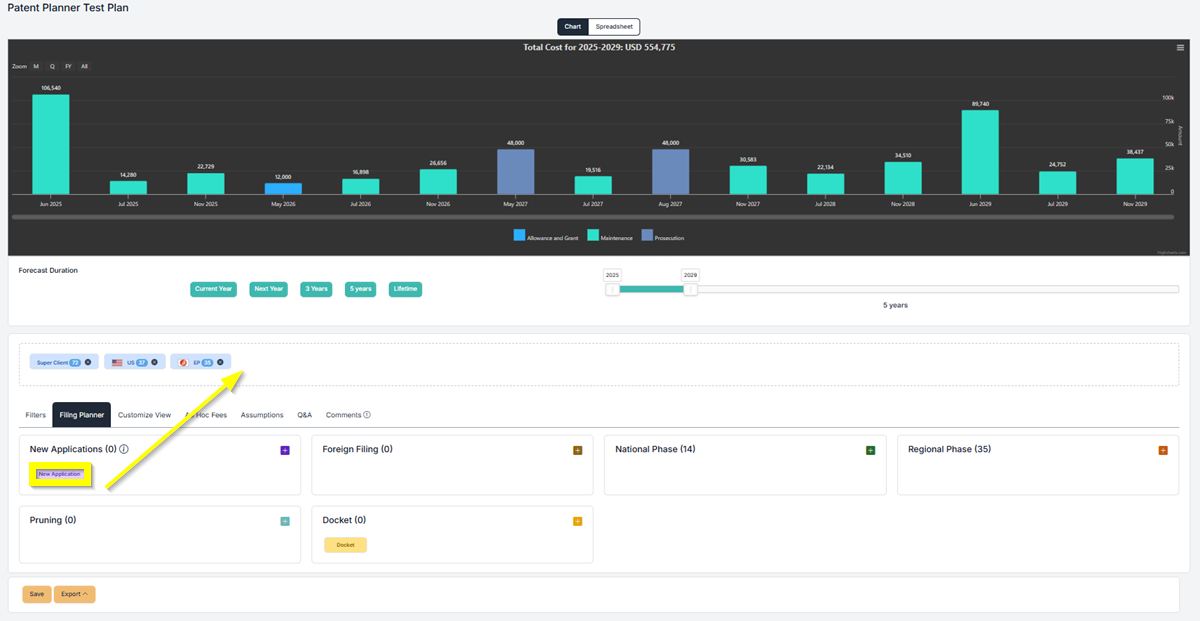
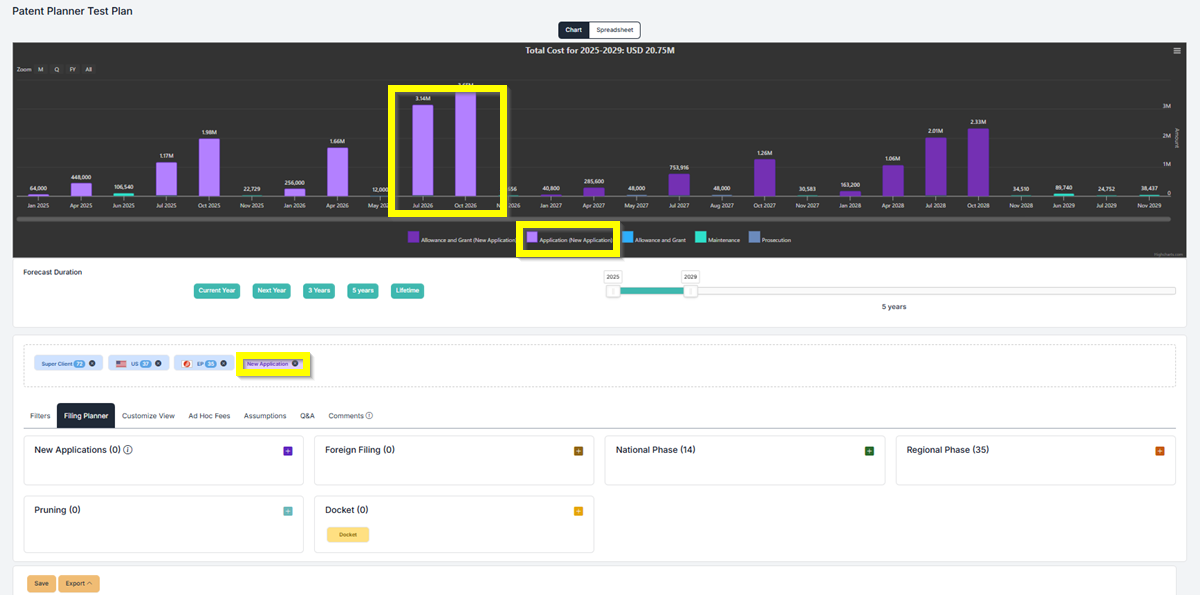
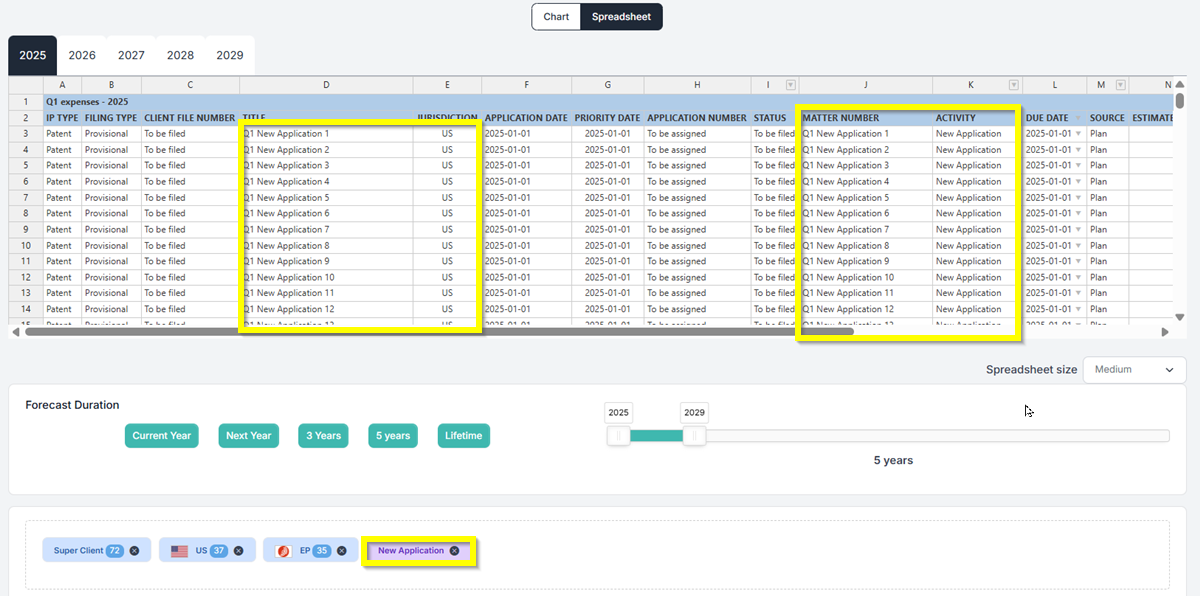
- Once added, the chart or the spreadsheet will be updated.
Chart #
Spreadsheet #
Foreign Filing – Patents #
- Under the Foreign Filing, click the + icon and select Add Foreign Filing
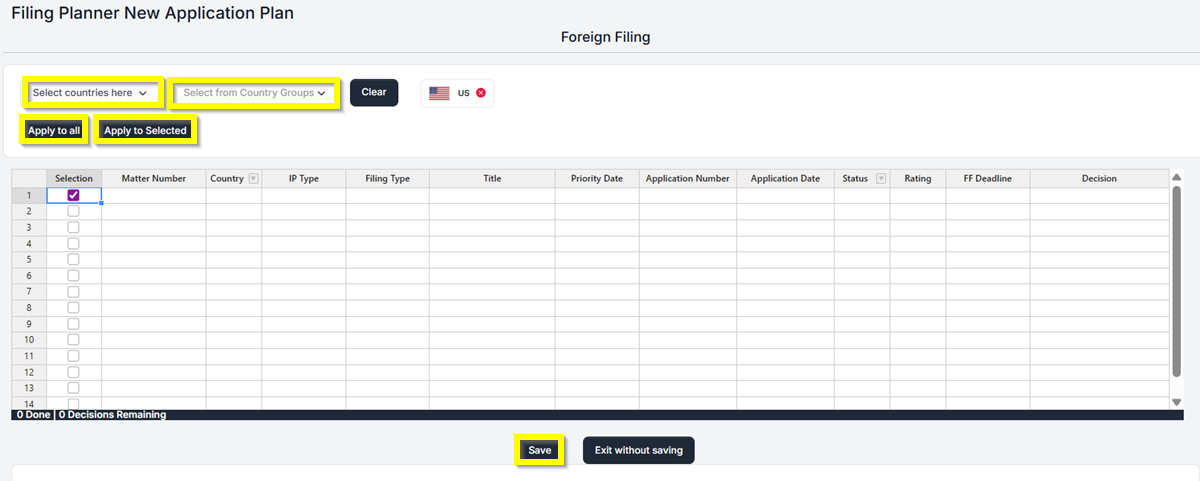
- In the “Country” drop-down, select the countries you want to add, or you can select from the “Country Group” drop-down.
- Tick the checkbox under Selection to include the entries.
- Click “Apply to All” or “Apply to Selected”.
- Then click “Save”.
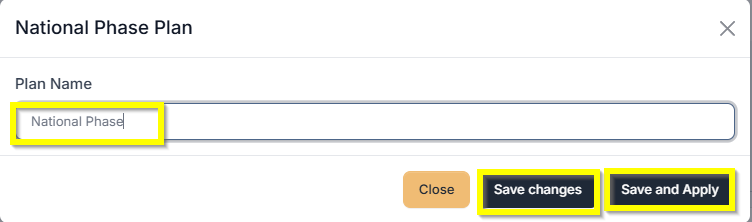
- Name the Foreign Filing plan, then click “Save Changes” or “Save and Apply”
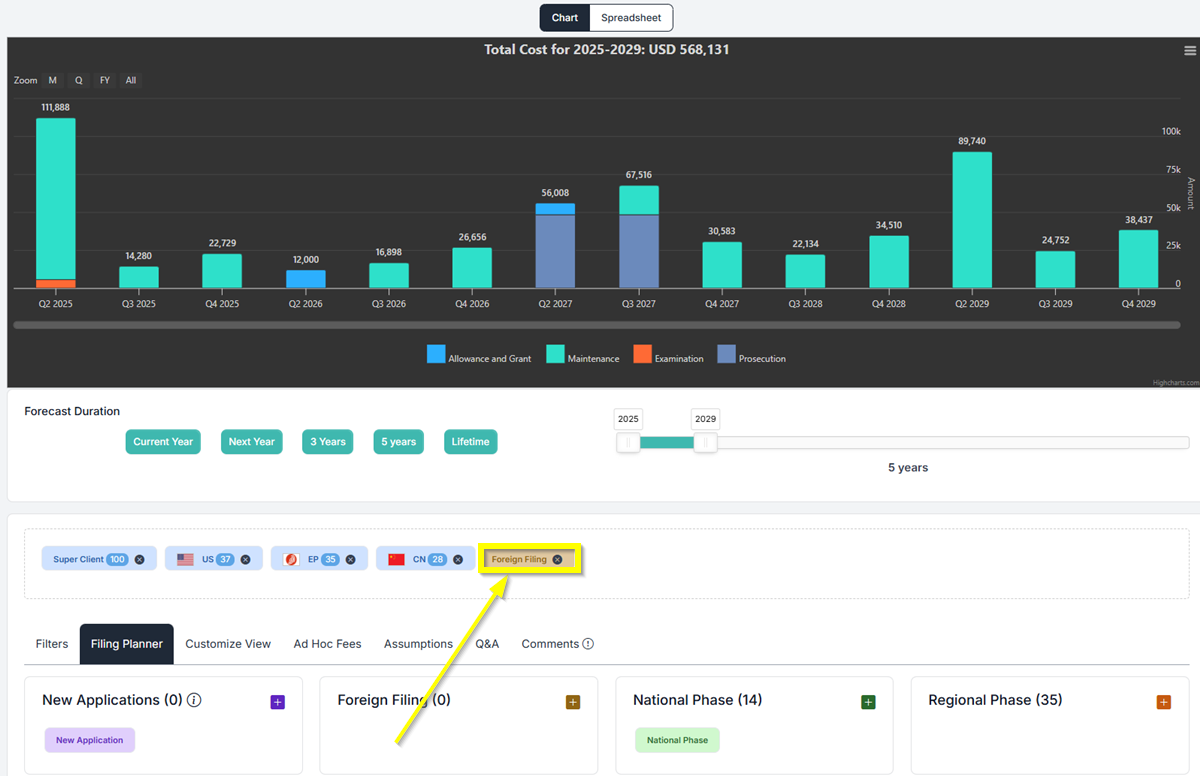
- Drag and drop the “Foreign Filing” to add it to the chart and spreadsheet.
- Once added, the chart or spreadsheet will be updated.
National Phase – Patents #
- Under National Phase, click the + icon and select Add National Phase.
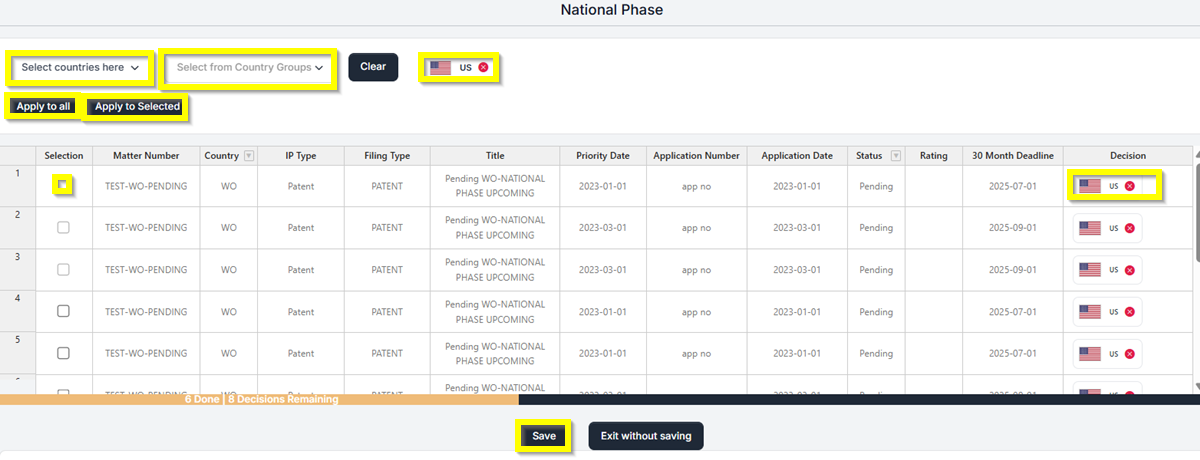
- In the “Country” drop-down, select the countries you want to add, or you can select from the “Country Group” drop-down.
- Tick the checkbox under Selection to include the entries.
- Click “Apply to All” or “Apply to Selected”.
- Then “Save”.
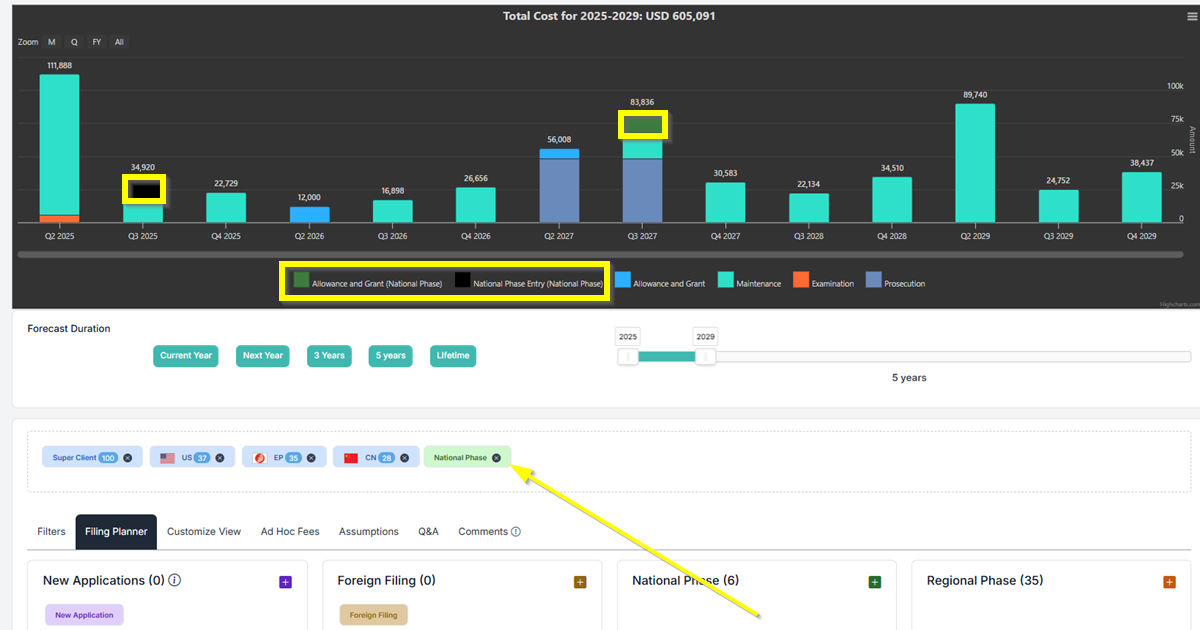
- Drag and drop the “National Phase” to add it to the chart and spreadsheet.
- Once added, the chart or spreadsheet will be updated.
Regional Phase – Patents #
- Under the Regional Phase, click the + icon and select Add Regional Phase.
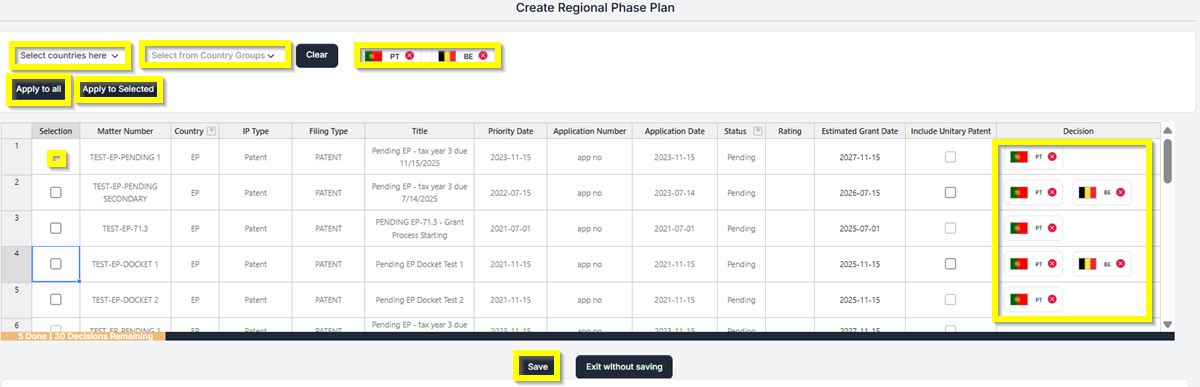
- In the “Country” drop-down, select the countries you want to add, or you can select from the “Country Group” drop-down.
- Tick the checkbox under Selection to include the entries.
- Click “Apply to All” or “Apply to Selected”.
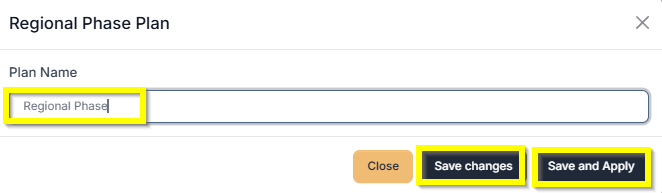
- Then “Save”.
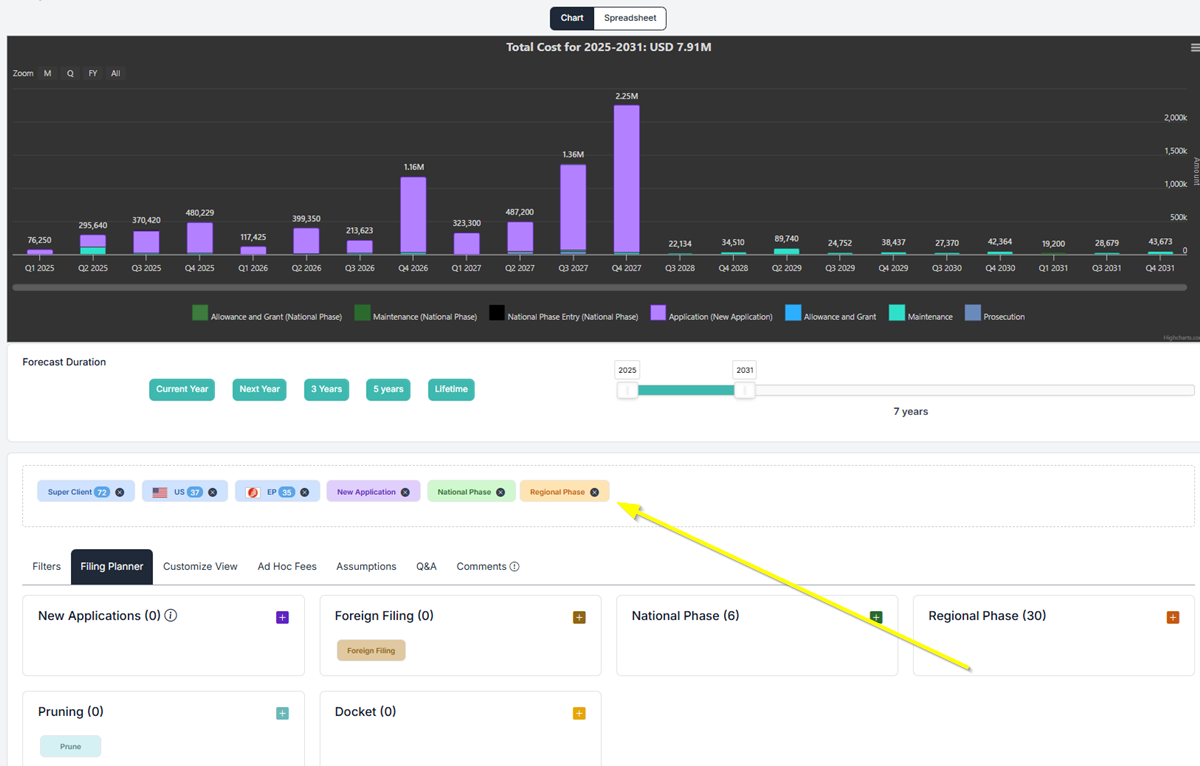
- Drag and drop the “Regional Phase” to add it to the chart and spreadsheet.
- Once added, the chart or spreadsheet will be updated.
Pruning – Patents #
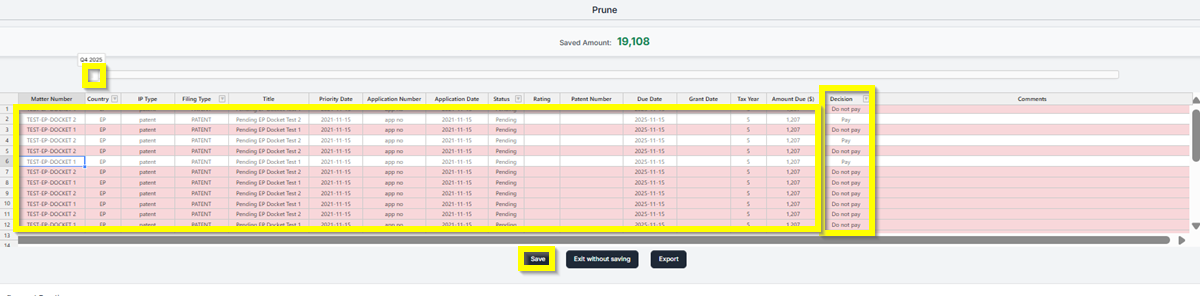
- Drag the slider to the earliest year
- Once the list shows up, highlight the cells you want. Then right-click on it and select if you want to “Pay” or if you “Do not pay”.
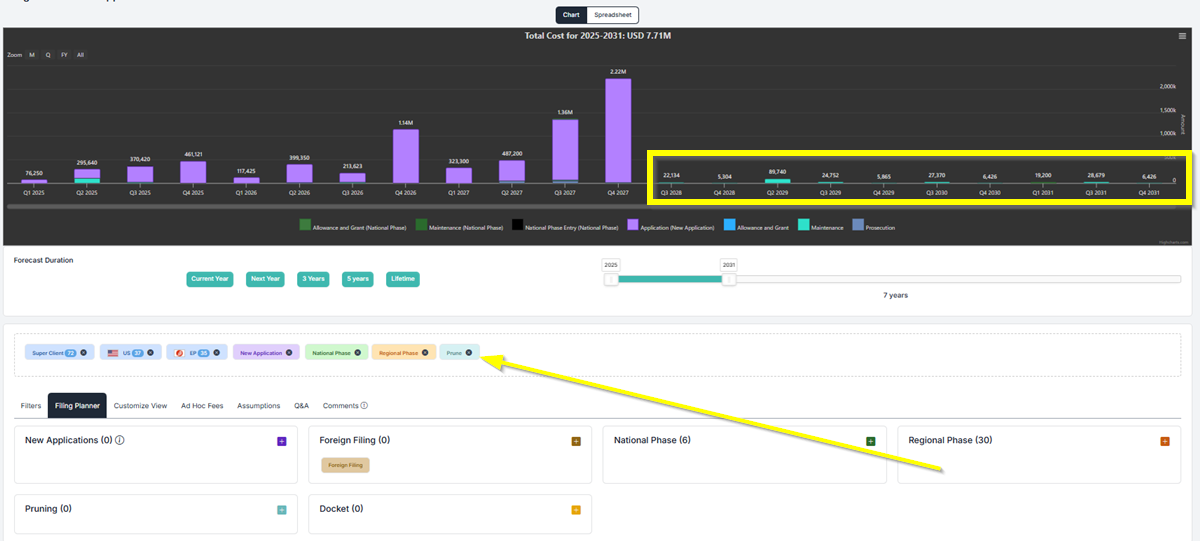
- Drag and drop the “Regional Phase” to add it to the chart and spreadsheet.
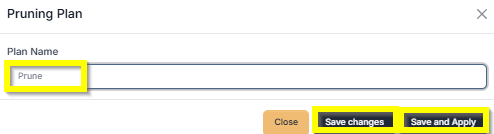
- Once added, the chart and spreadsheet will be updated.
If you need any additional assistance, please contact us at support@prokurio.com, and we’ll get you the answers you need!

